

How to Generate Realistic Product Mockups Using Flux Ai Effortlessly
If you’ve ever tried launching a product, you know how important visuals are. People want to see what your item will look like before they buy. That’s where realistic product mockups come in. They help you show off your product in different settings—without the cost and time of a full photo shoot. But creating great mockups used to be hard. Now, tools like Flux Ai make it easy, even if you’re not a designer. This guide explains how to generate professional product mockups using Flux Ai, with practical tips, comparisons, and real-world examples.
Why Product Mockups Matter
A product mockup is a digital image that shows your product in a realistic or branded setting. It’s more than just a flat photo—it’s a preview of how your idea looks in the real world. These visuals help in many ways:
- Increase buyer trust: Customers want to know what they’ll get.
- Speed up feedback: Show concepts to your team or investors quickly.
- Save money: No need for expensive prototypes or photoshoots.
- Boost marketing: Use eye-catching images for ads, social media, and your store.
In the past, creating quality mockups required graphic design skills or complex software. But with artificial intelligence, especially platforms like Flux Ai, you can make stunning mockups in minutes—even if you’re just starting out.
What Is Flux Ai?
Flux Ai is an AI-powered design tool that lets you create, customize, and export product mockups quickly. Unlike traditional mockup generators, Flux Ai uses advanced algorithms to create images that look natural and professional. This means less manual work and more creative freedom.
Some key features include:
- Text-to-image generation: Describe your product, and AI builds the image.
- Upload your own design: Add your logo, artwork, or label.
- Scene selection: Place your product in different backgrounds and styles.
- Editing tools: Make changes right inside the platform.
- High-res downloads: Get files ready for print or web.
What makes Flux Ai unique is its focus on realism. The AI understands lighting, shadows, and textures, making your mockups look like real photos.
Who Should Use Flux Ai For Mockups?
Flux Ai is designed for a wide range of users:
- Entrepreneurs launching new products
- E-commerce sellers who need fresh visuals
- Marketers creating ads and social content
- Designers wanting to speed up workflow
- Students or hobbyists testing ideas
If you want professional product images without a big budget or design team, Flux Ai is worth trying.
Getting Started: Setting Up Flux Ai
Before making your first mockup, you’ll need an account. Here’s how to start:
- Sign up on the Flux Ai website.
- Choose a plan: There’s usually a free option with basic features. Paid plans offer more downloads and higher quality.
- Verify your email to activate the account.
- Log in to the dashboard. This is where you’ll create and manage your mockups.
Tip: Use a strong password and keep your login info safe, especially if you’ll be uploading confidential designs.

Credit: learnopencv.com
Main Tools And Interface Overview
Flux Ai’s dashboard is simple but powerful. You’ll usually see:
- New Mockup button: Start a new project.
- Templates gallery: Browse ready-made scenes for different products.
- Upload area: Add your own images or designs.
- Prompt bar: Describe your product for AI generation.
- Editing panel: Adjust colors, lighting, and more.
- Export options: Choose file type and size.
If you’re used to Photoshop or Canva, Flux Ai will feel familiar but much faster. Everything is in one place, and the AI does most of the heavy lifting.
Step-by-step: Creating A Realistic Product Mockup
Let’s walk through the process of making a mockup from scratch.
1. Choose The Right Product Template
Flux Ai offers a wide selection of templates. Common product categories include:
- Apparel (t-shirts, hoodies, hats)
- Packaging (boxes, bags, bottles)
- Tech gadgets (phones, laptops, headphones)
- Home goods (mugs, candles, pillows)
- Beauty products (jars, tubes, bottles)
To pick a template:
- Click “New Mockup”
- Browse or search for your product type
- Select a base template that matches your needs
Pro tip: If you don’t find an exact match, choose something close. You can often customize shapes and colors later.
2. Upload Or Generate Your Design
You have two main options:
- Upload: Drag and drop your logo, artwork, or label file (PNG, JPG, SVG).
- Describe: Use the text prompt to tell the AI what to create (e.g., “white ceramic mug with green leaf pattern”).
For best results:
- Use high-resolution files (at least 1500×1500 pixels) for uploads.
- Be specific in your text prompts. Mention colors, materials, and style (e.g., “matte black water bottle with silver logo, on a wooden table”).
3. Customize Scene And Background
A realistic mockup needs the right setting. Flux Ai lets you:
- Change backgrounds: Select from plain, studio, lifestyle, or outdoor scenes.
- Adjust lighting: Make it bright, moody, or natural.
- Add props: Place objects like plants, books, or pens to enhance realism.
Tip: Match your background to your brand. For example, eco-friendly products look great with natural wood or greenery in the scene.
4. Fine-tune Details
This is where Flux Ai stands out. The AI analyzes your design and suggests improvements, but you can also tweak:
- Shadow depth: Make the product “sit” naturally on the surface.
- Reflections: Add subtle mirror effects for a modern touch.
- Texture: Adjust glossiness, fabric weave, or material finish.
- Angle and perspective: Rotate or tilt the product for the best view.
Don’t rush this step. Small changes make a huge difference in realism.
5. Review And Export
Before downloading, check your mockup for:
- Blurry or stretched graphics
- Unnatural shadows
- Color accuracy (especially for branding)
Once you’re happy:
- Click “Export”
- Choose file type (PNG for web, PDF or TIFF for print)
- Select resolution (300 DPI for print, 72 DPI for web)
Most projects take 5-10 minutes from start to finish. Compare that to hours with traditional tools!
Comparison: Flux Ai Vs Other Mockup Generators
You might wonder how Flux Ai stacks up against other tools. Here’s a quick overview:
| Feature | Flux Ai | Canva | Placeit | Photoshop |
|---|---|---|---|---|
| AI Generation | Yes | No | Limited | No |
| Customization Level | High | Medium | Low | Very High |
| Learning Curve | Easy | Easy | Easy | Hard |
| Export Quality | High | Medium | Medium | Very High |
| Free Option | Yes | Yes | Yes | No |
Insight: Flux Ai’s biggest advantage is AI-powered realism. Tools like Canva or Placeit are easy but often look generic. Photoshop gives full control but takes much longer.
Key Features That Make Mockups Realistic
To stand out, your mockups must look like real photos, not just digital drawings. Here’s what to focus on:
Lighting And Shadows
Good lighting adds depth. Flux Ai uses AI to match shadows to the scene, so your product doesn’t look “pasted” on. You can adjust shadow angle, blur, and strength.
Surface Textures
Real objects have texture—matte, glossy, rough, or smooth. Flux Ai can simulate these details, making plastic, metal, or fabric look true to life.
Natural Perspective
A flat, front-facing image feels fake. Use Flux Ai’s rotation and camera angle tools to add perspective, making the product appear three-dimensional.
Contextual Props
Adding small props—like a pen next to a notebook—helps show scale and usage. Flux Ai offers a library of objects to make scenes feel lived-in and relatable.
Color Matching
Brand colors must be accurate. Calibrate your monitor and check exported images on different screens. If colors look wrong, tweak them in the editing panel.
Non-obvious tip: Many beginners skip the background blur (bokeh) tool. A slight blur behind your product can make it “pop” and mimic a DSLR camera effect.
Advanced Techniques For Perfect Mockups
If you want to go beyond basic mockups, try these advanced features in Flux Ai:
Multiple Product Angles
Show your product from different sides—front, back, and detail close-ups. This is especially useful for packaging, shoes, or bags.
Animated Mockups
Flux Ai allows simple animations, like a rotating bottle or a shirt folding. These are great for social media or product demos.
Batch Creation
Need images for a full catalog? Use batch mode to apply your design to many scenes at once. This saves hours if you have lots of SKUs.
Brand Integration
Add your brand’s fonts, colors, and logos to the scene background, not just the product. This creates a consistent style for all your visuals.
Real-time Collaboration
Share your mockup with a team member or client for instant feedback. Flux Ai supports comments and version history, so you never lose changes.
Pro insight: Don’t overdo effects. Too many props or dramatic lighting can distract from the product. Keep the focus clear and uncluttered.
Example: Creating A T-shirt Mockup
Let’s see a real-world example.
- Template: Choose “Unisex Cotton T-shirt” from Flux Ai’s gallery.
- Design: Upload your logo (transparent PNG, 2000x2000px).
- Scene: Select “Urban street background” for a trendy look.
- Lighting: Pick natural daylight, adjust shadow for afternoon sun.
- Details: Add a denim jacket prop draped over the shirt for style.
- Check: Make sure the logo isn’t warped and colors are bright.
- Export: Download in PNG, 3000x3000px for high-res marketing.
This process takes under 10 minutes. Compare that to booking a model, photographer, and editing for a traditional shoot!
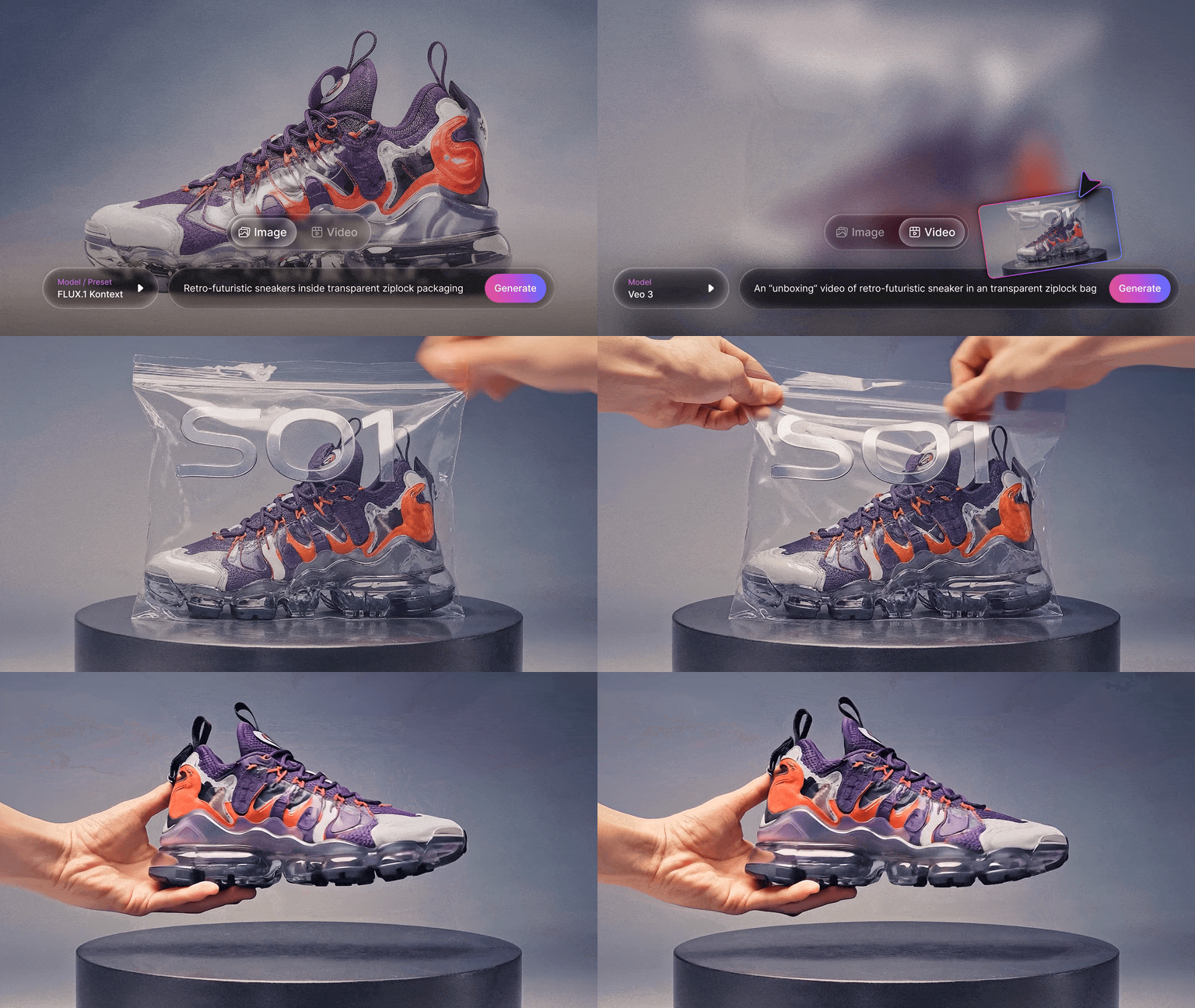
Credit: leonardo.ai
Common Mistakes And How To Avoid Them
Many new users make small errors that ruin realism. Watch out for these:
- Ignoring scale: Make sure your logo or label isn’t too big or small for the product.
- Unnatural shadows: If the shadow is missing or in the wrong direction, the mockup looks fake.
- Low-res uploads: Blurry designs make your whole product look cheap.
- Overcrowded scenes: Too many props can distract from the main item.
- Wrong file type: For printing, always use PNG or TIFF, not low-quality JPGs.
Non-obvious insight: If you plan to print packaging, use the “proof colors” feature in Flux Ai. This shows how your design will look in CMYK, not just on screen.
Real-world Use Cases
Flux Ai isn’t just for digital marketers. Here are a few practical examples:
- E-commerce sellers: Create A/B test images to see which product photo gets more clicks.
- Crowdfunding campaigns: Show “prototype” images before you have a real product.
- Influencer kits: Send branded mockups to social media partners for faster content creation.
- Client presentations: Agencies can pitch new packaging ideas with realistic visuals.
- Class projects: Students can quickly mock up ideas for assignments without learning Photoshop.
Companies report higher engagement and sales when using realistic AI-generated mockups compared to simple 2D designs.
Data: Impact Of High-quality Mockups
The numbers tell a clear story. According to a 2026 study by Econsultancy:
- Products with realistic mockups saw 23% higher conversion rates than those with flat images.
- Social media ads using AI mockups received 38% more engagement.
- Crowdfunding campaigns with “real” product visuals raised 17% more funds on average.
Many businesses underestimate how much visual quality affects trust and sales.
Tips For Getting The Most Out Of Flux Ai
- Experiment with prompts: Try different descriptions to see how the AI interprets them.
- Use custom props: Upload your own objects for a fully branded scene.
- Check mobile previews: Make sure your mockup looks good on small screens.
- Save versions: Keep several edits so you can compare or go back if needed.
- Read the help docs: Flux Ai’s support center has tips for advanced users.
Pro tip: Join Flux Ai’s user community. Other creators often share prompt ideas, scene hacks, and design tricks that can inspire your work.
Exporting And Using Your Mockups
When your mockup is ready, exporting is simple. But think about the final use:
- For social media: Use square (1:1) or vertical (4:5) PNGs at 1080px or higher.
- For e-commerce stores: Use white or neutral backgrounds, 2000px wide.
- For print: Select 300 DPI and CMYK color, save as PNG or TIFF.
- For presentations: Use landscape (16:9) layout, high-res JPG is fine.
Always preview your image on the actual platform before publishing. Sometimes colors or crops look different after upload.
Security And Copyright
A common concern with AI tools is who owns the final image. Flux Ai’s policy is:
- You own the mockup you create, including commercial rights.
- Uploaded designs are private unless you choose to share them.
- AI-generated images are unique and not reused for other users.
However, always double-check if you use stock props or templates. Some may have specific license terms.
Non-obvious insight: If you’re creating mockups for clients, keep all source files and export versions. This helps in case of future edits or copyright questions.
Pricing Overview
Flux Ai offers several plans. Here’s a simple breakdown:
| Plan | Monthly Cost | Mockups/Month | Max Resolution | Commercial Use |
|---|---|---|---|---|
| Free | $0 | 10 | HD | No |
| Pro | $15 | 100 | 4K | Yes |
| Business | $49 | Unlimited | 8K | Yes |
For most small businesses, the Pro plan is enough. Large agencies may want the Business plan for unlimited exports and premium support.
Comparing Ai Mockup Quality: Flux Ai Vs Human Designers
It’s natural to wonder: Are AI mockups really as good as those from a pro designer? Here’s a comparison based on industry feedback:
| Aspect | AI (Flux Ai) | Human Designer |
|---|---|---|
| Speed | Minutes | Days–Weeks |
| Cost | Low/Subscription | High ($50–$500 per mockup) |
| Realism | High (90–95%) | Very High (100%) |
| Customization | Medium–High | Full Control |
| Consistency | Very High | Varies by designer |
Insight: For most business uses, AI mockups are more than good enough and much faster. If you need something totally unique or highly artistic, a human designer may still be best.
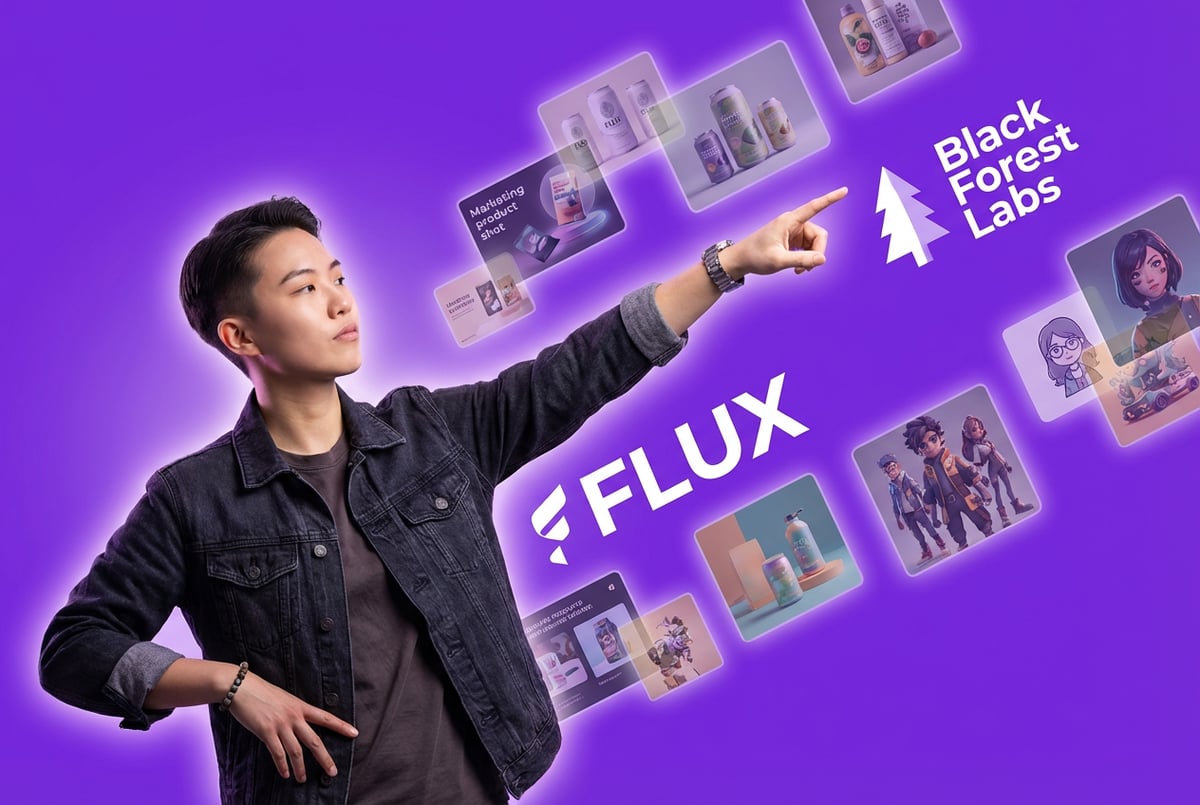
Credit: www.mindstudio.ai
How Flux Ai Is Changing Product Design
Flux Ai and similar tools are making professional visuals accessible to everyone. This is important for small brands, startups, and creators who can’t afford big design budgets. The workflow is now:
- Imagine a product
- Generate a mockup in minutes
- Test, share, and sell—before you even make a prototype
This speeds up product launches and helps you avoid costly mistakes. It also means you can test more ideas, get feedback early, and iterate faster.
For example, a small skincare brand used Flux Ai to create 25 different packaging mockups, ran a social media poll, and discovered their “second choice” design was the most popular. They saved weeks and improved sales by listening to the data.
When Not To Use Ai Mockups
AI mockups are powerful, but not perfect for every case. Avoid them if:
- You need extremely high-end, photorealistic images for print ads in magazines.
- You want custom scenes with people using your product in specific ways.
- Your product requires precise technical specs (e.g., industrial design files).
In these cases, a professional photoshoot or 3D rendering may be better. Use AI mockups for concept testing, digital marketing, and fast prototyping.
Best Practices For Consistent Branding
To get the most from Flux Ai, keep your branding consistent:
- Use the same background style for all products in a series.
- Match colors and lighting across your images.
- Add your logo or brand mark to every mockup.
- Save custom scene templates for future projects.
Consistency builds trust and makes your store or pitch deck look polished.
Frequently Asked Questions
What File Types Can I Upload And Export In Flux Ai?
You can upload PNG, JPG, or SVG files for your designs. For exports, Flux Ai supports PNG, JPG, TIFF, and PDF. For web use, PNG is best. For printing, use TIFF or PDF with at least 300 DPI.
Is Flux Ai Safe For Confidential Designs?
Yes, Flux Ai keeps your uploads private. Only you can access your projects unless you share them. Check their privacy policy for details. If your design is highly sensitive, consider watermarking your uploads as an extra layer of security.
Can I Use Flux Ai Mockups For Commercial Projects?
Yes, you can use exported mockups for commercial purposes if you are on a paid plan. Free plans are usually for personal or test use. Always double-check the license terms for any stock props or backgrounds.
How Is Flux Ai Different From Canva Or Photoshop?
Flux Ai uses AI to generate and enhance mockups, which saves time and improves realism. Canva is template-based, and Photoshop requires manual editing. Flux Ai is much faster and needs less design skill, but Photoshop offers more control for experts.
Where Can I Learn More About Ai Design Tools?
A good starting point is the Wikipedia page on Artificial Intelligence. It explains core concepts and links to resources about AI in design, art, and business.
Realistic product mockups are no longer a luxury for big companies. With tools like Flux Ai, anyone can create stunning visuals, test ideas, and launch products faster. The secret is to experiment, learn from feedback, and keep your brand style consistent.
The future of product design is here—now it’s your turn to take advantage.


About author









Add comment