
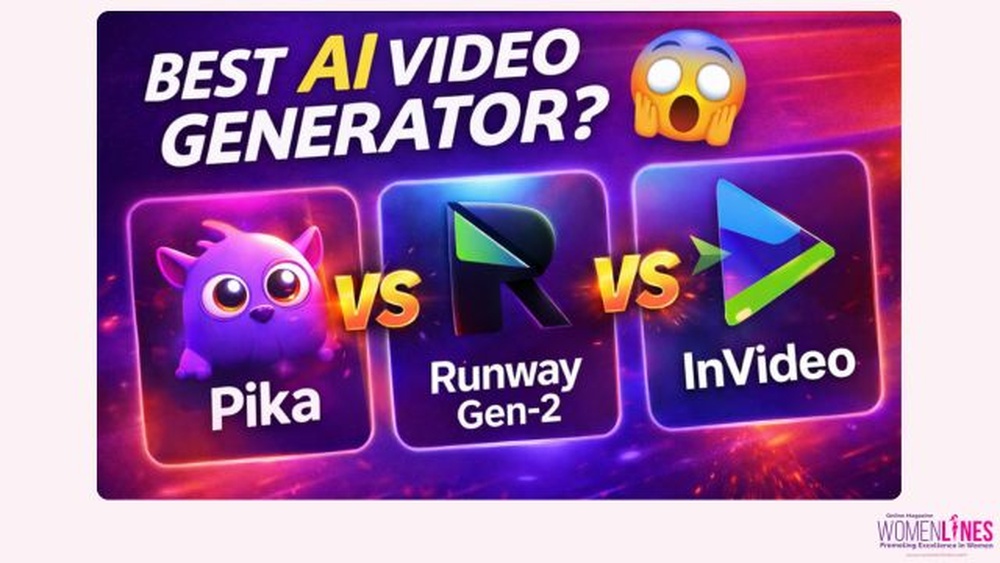
Invideo Vs Runway Gen 2 Text to Video Comparison: Ultimate Guide
Choosing the right text-to-video tool can feel overwhelming, especially when new AI video generators keep appearing. Two platforms stand out today: Invideo and Runway Gen 2. They both promise to turn your ideas into videos using only text prompts, but their approach, features, and results are quite different. If you want to create videos without much technical skill, or if you’re trying to decide which tool can save you time and deliver quality, this comparison will help. You’ll discover real differences, practical insights, and examples beyond what most beginner guides mention.
Invideo And Runway Gen 2: What Sets Them Apart?
Both platforms use AI to help people make videos faster and easier. But Invideo is known for its template-based editor and flexibility, while Runway Gen 2 focuses on pure AI generation from text, creating unique, sometimes surprising results. Understanding these foundations will help you pick the right tool for your needs.
Invideo: Template-driven, Practical Editing
Invideo started as an online video editor. Its core is a library of templates, stock footage, and a drag-and-drop interface. Invideo’s text-to-video feature lets you enter a script or description, then uses AI to match stock clips, images, and animations. You can edit each scene, change styles, and add voiceovers. The platform is built for marketers, educators, and small businesses who want control but need speed.
Runway Gen 2: Ai-driven Creativity
Runway Gen 2 takes a different route. This platform uses generative AI to create video clips directly from your text prompt. You write a description, and the AI generates a brand-new video sequence—often with surreal visuals and creative interpretations. There are no templates or stock footage; everything is made by the AI. It’s popular among artists, filmmakers, and anyone wanting to push creative boundaries.
Key Features Compared
Let’s look at the main features each platform offers. This helps you see what you get, and what’s missing, before you commit.
| Feature | Invideo | Runway Gen 2 |
|---|---|---|
| Text-to-Video | Script-driven, matches stock media | Pure AI generation, unique video from text |
| Editing Tools | Full editor, timeline, scene control | Basic trimming, limited editing |
| Templates | Thousands of templates | None |
| Stock Media | Huge stock library | None (all AI generated) |
| Voiceover | AI voiceover, manual upload | Manual upload only |
| Export Quality | HD, up to 4K (premium) | HD, up to 4K (premium) |
| Collaboration | Multi-user, comments | Multi-user, basic sharing |
| Pricing | Subscription, free trial | Subscription, free credits |

Credit: www.allaboutai.com
User Experience: How Easy Are They To Use?
The first thing most users notice is how different the workflow feels in each tool. Let’s explore what it’s like to create videos step-by-step.
Creating Videos With Invideo
Invideo’s process is familiar if you’ve used PowerPoint or Canva. You start by choosing a template or entering your text. The AI matches each sentence to a scene with images or clips. You can:
- Edit each scene on a timeline
- Replace media with your own
- Adjust text, fonts, colors
- Add voiceovers or background music
- Export to MP4 or share online
Everything happens in your browser, and you can preview before exporting. Invideo’s editor is designed to help beginners but still allows detailed changes. There’s a learning curve, but it’s gentle.
Creating Videos With Runway Gen 2
Runway Gen 2 is more experimental. You type a text prompt, like “a futuristic city at sunset,” and the AI generates a short video. Sometimes, results are surprising—colors, objects, and motion don’t always match your expectation. Editing is limited:
- You can trim generated clips
- No timeline or scene-by-scene editing
- No templates or stock media
- Manual voiceover uploads
The platform feels fast and creative. But you give up some control. You can’t fine-tune each scene or adjust visuals like in Invideo. This is a strength if you want inspiration, but a weakness for structured projects.
Output Quality: Real Examples And Limitations
How good are the videos? This is where most people care about results. Here’s how each platform handles quality—and where they struggle.
Invideo Output Quality
Invideo’s videos look polished, professional, and consistent. Because it uses stock footage and templates, you get high-resolution visuals. The downside: videos may feel generic if you stick to default templates. For unique branding, you need to customize scenes, swap out media, or add your own touch.
Common beginner mistake: Not editing the default template. Many users export the first draft, which looks similar to others. Spend extra time customizing to avoid this.
Runway Gen 2 Output Quality
Runway Gen 2’s AI videos are unique and eye-catching. Sometimes, the AI creates visuals you couldn’t imagine—abstract shapes, dreamy landscapes, or surprising colors. But the quality varies:
- Videos can be blurry or lack detail
- Motion may look unnatural
- Faces and text often appear distorted
- Clips are usually short (4–15 seconds)
Non-obvious insight: Runway Gen 2 shines when you want creative backgrounds, atmosphere, or mood—not for precise storytelling or talking head videos.
Text-to-video Accuracy: Does The Ai Understand Your Prompt?
The magic of text-to-video is that you can describe what you want, and the software will try to create it. But how well do these platforms understand your instructions?
Invideo’s Approach
Invideo matches your script to stock footage. If you write, “A dog plays in the park,” Invideo finds a dog clip and puts it in your video. It’s reliable for simple sentences, but struggles with complex or abstract ideas. The AI doesn’t “create” new visuals—it only matches what’s in the library.
Practical tip: Break your script into short, clear sentences for best results.
Runway Gen 2’s Approach
Runway Gen 2 tries to generate everything from scratch. Sometimes, the AI nails your vision; other times, it surprises you. If you write, “A dog plays in the park,” the AI may create a dog-like shape, green background, and motion—but not always a realistic dog.
Non-obvious insight: Experiment with prompt wording. Adding details (“A brown dog playing with a ball in a green park, sunny day”) can improve results, but don’t expect perfect accuracy.
Editing And Customization: How Much Control Do You Have?
Editing is where most people want flexibility. Let’s compare what you can—and can’t—do in each platform.
Invideo: Deep Customization
Invideo’s editor lets you:
- Change any scene
- Replace stock clips or images
- Adjust text, fonts, colors
- Add transitions and animations
- Fine-tune timing
- Add custom voiceovers and music
You can build videos from scratch or use templates. It’s easy to brand your video, add logos, and change layouts.
Beginner mistake: Ignoring advanced editing tools. Many users don’t explore the timeline or animation options, missing out on richer videos.
Runway Gen 2: Limited Editing
Runway Gen 2 is not built for deep editing. You can:
- Trim clip length
- Download and edit externally
- Stitch clips together in Runway’s editor (basic)
No timeline, scene-by-scene editing, or template customization. If you want detailed control, you must export the clip and use another editor.
Practical tip: Use Runway Gen 2 for creative assets, then finish your project in a full editor like Invideo or Adobe Premiere.
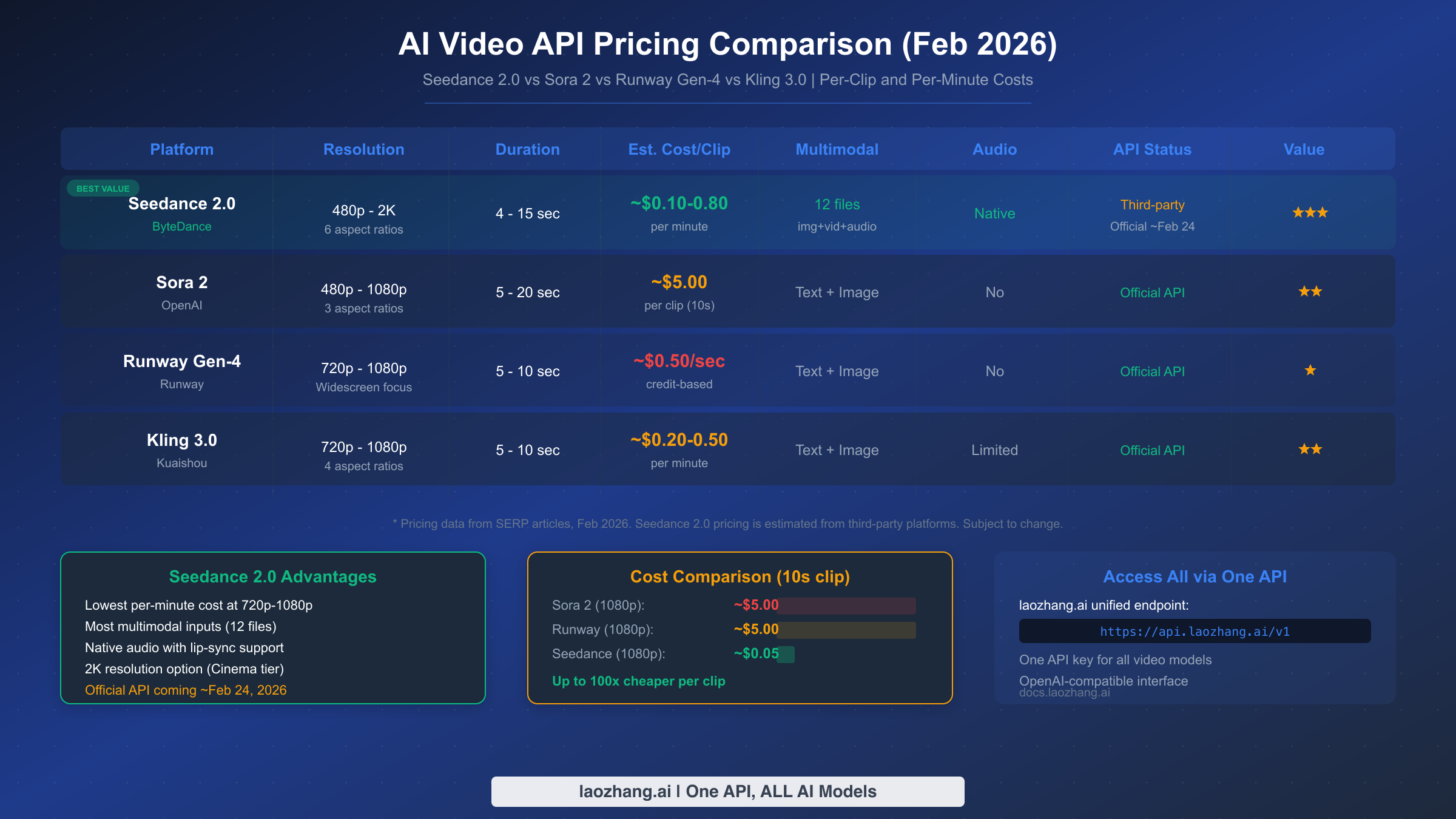
Pricing And Value: Which Is More Cost-effective?
Cost matters, especially if you need videos regularly. Here’s how pricing compares.
| Plan | Invideo | Runway Gen 2 |
|---|---|---|
| Free Trial | Yes, limited exports | Yes, limited credits |
| Monthly Subscription | $15–$30/month | $12–$35/month |
| Pay-per-use | No | Yes (extra credits) |
| Commercial Use | Yes, all plans | Yes, premium plans |
| Export Quality | HD, 4K (premium) | HD, 4K (premium) |
| Collaboration | Included | Included |
Non-obvious insight: Runway Gen 2’s credits system can be cost-effective for occasional use. But heavy users may prefer Invideo’s unlimited exports.
Use Cases: Who Should Use Each Platform?
Different users need different tools. Here’s where each platform excels—and where it falls short.
Best Uses For Invideo
- Marketing videos (ads, promos)
- Educational content (tutorials, explainer videos)
- Social media posts (Instagram, Facebook, YouTube)
- Corporate presentations
- Branded content
Invideo is ideal if you want reliable, professional videos fast, with full editing control.
Best Uses For Runway Gen 2
- Creative art projects
- Experimental films
- Unique backgrounds and mood visuals
- Inspiration for video concepts
- Short clips for TikTok or Instagram
Runway Gen 2 is perfect for creative exploration, not structured storytelling or business presentations.
Credit: www.arcade.software
Real Examples: What Do The Videos Look Like?
You can’t judge a tool without seeing real results. Let’s look at practical examples.
Invideo Example
Imagine you want a video for a bakery promotion. You enter: “Fresh bread baked daily. Visit us for warm pastries and coffee.” Invideo picks stock clips of bread, adds text overlays, and lets you adjust colors to match your brand. The video is ready in minutes—and looks polished.
Runway Gen 2 Example
You write: “A magical forest with glowing trees and fog.” Runway Gen 2 generates a dreamy, moving clip with surreal colors. The visuals are unique—nothing you’d find in a stock library. But you may need to trim or edit the clip to fit your project.
Practical tip: Combine both platforms. Use Runway Gen 2 for backgrounds, then edit and brand your video in Invideo.
Technical Requirements And Accessibility
Not every user has a fast computer or high-speed internet. Here’s what you need for each tool.
Invideo
- Works in any modern browser (Chrome, Firefox, Edge)
- No downloads needed
- Cloud-based storage
- Requires stable internet for editing and exporting
Runway Gen 2
- Works in browser, but heavy AI processing
- Clips generate quickly, but quality improves with better internet
- Requires registration and login
- Exports can be slow for longer clips
Non-obvious insight: Runway Gen 2’s AI processing happens in the cloud, not your computer. Even low-end devices can use it, but internet speed affects performance.
Collaboration And Sharing
Many teams want to work together on videos. Both platforms offer collaboration, but with differences.
Invideo Collaboration
- Multi-user editing
- Commenting on scenes
- Share drafts via link
- Export to social media directly
Runway Gen 2 Collaboration
- Share clips with team
- Basic editing with multiple users
- No comments or advanced review tools
Invideo is better for structured teamwork. Runway Gen 2 is good for brainstorming and sharing creative assets.
Export Options And Formats
How easy is it to use your videos after creation? Exporting is crucial.
Invideo Export
- MP4, MOV formats
- HD and 4K (premium)
- Direct sharing to social media
- Download to computer
Runway Gen 2 Export
- MP4 only
- HD and 4K (premium)
- Download to computer
- No direct social sharing
Practical tip: If you need multiple formats or easy social sharing, Invideo is more flexible.
Community And Support
You may need help or inspiration. Both platforms have support, but the communities differ.
Invideo Community
- Large user base
- Tutorials, webinars
- Active support team
- User forums
Runway Gen 2 Community
- Active among artists and filmmakers
- Discord and social channels
- Fewer tutorials, more experimental sharing
Invideo supports beginners and professionals. Runway Gen 2 is a hub for creative exploration.
Security And Privacy
Your content matters. Both platforms claim strong privacy, but here’s what you should know.
Invideo Security
- Cloud storage with encryption
- GDPR compliant
- Commercial rights included
Runway Gen 2 Security
- Cloud storage, encrypted
- Commercial rights for premium users
- AI-generated assets owned by user
For sensitive projects, check terms carefully. Both platforms are trusted, but always review privacy policies.
Credit: www.aifreeapi.com
Comparing Results: Data From Real Users
Let’s look at real user ratings and data. This gives you a sense of satisfaction and common complaints.
| Metric | Invideo | Runway Gen 2 |
|---|---|---|
| User Rating (Trustpilot) | 4.5/5 | 4.2/5 |
| Ease of Use | High | Moderate |
| Video Quality | Consistent, professional | Unique, variable |
| Customization | Deep, flexible | Minimal |
| Creativity | Limited by templates | High, experimental |
| Support | Extensive | Community-driven |
Non-obvious insight: Runway Gen 2’s creativity rating is higher, but overall satisfaction is lower due to editing limits.
Limitations And Risks
No tool is perfect. Here are risks to consider.
Invideo Limitations
- Videos can feel generic if not customized
- Stock library may lack unique visuals
- Editing can be time-consuming for complex projects
Runway Gen 2 Limitations
- AI can misinterpret prompts
- Short clips only
- Editing is minimal
- Faces, text, and realism often fail
Practical tip: Test both tools before committing. Try simple and complex prompts to see real results.
Future Developments: What’s Next?
AI video generation is evolving fast. Both platforms are updating features.
Invideo
- Adding more AI automation
- Improving template library
- Integrating with new platforms
Runway Gen 2
- Longer clips and better realism coming soon
- Improved prompt accuracy
- Advanced editing tools planned
Stay updated with official announcements. New features can change your workflow and expand possibilities.
How To Choose: Practical Decision Guide
Here’s how to decide which tool fits your needs:
- Structured videos, business use: Choose Invideo.
- Creative, artistic projects: Try Runway Gen 2.
- Need deep editing: Invideo is better.
- Want unique visuals: Runway Gen 2 shines.
- Budget matters: Compare subscription vs credits.
- Working in a team: Invideo’s collaboration is stronger.
- Need easy exports: Invideo offers more formats.
Experience-based guidance: Many users benefit by combining both tools. Use Runway Gen 2 for creative clips, then finish and brand your video in Invideo.
For more research on AI video generation, visit Wikipedia.
Frequently Asked Questions
What Is The Main Difference Between Invideo And Runway Gen 2?
Invideo uses templates and stock footage to build videos from your script, letting you control every scene. Runway Gen 2 creates unique videos using AI from your text prompt, but editing is limited.
Can I Use Invideo And Runway Gen 2 Together?
Yes. Many users generate creative clips in Runway Gen 2, then edit and brand their full video in Invideo. This combines creativity with control.
Which Platform Is Better For Business Videos?
Invideo is best for business, marketing, and education. Its templates and editing tools make it easy to create professional, branded content quickly.
Are There Free Versions Of These Tools?
Both offer limited free access. Invideo lets you export a few videos with watermarks. Runway Gen 2 gives free credits for short clips. Paid plans unlock full features.
Is Ai Video Generation Safe For Commercial Use?
Both platforms offer commercial rights, but check their terms. AI-generated content from Runway Gen 2 may have unique licensing. Invideo’s stock library is cleared for business use.
Making the right choice depends on your goals. Invideo is reliable for structured projects; Runway Gen 2 is exciting for creative experiments. Try both, explore their strengths, and you’ll discover which fits your workflow best.


About author









Add comment