
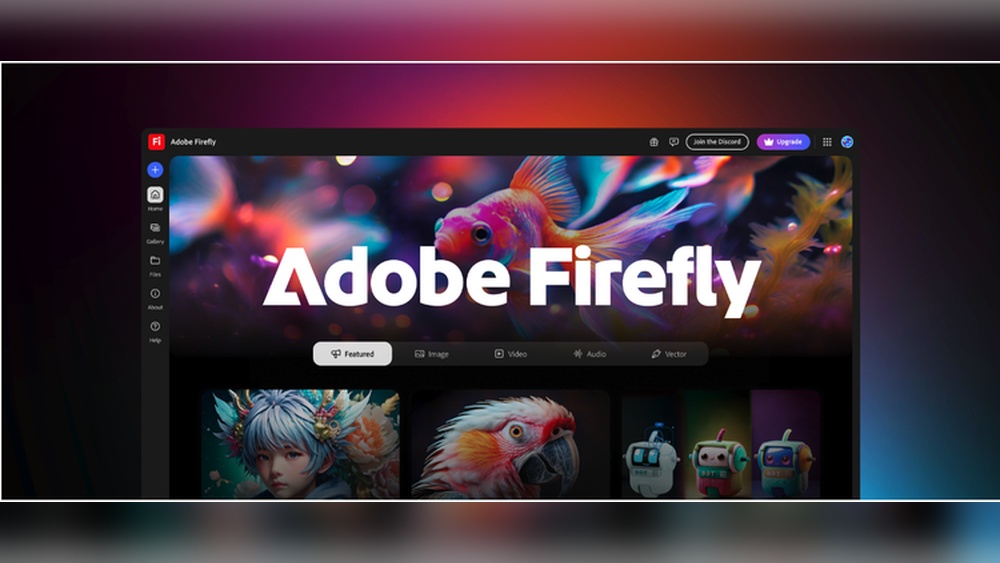
Adobe Firefly Vector Expansion Review: Unleashing Creative Power
Adobe’s creative tools have shaped digital design for decades. With the rise of AI, Adobe has stepped forward again, introducing generative tools that promise to speed up workflows and spark new ideas. One of the most discussed new features is Adobe Firefly Vector Expansion—an AI-powered update that lets users create, expand, and edit vector graphics with simple text prompts. This review takes a close look at what Vector Expansion offers, how it fits into creative workflows, and whether it really delivers on its big promises. Whether you’re a designer, illustrator, or just curious about AI in art, you’ll find practical insights, real-world examples, and a clear-eyed view of where this technology shines—and where it still has room to grow.
What Is Adobe Firefly Vector Expansion?
Adobe Firefly Vector Expansion is an AI tool built into Adobe Illustrator and Adobe Firefly’s web platform. Its main function is to take an existing vector graphic or shape and expand it with new AI-generated content. The key here is that everything produced is vector-based—meaning it’s made of mathematical paths, not pixels—so the results stay sharp and editable at any size.
Most AI art tools (like DALL-E or Midjourney) output raster images, which lose quality when resized. Vector Expansion, however, creates results you can tweak, scale, and color without losing detail. You can use simple text prompts (like “add more flowers” or “make the city skyline at night”) to guide the AI, or pick from preset styles. The tool then generates new vector elements that blend seamlessly with your current artwork.
This marks a big step for designers who want to save time, explore ideas, or quickly prototype concepts—without starting from scratch.
How Does Vector Expansion Work?
The process is straightforward, but a lot goes on behind the scenes. Here’s how you typically use Vector Expansion inside Illustrator:
- Select your starting vector: Choose the shape, object, or graphic you want to expand.
- Open the Vector Expansion panel: This is usually found in the Firefly or AI-powered features menu.
- Enter a prompt or select a style: Describe what you want (“add tropical leaves”) or pick a visual theme.
- Generate and review: The AI creates new vector content, which you can preview before adding.
- Edit as needed: Since it’s all vector, you can change colors, tweak paths, or combine elements.
The AI uses Adobe’s own Firefly models, trained on Adobe Stock and other licensed images. This reduces copyright worries and aims for safe, commercially usable results.
Key Features And Capabilities
Adobe Firefly Vector Expansion brings several standout features to the table:
- Text-to-Vector Expansion: Generate new artwork using natural language prompts.
- Seamless Vector Integration: New elements blend smoothly with existing designs.
- Editable Outputs: All elements remain fully editable vectors.
- Preset Styles: Choose from curated themes, such as geometric, sketch, or flat.
- Color Harmony: Automatic palette matching keeps new vectors consistent.
- Commercial Use: Generated vectors are cleared for most commercial projects, thanks to Adobe’s training data.
Real-world Example
Suppose you’re designing a logo with a simple tree icon. Using Vector Expansion, you can ask the AI to “add more branches with autumn leaves. ” The tool generates new vector branches and leaves, matching the style and colors of your original tree.
You can then move, resize, or recolor each part as you wish.
Comparing Firefly Vector Expansion To Other Tools
AI-generated art isn’t new, but most popular tools focus on raster images. So how does Firefly Vector Expansion compare with other options?
| Tool | Output Type | Main Use | Commercial Safety | Editable? |
|---|---|---|---|---|
| Adobe Firefly Vector Expansion | Vector | Design, illustration | Yes | Fully editable |
| Midjourney | Raster | Art generation | No guarantee | No |
| DALL-E | Raster | Art generation | Limited | No |
| Shutterstock AI | Raster & Vector | Stock images | Yes | Partial (vectors only) |
As the table shows, Firefly Vector Expansion is one of the few tools that creates true, editable vectors with commercial safety. This is a big win for professional designers.
The User Experience: Workflow And Interface
Adobe has aimed to keep the workflow simple and familiar for Illustrator users. When you open Vector Expansion, the interface is clean, with a text prompt box and a sidebar for style options. Generated results appear in a preview panel, letting you pick the one you like—or try again if you’re not happy.
Strengths
- Intuitive panel: Feels like other Illustrator tools, with drag-and-drop simplicity.
- Flexible prompts: You can be specific (“add a golden retriever sitting”) or broad (“make it more futuristic”).
- Preview before commit: No unwanted changes—review everything first.
- Quick iterations: Generate multiple ideas in seconds, helping break creative blocks.
Weaknesses
- Prompt sensitivity: Results can vary a lot depending on wording.
- Learning curve: Understanding how to “talk” to the AI for best results takes practice.
- Hardware needs: Some slowdowns on older machines, especially with complex vectors.
Quality Of Results: How Good Are The Vectors?
The big question is: do the results actually look good? After testing Vector Expansion with a range of prompts and styles, here’s what stands out:
Strengths
- Smooth integration: New vector elements usually match the original style closely.
- High detail: Shapes are clean, with minimal awkward points or jagged edges.
- Editable layers: Each part can be selected and changed without trouble.
Limitations
- Occasional mismatches: Sometimes, generated elements look slightly off in color or style.
- Over-complex paths: Some results have too many anchor points, making them harder to edit.
- Repetition: For similar prompts, the AI can repeat certain motifs.
Example
When expanding a “city skyline” vector, the tool added believable new buildings, but a few had odd window patterns or extra outlines. For logos, the AI was good at simple shapes, but less consistent with detailed icons.
Credit: encrevive.com
Use Cases: Who Benefits Most?
Firefly Vector Expansion isn’t for everyone, but it’s a strong fit for several creative needs:
- Logo designers: Quickly explore variations without redrawing everything.
- Illustrators: Add background elements or details in seconds.
- UI/UX designers: Prototype icons or assets for apps and websites.
- Marketing teams: Create unique, scalable visuals for campaigns.
- Educators and students: Experiment and learn vector design principles.
It’s especially helpful when you need lots of ideas fast, or when manual drawing would be too slow.
Practical Tips For Using Firefly Vector Expansion
To get the most from Vector Expansion, keep these practical tips in mind:
- Be specific with prompts: The more detail you give, the better the AI understands your intent.
- Use style presets as a guide: If your prompt isn’t working, try a preset to steer results.
- Clean up paths after generation: Removing extra anchor points makes editing easier.
- Test color harmonies: Sometimes, you’ll need to manually adjust colors to match your palette.
- Iterate and combine: Generate multiple expansions, then mix and match the best parts.
One non-obvious insight: the tool works better with simple, bold shapes than with highly detailed or textured vectors. Overly complex starting graphics can confuse the AI and lead to cluttered results.
Vector Expansion And Copyright: Is It Safe?
A common worry with AI art is copyright risk. Adobe addresses this by training Firefly on Adobe Stock and other licensed datasets, avoiding web-scraped or unlicensed content. This means the vectors you create are, in most cases, safe for commercial use.
However, there are still some gray areas:
- You’re responsible for ensuring the final design doesn’t unintentionally copy existing logos or trademarks.
- Adobe’s terms may change as the tool evolves, so always check current policies before large-scale commercial use.
For more details on Adobe’s approach, see the official Adobe Firefly FAQ.
Speed And Performance: Does It Slow Down Your Work?
Performance can vary based on your computer and the complexity of your vectors. In most cases, expansions complete in 5–15 seconds for simple shapes, and up to 30 seconds for complex graphics.
| Task | Average Time (seconds) | Notes |
|---|---|---|
| Simple icon expansion | 5–8 | Fast, even on mid-tier laptops |
| Logo variations | 8–12 | Depends on prompt detail |
| Complex illustration | 20–30 | May lag on older systems |
If you often work with large, layered files, closing other apps or working with smaller sections at a time can help speed things up.

Credit: www.g2.com
Pricing And Availability
As of mid-2026, Firefly Vector Expansion is included with Adobe Illustrator (Creative Cloud subscribers) and available on the Firefly web app for paid users. There is no separate price for the tool; it’s part of the main subscription.
- Illustrator users: Access as part of your existing plan.
- Web app users: Use Firefly online, but export options may be more limited.
Adobe sometimes imposes monthly “generative credits” for heavy use. Most regular users won’t hit these limits, but agencies or large teams may want to check their quotas.
Pros And Cons
Here’s a quick summary of the main advantages and disadvantages:
Pros
- True vector output, fully editable
- Seamless integration with Illustrator
- Easy to use, with natural prompts
- Commercially safe results
- Fast idea generation
Cons
- Some results need cleanup (extra points, color tweaks)
- Quality varies by prompt
- Not ideal for very complex starting vectors
- Can be slow on older hardware
Unique Insights: What Most Reviews Miss
Many first-time users expect Firefly Vector Expansion to “read their mind.” In reality, the tool is only as good as the prompts you give. Learning how to phrase instructions—not too vague, not too detailed—is a real skill. For example, “add a bird” may give random results, while “add a flying bluebird on the left branch” often works better.
Another subtle point: Vector Expansion doesn’t replace design skills. It’s a shortcut for ideation, not a substitute for understanding composition, color, or branding. The best results come from combining AI-generated pieces with your own design choices.
How Vector Expansion Changes Creative Workflows
In the past, creating new vector elements meant manual drawing, tracing, or searching for stock art. Now, with Vector Expansion, you can:
- Prototype ideas in minutes, not hours
- Test multiple design directions quickly
- Generate custom assets instead of relying on generic stock vectors
This speeds up client presentations, brainstorming sessions, and revisions. For solo designers or small teams, it’s a huge time-saver.
However, there’s a risk of becoming over-reliant on AI. Using the tool as a crutch can lead to generic or “samey” designs. The best approach is to treat Vector Expansion as an assistant, not a replacement for creative thinking.
Vector Expansion In Education And Training
Design educators are starting to use Vector Expansion to teach:
- Prompt engineering: Crafting better prompts for more controlled results
- Vector editing: Cleaning up and refining AI-generated art
- Design thinking: Exploring multiple solutions to the same brief
Students can see instantly how small changes in prompts affect results, making the learning process more interactive and engaging.
Limitations And What’s Still Missing
While Vector Expansion is impressive, it’s not perfect. Some notable limitations:
- Limited fine control: You can’t always specify exact placement or shape details.
- Style drift: For highly stylized vectors, the AI sometimes struggles to match unique looks.
- Language barriers: Non-English prompts may not work as well, though this is improving.
- No batch processing: You can’t yet expand multiple vectors at once.
Adobe is updating the tool regularly, so some of these issues may be fixed in future versions.
Future Outlook: Where Is Adobe Taking Firefly Vector Expansion?
Adobe has signaled that AI will be central to its creative tools. Likely future updates for Vector Expansion could include:
- Better style matching: Tighter integration with custom styles and color palettes.
- Smarter prompt understanding: More nuanced and context-aware results.
- Expanded language support: Better handling of prompts in languages other than English.
- Team collaboration features: Easier sharing and review of AI-generated vectors.
As more designers use the tool, Adobe will gather feedback to refine the algorithms and address edge cases.
Should You Use Firefly Vector Expansion?
If you work with vectors regularly and want to speed up idea generation or try new styles, Firefly Vector Expansion is worth exploring. It’s not a magic wand, but it’s already one of the best AI tools for vector creatives.
Who should try it:
- Professional designers seeking faster workflows
- Students and educators looking for new teaching tools
- Teams needing quick variations for clients
Who might skip it:
- Artists who prefer manual drawing for every detail
- Designers who need pixel-perfect, highly controlled results every time
If you’re new to AI art tools, expect a learning curve—but the time you save will often make up for it.

Credit: blog.adobe.com
Frequently Asked Questions
What Makes Firefly Vector Expansion Different From Other Ai Art Tools?
Unlike most AI art generators, Firefly Vector Expansion produces real vector graphics—not just images. This means you can edit, resize, and customize the AI’s output in Illustrator, making it much more useful for professional design work.
Is The Ai-generated Vector Art Safe For Commercial Use?
Adobe trains Firefly on licensed, copyright-safe datasets, mainly Adobe Stock. This makes the vectors safer for commercial projects than those made by AI tools that scrape the web. However, always check your designs for accidental similarities to known logos or brands.
Can I Use Vector Expansion With Any Vector File?
You can expand most simple or moderately complex vectors. However, results are best with bold, clear shapes. Highly detailed or textured vectors may confuse the AI and produce cluttered expansions.
What Are Some Common Mistakes When Using Vector Expansion?
Many beginners use vague prompts (“add something cool”) and get unpredictable results. Another mistake is not cleaning up the vector paths after generation, leading to messy files. Being clear with prompts and editing the output improves quality.
Is Firefly Vector Expansion Available In The Free Version Of Adobe Illustrator?
As of now, Vector Expansion is only available to paid Creative Cloud subscribers or via the paid Firefly web app. There is no free or standalone version.
Adobe Firefly Vector Expansion is a promising step forward for vector design. It won’t replace creativity or design skills, but it can make the process faster, more fun, and even a bit more surprising. As AI tools keep improving, the line between human and machine creativity will keep blurring—and for many designers, that’s an exciting place to be.


About author









Add comment