
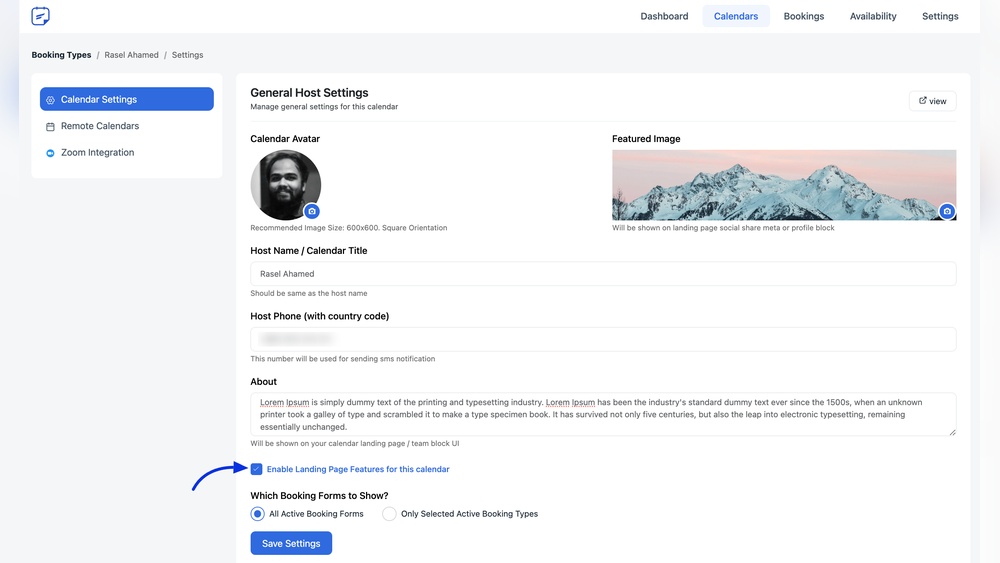
How to Link Online Calendars to Custom Landing Pages Easily
Connecting online calendars to custom landing pages is a smart move for any business, consultant, or service provider who wants to streamline bookings, improve user experience, and boost conversion rates. Today, people expect to book appointments or events in a few clicks.
If your landing page makes this easy, your visitors are much more likely to take action. But integrating a calendar with a landing page can feel technical and confusing, especially if you’re new to website tools or not a developer.
In this guide, you’ll learn how to link popular online calendars like Google Calendar, Calendly, Microsoft Outlook, and more to custom landing pages—no complex coding needed. You’ll discover the practical reasons to connect your calendar, the different methods available, common pitfalls to avoid, and expert tips to get the most value.
Whether you’re a solo entrepreneur or part of a larger marketing team, you’ll find actionable steps and real-world examples to help you build landing pages that convert visitors into booked clients.
Why Link Online Calendars To Landing Pages?
Linking an online calendar to a custom landing page is about making the booking process seamless for your users. Here’s why this matters:
- Faster conversions: When visitors can book instantly, you remove friction and increase the chance they’ll act.
- Fewer back-and-forth emails: No more endless email chains to find a time that works.
- Instant confirmations: Automated emails and calendar invites give visitors peace of mind.
- 24/7 scheduling: Visitors can book at any time, even when you’re not online.
- Better data collection: You can gather information (like names, emails, and preferences) right in the booking flow.
According to a 2026 survey by Accenture, 70% of customers say they are more likely to do business with companies that offer self-service scheduling. This shows how important it is to provide an easy booking option.
Popular Online Calendars And Booking Tools
Before integrating, it’s important to know the most common tools that people use for online scheduling. Each has its pros and cons, and you’ll want to choose the one that fits your goals.
| Calendar Tool | Main Features | Typical Use Case | Price Range |
|---|---|---|---|
| Google Calendar | Easy sharing, embed options, integrates with G Suite | Personal, business, group scheduling | Free |
| Calendly | Automated bookings, reminders, payment integration | Consultants, sales teams, educators | Free to $16/month |
| Microsoft Outlook Calendar | Office 365 integration, sharing, booking pages | Corporate, enterprise, education | Included in Office 365 |
| Acuity Scheduling | Custom forms, payment, branding | Medical, wellness, small business | $14–$45/month |
| Zoho Bookings | CRM integration, time zone detection | Service businesses, agencies | Free to $60/month |
Calendly and Acuity Scheduling are especially popular for landing page integrations because they offer direct embed codes and customization options. But even basic tools like Google Calendar can work well for simple needs.
Methods For Linking Calendars To Landing Pages
There are several ways to connect a calendar to a landing page. The best method depends on the tools you use, your technical skills, and how much control you want over the user experience.
1. Embedding An Online Calendar
This is the most direct approach. Most online calendars let you generate an embed code (HTML or JavaScript) that you paste into your landing page.
Benefits:
- No coding needed
- Fast setup
- Live updates—changes to the calendar show up instantly
Common platforms that support embedding:
- Google Calendar
- Calendly
- Microsoft Outlook (with booking page)
- Acuity Scheduling
How to do it (example with Google Calendar):
- Open your Google Calendar.
- Click the three dots next to your calendar name, then select Settings and sharing.
- Scroll to the Integrate calendar section.
- Copy the HTML embed code.
- Paste it into your landing page’s HTML (often via a widget or “Custom HTML” block).
Practical tip: If your landing page builder (like Wix, Squarespace, or WordPress) supports custom HTML, this process takes just a few minutes.
2. Using Scheduling Widgets Or Plugins
Many landing page builders offer plugins or widgets for popular booking tools. These are often easier than embedding code and can offer more design control.
Popular examples:
- WordPress: Plugins for Calendly, Acuity, Booking Calendar, etc.
- Wix: Built-in Wix Bookings app, or third-party integrations
- Squarespace: Acuity Scheduling integration, booking blocks
Why use a plugin?
- Better styling: Widgets often match your site’s design.
- More features: Custom forms, reminders, and payment options.
- Less maintenance: Updates and support from the plugin maker.
Drawback: Some plugins require a paid plan or may slow down your site if not well built.
3. Linking To A Hosted Booking Page
Most modern booking tools let you create a hosted booking page—a standalone webpage for scheduling. You can link to this page from your landing page with a button or call-to-action (CTA).
Benefits:
- No need to touch your site’s code
- Always up-to-date
- Often mobile-friendly by default
When to use: If you want a clean, simple landing page with a clear “Book Now” button that opens your scheduling tool in a new tab.
Pro insight: Some users prefer booking on a separate page, especially if your main landing page is crowded or slow to load.
4. Integrating Via Apis (advanced)
For developers or businesses needing full control, most calendar services offer APIs (Application Programming Interfaces). APIs let you build custom booking flows, sync data, and automate more complex tasks.
When APIs make sense:
- You need to collect extra data not supported by default forms
- You want to trigger custom workflows (like CRM updates, SMS reminders)
- You’re building a mobile app or unique experience
Warning: API integrations require technical skill. For most users, embedding or plugins are easier and safer.
Step-by-step Guide: Linking Calendly To A Custom Landing Page
Calendly is one of the most popular scheduling tools for landing pages because it’s easy to set up and offers a polished experience. Here’s a real-world example of how to connect Calendly to your own landing page.
Step 1: Create Your Calendly Account
Sign up at Calendly. com. Follow the prompts to connect your calendar (Google, Outlook, or others) and set your availability.
Step 2: Set Up Your Event Types
- Define what you’re booking (consultation, demo, call, etc.)
- Set duration, buffer times, and limits
- Add custom questions for guests (like phone number or topics)
Step 3: Generate Your Embed Code
Calendly offers three main embed options:
- Inline Embed: Calendar appears directly on your page
- Popup Widget: A button or link opens the scheduler in a popup
- Popup Text: Highlighted text triggers the scheduling popup
Go to Share > Add to Website in your Calendly dashboard. Choose your embed style, customize the settings, and copy the generated code.
Step 4: Insert The Embed Code Into Your Landing Page
- If you use WordPress, add a Custom HTML block in the editor.
- In Wix or Squarespace, use their “Embed” or “Code” widget.
- Paste the code where you want the booking calendar to appear.
- Preview your page to check the integration.
Step 5: Test The Booking Flow
- Open your landing page in incognito mode or on another device.
- Try booking an appointment as a visitor would.
- Confirm that email notifications and calendar invites are sent.
Pro tip: Always test on mobile devices—over 60% of bookings happen on smartphones.
Step 6: Customize The User Experience
- Change button colors and text to match your brand.
- Add welcome messages or instructions above the calendar.
- Use Calendly’s advanced options for payment collection or Zapier integrations.
Credit: codecanyon.net
Embedding Google Calendar: When And How
Google Calendar is widely used for basic scheduling, group events, and team coordination. However, it’s not a true booking tool—visitors can see events but cannot book time slots directly.
Best use cases:
- Displaying public events or webinars
- Showing open office hours
- Sharing a company-wide schedule
How to embed:
- Open Google Calendar settings for your chosen calendar.
- Under Access permissions, set the calendar to public (if needed).
- Copy the HTML embed code from the Integrate calendar section.
- Paste it in your landing page.
Limitation: Google Calendar doesn’t handle bookings or form submissions. If you need real appointments, use a dedicated tool like Calendly or Acuity.
Advanced Integration With Zapier And Apis
If you want to automate workflows or connect multiple tools, consider using Zapier or direct APIs. For example, you can:
- Add new bookings to your CRM
- Send SMS reminders
- Trigger email follow-ups
- Log appointments in a database
| Integration Method | Skill Level | Best For | Example Use |
|---|---|---|---|
| Zapier | Beginner–Intermediate | Automating tasks, connecting tools | Send new bookings to Google Sheets |
| API Integration | Advanced | Custom workflows, app development | Sync appointments with custom CRM |
| Native Integrations | Beginner | Popular tools, simple setup | Calendly + Zoom meeting links |
Hidden insight: Many users forget to automate confirmation and reminder emails. This is where integrations really shine—automatic reminders cut no-shows by up to 40%, according to industry reports.
Customizing The Booking Experience
A basic integration works, but small tweaks can greatly improve conversions and user satisfaction.
Branding And Design
- Match calendar colors to your brand palette
- Use friendly, simple language in instructions
- Add your logo to booking pages (if supported)
Form Customization
- Ask only for essential info (name, email, purpose)
- Use dropdowns or multiple choice where possible
- Avoid long forms—short forms get more bookings
Confirmation And Follow-up
- Set up instant email confirmations
- Offer rescheduling or cancellation links
- Send a thank-you note or next steps
Mobile Optimization
- Make sure your calendar widget is mobile-friendly
- Test on different devices and browsers
- Use large buttons and readable fonts
Practical tip: If your booking tool supports it, redirect users to a custom thank-you page after booking. This is a prime spot to share next steps or upsell related services.
Common Mistakes To Avoid
Even with powerful tools, small errors can hurt your results. Watch out for these common mistakes:
- Forgetting time zones: Make sure your calendar detects the user’s time zone, or clearly displays your own.
- Not testing on mobile: A calendar that works on desktop may break on a phone.
- Poor instructions: Tell users exactly what to expect (“Pick a slot, enter your details, and you’ll get a confirmation email”).
- Overly complex forms: Every extra field reduces the chance of a booking.
- Ignoring reminders: No-shows increase if you don’t send reminders.
- Broken links or embeds: Always test after publishing—embed codes can break if you change calendar settings.
Non-obvious insight: Some booking tools limit the number of appointments per day or week. Check your settings to avoid overbooking, especially if you offer free consultations.
Credit: support.atlassian.com
Tracking Bookings And Measuring Success
Once your landing page is live, you need to track how well it’s working. Here’s how:
Use Utm Parameters
Add UTM tracking to your booking links or buttons. This lets you see in Google Analytics how many bookings come from your landing page, ads, or email campaigns.
Track Conversion Rates
- Count how many visitors view your landing page vs. how many complete a booking.
- A good booking page converts at 10–25% (varies by industry).
Connect To Crm Or Spreadsheets
Most booking tools let you export bookings to CSV or connect directly to CRM systems. This helps you follow up and analyze trends.
Monitor Feedback
Ask users for feedback after booking. Simple questions like “Was this easy? ” or “How can we improve? ” reveal issues you might miss.
Real-world Examples
To help you see what’s possible, here are some real-world use cases of linking online calendars to custom landing pages:
1. Consultant Booking Page
A freelance marketing consultant uses a Calendly popup on their landing page. Visitors click “Book a Free Call,” pick a time, and get an instant confirmation. The consultant receives an email and a new lead in their CRM.
2. Event Registration
A yoga studio embeds Google Calendar to show class times and uses Acuity Scheduling for booking. Visitors can see all classes and reserve a spot without leaving the landing page.
3. Sales Team Demos
A software company links to a dedicated booking page for product demos. Each sales rep has their own calendar link, making it easy to manage appointments and track performance.
4. Educational Webinars
An online course creator uses a WordPress plugin to let students book 1-on-1 sessions. The plugin syncs with Google Calendar and sends automated reminders to reduce no-shows.
Expert insight: Even small service businesses—like hair salons or fitness trainers—can use these integrations to reduce administrative work and fill their schedules faster.

Credit: www.dreamgrow.com
Comparing Popular Landing Page Builders For Calendar Integration
Some landing page builders make it easier to integrate calendars than others. Here’s a side-by-side comparison:
| Builder | Calendar Integration | Ease of Use | Best For |
|---|---|---|---|
| WordPress | Plugins for all major tools, HTML embed | Intermediate | Bloggers, agencies, advanced users |
| Wix | Wix Bookings app, embed code | Beginner | Small business, events |
| Squarespace | Acuity integration, code blocks | Beginner–Intermediate | Creatives, coaches, professionals |
| Unbounce | Embed code, third-party tools | Intermediate | Marketers, advertisers |
| Leadpages | Embed widgets, integrations | Beginner | Entrepreneurs, landing pages |
Pro tip: Before choosing a builder, check its support for your preferred calendar tool. Some builders limit HTML embeds or charge extra for integrations.
Security And Privacy Considerations
Online bookings often involve collecting personal data (names, emails, phone numbers). Protecting this data is crucial for your reputation and legal compliance.
Checklist for safe calendar integration:
- Use SSL (HTTPS) on your landing page
- Pick booking tools that are GDPR and CCPA compliant
- Limit data collection to only what you need
- Inform users how their data will be used
- Regularly update plugins and integrations
Non-obvious insight: Some free calendar tools don’t offer strong privacy controls. Always review privacy policies before embedding third-party calendars.
Optimizing For Higher Bookings
Getting your calendar online is just the start. These strategies can help you increase your booking rate:
- Clear CTAs: Use strong, action-oriented buttons like “Book Now” or “Schedule a Free Demo.”
- Scarcity: Show limited slots (“Only 3 spots left this week!”) to encourage faster action.
- Social proof: Add testimonials or reviews near your booking form.
- Fast loading: Optimize your page speed—slow pages kill bookings.
- Follow-up: Send a reminder and a follow-up email after booking.
Data point: According to HubSpot, landing pages with a single, focused CTA convert 2.5x better than pages with multiple competing actions.
Troubleshooting Common Issues
If your calendar integration isn’t working, try these troubleshooting steps:
- Booking form not loading: Check for ad blockers, script conflicts, or broken embed codes.
- Double bookings: Make sure your calendar tool syncs with your main calendar (Google, Outlook, etc. ).
- Emails not sent: Verify sender settings, spam filters, and email limits in your booking tool.
- Timezone errors: Test with users in different regions; set default time zone or use auto-detect.
- Mobile issues: Use responsive design and test on various devices.
For more advanced help, check the support documentation of your booking tool, or visit communities like Stack Overflow.
Frequently Asked Questions
How Do I Choose The Right Calendar Tool For My Landing Page?
Start with your main goal. If you want simple event display, Google Calendar is enough. For real-time booking with reminders, tools like Calendly or Acuity offer more features. Consider price, integration options, and support for your landing page builder.
Can I Accept Payments When Users Book Through My Landing Page?
Yes, many booking tools (like Acuity and Calendly) support payment integration with Stripe or PayPal. You can require payment before confirming appointments, which is useful for classes, consultations, or events.
Is It Possible To Prevent Double Bookings?
Most modern booking tools sync with your main calendar (Google, Outlook, etc. ) And block out times that are already taken. Always test this feature and check your settings to avoid scheduling conflicts.
Do I Need To Know How To Code To Integrate A Calendar?
No, most integrations are no-code. Embedding a calendar or using a plugin is usually a copy-paste task. Advanced customizations may need technical knowledge, but most users can set up basic integrations quickly.
What Should I Do If My Calendar Isn’t Displaying Correctly On Mobile?
Check if your booking tool offers a responsive widget. Test your landing page on different devices. If there are problems, try a different embed style (like a popup) or contact the tool’s support for help.
Integrating online calendars with custom landing pages is one of the simplest ways to boost bookings, save time, and deliver a better experience for your visitors. With the right tools and a clear process, you can turn your landing page into a powerful lead-generation and scheduling machine.
Take the time to test, customize, and optimize your integration, and you’ll see the benefits in higher engagement and a fuller calendar.


About author









Add comment