

How to Create a Dynamic Business Presentation in Minutes: Proven Tips
Creating a dynamic business presentation is often seen as a stressful task, especially when time is short. Many professionals worry about making slides that look good and communicate clearly. But with the right approach, you can build a powerful presentation in just minutes.
Whether you are preparing for a sales pitch, a team meeting, or an investor update, the process can be fast and effective. In this guide, you’ll learn practical strategies and useful tools to help you create a dynamic business presentation quickly—without sacrificing quality or impact.
Even if you are new to presentations, you’ll find methods that work. Let’s explore how to turn ideas into engaging slides that grab attention and drive results.
Understanding Dynamic Presentations
A dynamic presentation is more than just a set of slides. It’s a way to connect with your audience, keep their attention, and inspire action. Dynamic presentations use visuals, stories, and clear structure to make information easy to understand.
A dynamic approach is not about flashy effects or fancy technology. It’s about sharing your message in a way that feels alive and relevant. When people see that you understand their needs, they want to listen. They remember what you say and are more likely to act on it.
What Makes A Presentation Dynamic?
- Visuals: Pictures, charts, and icons help people remember information. For example, a photo of a happy customer can be more persuasive than listing customer satisfaction stats.
- Clear structure: Each slide should have one main idea, making it simple for viewers. Too many points on one slide confuse the audience and weaken your message.
- Engaging content: Stories, examples, and questions keep people interested. Telling a quick story about a client success makes your solution real and relatable.
- Interactivity: Asking questions or using polls gets the audience involved. A simple, “Raise your hand if you’ve ever struggled with this problem,” can change the energy in the room.
Most beginners focus only on making slides look good. However, the real power of a dynamic presentation is in how you organize content and make it easy for your audience to follow. For example, a simple chart can explain a complex trend much faster than words alone.
Another thing many people forget is the emotional side. A dynamic presentation connects logically and emotionally. It helps the audience feel something, not just learn something.
Why Dynamic Presentations Matter
Research shows that people remember 65% of information when it is presented visually, compared to just 10% when they hear it. If you want your audience to take action or remember your message, a dynamic approach is key.
Dynamic presentations also help you build credibility. If your slides are clear, well-structured, and interesting, people trust you more. This is especially important in business, where decisions often depend on your ability to communicate effectively.
In group settings, a dynamic presentation sets you apart. Most business meetings are filled with dull, text-heavy slides. When your presentation is dynamic, people pay attention—and that’s half the battle won.
Planning Your Presentation In Minutes
Good planning saves time and helps you avoid mistakes. Even if you have only a few minutes, you can organize your ideas effectively.
Quick planning doesn’t mean rushing. It means focusing on what really matters and leaving out the rest. Here’s how you can do it, even if you are under pressure.
Step 1: Define Your Goal
Ask yourself: What do you want your audience to do or understand after your presentation? Examples:
- Close a sale
- Approve a new budget
- Learn a new process
Write your main goal in one sentence. This will guide your entire presentation.
A clear goal also helps you decide what to leave out. If something doesn’t support your main goal, skip it. This is a simple way to keep your presentation focused and powerful.
Step 2: Know Your Audience
Consider who will see your presentation:
- Are they experts or beginners?
- What do they care about most?
- What problems do they want solved?
Tailoring your message to their interests makes your presentation more dynamic.
For example, if you are presenting to a technical team, include relevant data and details. If your audience is management, focus on results and big-picture benefits. Adjusting your language and examples to fit the audience shows respect and increases your impact.
One trick: Imagine you are one of the audience members. What would you want to hear? What would make you care?
Step 3: Map Out Key Points
List 3-5 main ideas you want to cover. Each idea should support your goal. For example, if your goal is to win support for a new project, your key points might be:
- The problem the project solves
- How the project works
- Expected benefits
- Cost and timeline
- Next steps
Putting your key points on sticky notes or a notepad helps you see the flow. Move them around until the order makes sense. This quick planning step saves time when you start making slides.
If you have too many points, ask yourself: “Does this help my audience understand or act?” If not, cut it.
Step 4: Choose The Right Structure
There are many ways to organize a presentation. Here’s a quick comparison:
| Structure Type | Best For | Key Feature |
|---|---|---|
| Problem-Solution | Sales pitches, proposals | Clear path from issue to fix |
| Chronological | Project updates, reports | Step-by-step timeline |
| Comparison | Product launches, analysis | Side-by-side evaluation |
| Storytelling | Motivational talks, training | Personal or business story |
Pick the structure that fits your topic and audience best.
A common beginner mistake is choosing a structure just because it’s popular. Instead, think about the journey you want your audience to take. For example, the Problem-Solution structure is great if you need people to see a gap and accept your fix.
For a progress update, chronological order works best.
Selecting The Best Tools For Fast Creation
The right tools can make your job much easier. Today, many platforms help you create presentations quickly.
Tool choice often depends on your company’s preferences or what you already know. If you only have a few minutes, stick with what feels familiar. This cuts down on learning time and lets you focus on your message.
Popular Presentation Tools
- PowerPoint: Standard in business, easy to use. It offers a wide range of templates and design options.
- Google Slides: Web-based, great for sharing and collaboration. Multiple people can edit at once, which is perfect for team projects.
- Prezi: Dynamic movement, good for storytelling. Its zooming feature can help visualize relationships between ideas.
- Canva: Easy design templates, drag-and-drop features. It’s simple even for people with no graphic design experience.
- Keynote: Apple’s option, smooth animations. Great for visually polished slides, but only available on Mac devices.
Quick Tool Comparison
| Tool | Strength | Weakness |
|---|---|---|
| PowerPoint | Wide compatibility | Can look generic if not customized |
| Google Slides | Real-time collaboration | Fewer advanced design features |
| Prezi | Unique movement | Learning curve for beginners |
| Canva | Easy graphic design | Some features require payment |
| Keynote | Smooth transitions | Mac only |
For speed, use a tool you already know or one with simple templates.
Using Templates To Save Time
Most presentation tools offer templates. Choose a template that fits your structure and topic. For business, look for:
- Clean layouts
- Clear fonts
- Professional color schemes
Templates are a huge time saver, but don’t just use them as-is. Update colors and fonts to match your company’s style, or to make your slides feel unique. This small effort makes a big difference in how your presentation is received.
Avoid templates with too many animations or distracting graphics. Simple is often more dynamic.
When you have more time, build a personal library of favorite templates and layouts. Then, when you need to build a new presentation quickly, you have a head start.
Building Slides That Grab Attention
Your slides are the main way you communicate your message. Here’s how to make them fast and effective.
A great slide is like a billboard: simple, eye-catching, and easy to understand at a glance. If someone looks away and then back, they should instantly grasp your main idea.
Slide Design Tips
- Limit text: Use bullet points or short sentences. People read slides quickly, so keep it brief.
- Use visuals: Add images, charts, or icons to explain ideas. A single photo or icon can replace whole sentences.
- Keep it consistent: Use the same colors and fonts throughout. This helps your audience focus on your message, not the design.
- Highlight key points: Use bold text for important words. This draws the eye to what matters most.
- Avoid clutter: Leave space around elements. White space makes your slides feel calm and organized.
A common mistake is trying to fit too much information on one slide. Instead, focus on one idea per slide.
Another tip: Always check your slides on the screen you’ll present with. Sometimes, colors or text that look fine on your laptop are hard to read on a projector.
Example: Before And After Slide
Imagine you want to show sales growth.
Before (cluttered):
- “Our sales increased by 20% from Q1 to Q2. We added three new products and expanded to two new markets. The marketing budget was increased by $10,000.”
After (dynamic):
- Slide 1: “Sales up 20% (Q1-Q2)” with a bar chart
- Slide 2: “3 new products launched”
- Slide 3: “2 new markets reached”
- Slide 4: “Marketing budget +$10,000”
Each slide has a clear focus. The audience can follow easily.
To make an even bigger impact, consider adding a photo of the new products or a map showing the new markets. Visuals like these stick in people’s minds longer than numbers alone.
Using Data And Charts Effectively
Data is powerful, but only if presented clearly.
- Choose the right chart: Bar charts for comparisons, line charts for trends, pie charts for parts of a whole.
- Show only important numbers: Highlight the main statistic.
- Use color to make key data stand out.
Here’s a quick comparison of chart types:
| Chart Type | Use Case | Strength |
|---|---|---|
| Bar Chart | Comparing categories | Easy to read |
| Line Chart | Showing trends over time | Visualizes change |
| Pie Chart | Showing parts of a whole | Quick overview |
| Scatter Plot | Showing relationships | Reveals patterns |
Another tip: Avoid 3D charts. They often look cool but make data harder to read. Keep it simple.
If you want to emphasize a change, use color or an arrow to draw attention. For example, highlight the bar representing this year’s sales in a different color.
Non-obvious Insight: Use Simple Animations
Many beginners ignore simple slide transitions or animations. A quick fade or slide-in can help guide attention without distracting. Avoid using too many effects, but a little movement can make your presentation feel modern.
Animations can also help you control the flow of information. For example, bring in bullet points one at a time as you speak. This keeps the audience focused on your words and prevents them from reading ahead.

Credit: www.template.net
Adding Storytelling And Interactivity
Stories make information memorable. Interactivity keeps people engaged.
Most people remember stories far better than facts. Even a short, true story can make your point stick.
How To Use Storytelling
- Start with a story about a problem your audience faces.
- Use examples from your own experience or your company.
- Show how your solution helped someone or achieved a result.
For example, instead of saying “Our software is fast,” tell a short story: “Last month, our client saved 2 hours per day using our software. They finished projects ahead of schedule.”
Try to keep your stories short and relevant. A one-minute story at the start or end of a presentation can be powerful.
If you don’t have a personal story, use a case study or a news example that your audience will recognize.
Ways To Add Interactivity
- Ask questions: “How many of you struggle with slow sales?”
- Use live polls: Many tools have built-in polling features.
- Include short quizzes: Test knowledge or get feedback.
Even one question can make your presentation more dynamic. People pay more attention when they are involved.
You can also invite the audience to share their experiences or ideas. For example, “Can anyone share a recent challenge they faced with this process? ” This builds connection and keeps energy high.
If you’re presenting online, ask people to type answers in the chat or use reaction icons.
Non-obvious Insight: Use Qr Codes
Adding a QR code to your slides lets people quickly access more information, download reports, or join a poll. Most presentation tools let you add QR codes easily. This is a simple trick that many presenters miss.
For example, at the end of your presentation, show a QR code that links to your handout, website, or feedback survey. It saves time and encourages further action.
Mastering Time-saving Techniques
Speed is important when you only have a few minutes. Here are ways to build your presentation quickly.
Time-saving is not just about working faster. It’s about working smarter and focusing your effort where it matters most.
Batch Your Work
- Write all your main points first.
- Find or create visuals for each point.
- Add slides for each idea.
- Format all slides at the end.
Working in batches stops you from switching tasks and saves time.
A helpful tip: Don’t worry about perfection on the first draft. Get your ideas down, then fix the design. This approach reduces stress and speeds up the process.
Use Voice Typing
Many tools (Google Slides, PowerPoint) let you use voice typing. Speak your ideas, and the tool will turn them into text. This can be much faster than typing.
Voice typing is especially useful when you’re outlining your main points or drafting speaker notes.
For those who think faster than they type, this feature is a game changer.
Reuse Existing Content
If you have old presentations, copy slides or graphics that fit your current topic. Update numbers, colors, or titles as needed. This is often faster than starting from scratch.
You can even keep a folder of “evergreen” slides—generic slides like company intro, contact info, or product overview that you can use again and again.
Just be sure you check for outdated details so you don’t repeat old mistakes.
Set A Timer
Give yourself a limit, like 10 minutes per section. This keeps you focused and stops you from overthinking.
Timers are especially helpful if you tend to get stuck on design or wording. Knowing you have a deadline pushes you to make quick decisions.
If you’re working on a team, try assigning each person a section and setting a group timer. This boosts accountability and speed.
Making Your Presentation Memorable
A dynamic presentation isn’t just about slides. It’s about how you deliver your message.
Delivery can make or break even the best-designed slides. The best presenters use their voice, body language, and simple techniques to keep the audience’s attention.
Practice Smart
- Run through your slides once or twice.
- Focus on key points, not memorizing everything.
- Use notes or speaker view if your tool allows.
Don’t try to memorize every word. Instead, know your key points and speak naturally. This helps you sound more confident and keeps the audience engaged.
If possible, practice out loud. Even one quick rehearsal makes a difference.
Body Language And Voice
- Stand or sit up straight. This shows confidence.
- Use your hands to point to key visuals.
- Speak clearly and at a steady pace.
If you’re nervous, try smiling. It relaxes you and makes you seem more approachable.
Pausing before or after a key point gives the audience time to absorb your message.
Handling Questions
Prepare answers to likely questions. If you don’t know an answer, say, “I’ll find out and get back to you. ” This builds trust.
You can even include a “Frequently Asked Questions” slide at the end to handle common concerns.
Another tip: Repeat the question before answering. This ensures everyone hears it and gives you time to think.
Follow Up
After your presentation, send a summary or key slides to your audience. Include next steps or actions.
A quick follow-up email helps people remember your message and shows professionalism.
You might also ask for feedback. This helps you improve your next presentation.
Avoiding Common Mistakes
Even experienced presenters make mistakes. Here’s how to avoid them:
- Too much text: Slides should support your talk, not replace it.
- Overusing animations: Keep effects simple and purposeful.
- Ignoring audience needs: Always tailor your message.
- Skipping practice: Even a quick run-through helps.
- No clear call to action: Always end with what you want the audience to do.
Another common mistake is poor contrast between text and background. Always check your slides for readability, especially if you use a projector.
Real Example
A manager prepared a sales pitch by copying old slides. He forgot to update the product name and data. The audience noticed, and trust was lost. Always check your slides for up-to-date information.
Also, beware of technical issues. Test your presentation on the device you’ll use. Save a backup copy in PDF format to avoid compatibility problems.

Credit: www.prezent.ai
Using Data And Statistics For Impact
Numbers make your message stronger. But you need to choose the right data.
Data helps build trust. But too many numbers can overwhelm your audience. Pick the most important statistic or trend and highlight it.
Tips For Using Statistics
- Only use data that supports your main point.
- Show trends, not just numbers.
- Visualize data for clarity.
For example, instead of saying, “Our market share is 15%,” show a chart with your market share growing over time.
Always double-check your numbers. A single mistake can hurt your credibility.
If you use a quote or statistic, mention the source. This increases trust and shows you’ve done your homework.
Where To Find Reliable Data
- Company reports
- Market research sites
- Government statistics
- Industry publications
Some trusted sources include Statista, Pew Research, or your own company’s analytics tools.
Make sure your data is recent and relevant.
Example Statistic
According to a study by the Harvard Business Review, presentations with visuals are 43% more persuasive than those with only text.
This is a strong reason to use visuals whenever possible.
Creating Impactful Calls To Action
Your presentation should end with a clear next step.
- “Contact us for a free demo”
- “Approve the budget today”
- “Join our training session next week”
Make your call to action simple and specific. Avoid vague statements like “Let’s stay in touch. ”
A good call to action removes doubt. It tells your audience exactly what to do and how to do it. For example, include your contact details or a QR code that leads directly to a sign-up form.
If possible, restate your key benefit before the call to action. For example: “Start saving two hours a day—book your demo now.”
Final Checklist For Dynamic Business Presentations
Before you finish, review this checklist:
- Is your goal clear?
- Is your content tailored to the audience?
- Do your slides use visuals and simple text?
- Is your structure easy to follow?
- Did you practice delivery?
- Is your call to action obvious?
If you can answer “yes” to each point, your presentation is ready.
This checklist helps you avoid last-minute errors and boosts your confidence before you step up to speak.
Frequently Asked Questions
How Can I Make My Business Presentation Stand Out?
Focus on visuals, storytelling, and interactivity. Use clear slides, real examples, and involve your audience with questions or polls. Avoid generic templates; customize with your company colors and logos.
Also, add a personal touch. Share a quick story, use real photos from your team, or mention a recent success. These details make you memorable.
What Is The Fastest Way To Build A Presentation?
Use templates and batch work. Write your main ideas, pick a suitable template, and add visuals. Tools like Canva and PowerPoint have ready-made designs to speed up the process.
If you’re working with a team, use collaboration features in Google Slides or PowerPoint Online to build slides together in real time.
How Many Slides Should A Dynamic Presentation Have?
A good rule is one main idea per slide. For a 10-minute talk, aim for 8–12 slides. Too many slides can overwhelm, and too few can make your message unclear.
Quality matters more than quantity. If a slide feels crowded, break it into two.
What Should I Avoid When Making A Presentation Quickly?
Don’t use too much text or complex animations. Avoid copying old slides without updating them. Make sure your data is current and your message is tailored to your audience.
Also, don’t skip a quick test run. Even five minutes of practice can prevent embarrassing mistakes.
Where Can I Find More Tips On Business Presentations?
For deeper advice, check the Forbes Business Council for expert guidance and examples.
A dynamic business presentation can be created in minutes if you focus on your goal, use the right tools, and design slides that connect with your audience. With practice and smart strategies, you’ll deliver messages that inspire action and leave a lasting impression.
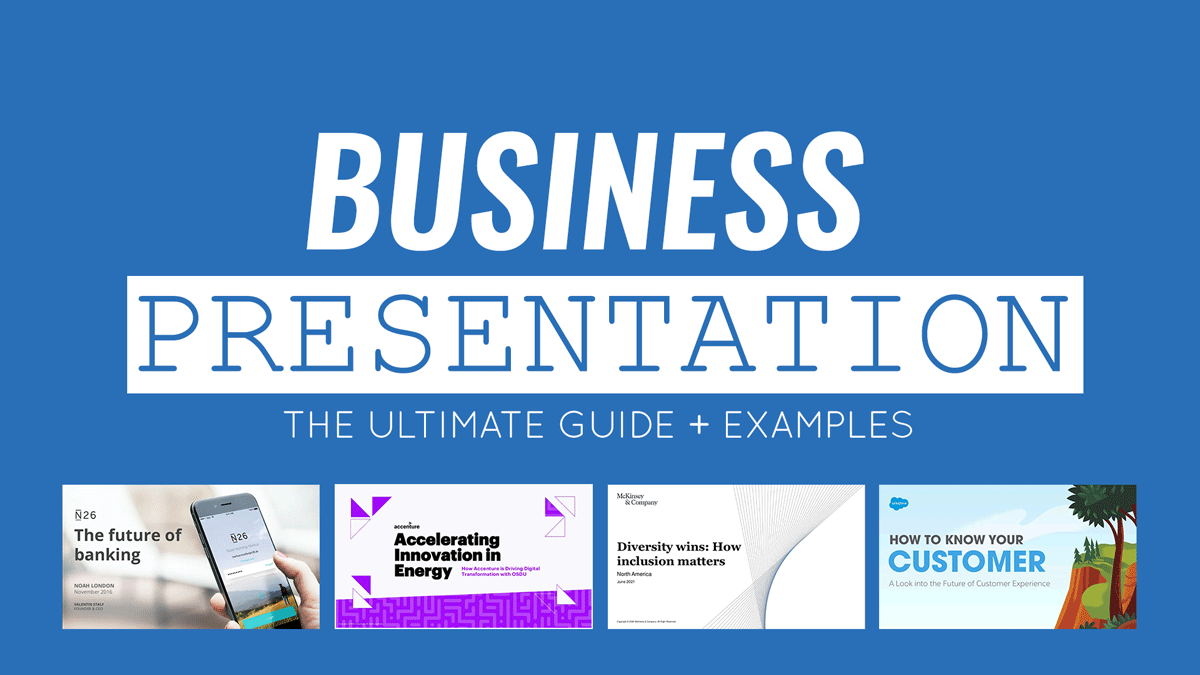
Credit: slidemodel.com


About author









Add comment