
How to Convert Pdfs into Presentation Slideshows Instantly: Easy Steps
Turning a static PDF document into an attractive, interactive presentation can feel like a time-consuming process. Many people, especially those working or studying in fast-paced environments, face tight deadlines and need to present information quickly. Yet, building slides from scratch by copying and pasting content from PDFs is slow, often frustrating, and can lead to errors or boring slideshows. Fortunately, technology now makes it possible to convert PDFs into presentation slideshows instantly. This guide will show you the best tools, techniques, and insider tips to help you transform your documents into engaging slides—without losing quality or wasting time.
In this article, you’ll discover various solutions, step-by-step instructions, and practical advice for different needs. Whether you are a student, teacher, professional, or anyone dealing with PDFs and presentations, you’ll find answers to common challenges, see real examples, and learn how to avoid mistakes beginners often make.
Let’s dive in and explore how to convert your PDFs into dynamic slideshows—quickly and easily.
Why Convert Pdfs To Presentation Slideshows?
PDFs are great for sharing documents that look the same on any device. But when it’s time to present, PDFs have limits. You can’t animate content, add speaker notes, or control the flow the way you can with a presentation. Here’s why converting PDFs to slideshows is becoming more popular:
- Interactive Presentations: Slideshows (like PowerPoint or Google Slides) allow for animations, clickable links, and embedded media, making your message clearer.
- Easier Sharing and Editing: Presentation tools enable real-time collaboration, commenting, and quick edits.
- Better Audience Engagement: Well-designed slides are easier to follow and remember compared to static PDF pages.
A recent survey found that 83% of professionals prefer presenting with slides over PDF viewers, mainly because slides are more flexible and engaging. If you want your audience to understand and remember your key points, converting your PDF into a slideshow is often the smarter choice.
Common Scenarios For Pdf To Slideshow Conversion
Understanding when and why to convert PDFs to slideshows helps you choose the best method. Here are some common situations:
- Classroom Lectures: Teachers often have lecture notes or articles in PDF format. Turning these into slides makes lessons more visual.
- Business Meetings: Reports, proposals, and whitepapers are usually in PDF. Converting them into slides helps highlight key findings.
- Workshops and Training: Step-by-step guides or manuals in PDF can be split into slides for easier learning.
- Conferences: Presenters often receive research papers in PDF. Slides make it easier to summarize and discuss complex topics.
- Client Pitches: A PDF can be overwhelming. A slideshow highlights your main ideas and makes your pitch memorable.
In all these scenarios, the goal is clear: make your message easier to understand and more compelling.
Methods For Converting Pdfs Into Presentation Slideshows
There are several ways to convert PDFs into slides. The best method depends on your needs, file size, content type, and the level of customization you want. Let’s review the main options:
1. Online Pdf To Powerpoint Converters
Web-based tools are the easiest and fastest way for most users. These services work directly in your browser—no installation needed.
Popular Online Tools:
- Smallpdf
- Adobe Acrobat Online
- ILovePDF
- PDF2Go
How They Work:
You upload your PDF, and the tool converts each page into a slide. Most services allow you to download the result as a PowerPoint (. pptx) file.
Advantages:
- Fast and simple
- No software required
- Good for basic conversions
Limitations:
- Formatting may change
- Images and text may not always convert perfectly
- Some tools have file size limits or require payment for large files
2. Desktop Software Solutions
If you want more control or need to convert sensitive documents, desktop software might be a better choice.
Popular Desktop Programs:
- Adobe Acrobat Pro DC
- Wondershare PDFelement
- Nitro PDF Pro
- Foxit PDF Editor
Steps:
- Open your PDF in the software.
- Choose “Export” or “Convert to PowerPoint.”
- Save the output as a .pptx file.
- Open it in PowerPoint or Google Slides to adjust.
Advantages:
- Better accuracy and formatting
- Handles large or complex files
- More security for confidential data
Limitations:
- Requires installation
- Often paid
3. Powerpoint’s Built-in Import Tools
Some versions of Microsoft PowerPoint let you import PDF content directly.
- Go to “Insert” > “Object” > “Create from File” and select your PDF.
- Or use “Insert” > “Pictures” > “This Device” to add PDF pages saved as images.
Note: This method usually adds PDF pages as images, so you cannot edit text easily. It’s best for simple slides or when editing is not needed.
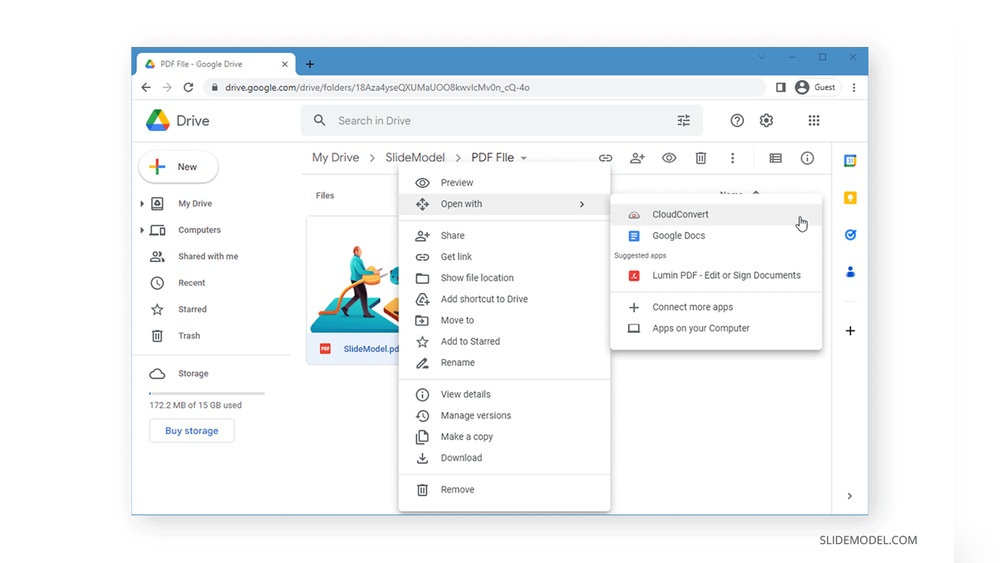
4. Google Slides And Cloud-based Options
Google Slides doesn’t support direct PDF import, but you can use workarounds:
- Convert PDF pages to images (using online tools) and insert images into slides.
- Use third-party add-ons that allow PDF importing.
This approach is helpful for quick sharing and collaboration, but like PowerPoint’s import, it may limit editing.
5. Dedicated Pdf-to-slides Plugins And Extensions
Some plugins or browser extensions can automate the process, especially for Google Workspace or Microsoft 365 users. These tools often provide more options for splitting, merging, or customizing the converted slides.
Step-by-step Guide: Converting Pdfs Into Slides Instantly
Let’s walk through a typical process using an online converter, then see how to refine the result in PowerPoint or Google Slides.
Step 1: Choose The Right Tool
Decide based on your needs:
- For quick, simple conversions: Try Smallpdf or ILovePDF.
- For more control and privacy: Use Adobe Acrobat Pro DC.
Step 2: Upload Your Pdf
Visit your chosen tool’s website.
- Click “Choose File” or drag your PDF into the upload area.
- Wait for the file to process.
Step 3: Convert And Download
- Select “PDF to PowerPoint.”
- Click “Convert.”
- Download the .pptx file when finished.
Step 4: Open And Edit Slides
- Open the .pptx file in PowerPoint or import it into Google Slides.
- Review each slide. Check for:
- Broken formatting
- Missing images or text
- Poorly sized elements
Tip: Some converters only turn each PDF page into a static image. For editable slides, use tools that try to keep text and images separate.
Step 5: Refine Your Slides
- Adjust text boxes, fonts, and layouts as needed.
- Add transitions, animations, and speaker notes.
- Replace blurry images with higher-quality versions if possible.
Step 6: Save And Share
- Save your slideshow in the desired format.
- Share via email or cloud storage, or present directly.
Credit: www.pdfgear.com
Comparing Popular Pdf-to-presentation Tools
It’s important to choose the right tool for your needs. Here’s a comparison of some popular options:
| Tool | Type | Editable Text | Free Version | Best For |
|---|---|---|---|---|
| Smallpdf | Online | Yes (mostly) | Limited | Quick, simple jobs |
| Adobe Acrobat Pro DC | Desktop | Yes | No | High accuracy, privacy |
| ILovePDF | Online | Partially | Yes | Easy use, light tasks |
| Wondershare PDFelement | Desktop | Yes | No | Large files, advanced edits |
| Foxit PDF Editor | Desktop | Yes | Trial | Business, security |
Non-obvious insight: Even with the best tools, complex layouts (tables, graphics) may require manual tweaks after conversion. Always budget time for a final review.
Tips For Getting Better Results When Converting Pdfs
Not every PDF will convert perfectly. Here are some practical strategies to improve your results:
- Use High-Quality PDFs: Low-resolution scans or heavily compressed files convert poorly.
- Prefer Text-Based PDFs: Scanned images of text can’t be edited easily unless OCR (Optical Character Recognition) is used.
- Simplify Layouts: Clean, simple layouts (clear headings, sections) translate better to slides.
- Avoid Password-Protected PDFs: Most tools can’t handle locked files.
- Check for Unusual Fonts or Languages: Some fonts or non-Latin scripts may not convert correctly.
Pro tip: If your PDF is a scan, use an OCR tool first to turn images into selectable text. Many converters have built-in OCR, but quality varies.
Customizing Your Slideshow After Conversion
After converting your PDF, you’ll likely want to improve the look and feel of your slideshow. Here’s how to make your presentation stand out:
Use Consistent Themes And Styles
Apply a professional template in PowerPoint or Google Slides. This gives your presentation a unified, polished look. Avoid mixing too many colors or fonts.
Reorganize Slides For Clarity
PDFs are linear, but good presentations often group related ideas or use multiple slides for one complex topic. Split up dense PDF pages into several slides if needed.
Add Visuals And Multimedia
Enhance your slides by:
- Inserting charts or graphs for data
- Adding relevant images or icons
- Embedding short videos or audio clips
Use Speaker Notes And Animations
Slideshows allow you to add notes for each slide (visible only to you), as well as transitions and simple animations. Use these features to guide your talk and keep your audience engaged.
Highlight Key Points
Use bold, color, or shapes to draw attention to the most important ideas on each slide. Avoid overloading slides with text.
Insider tip: Many people forget to update slide titles after conversion. Clear, descriptive titles help your audience follow along.
Addressing Common Conversion Problems
Even with good tools, you may face issues like missing images, broken formatting, or unreadable text. Here’s how to fix them:
Problem: Images Missing Or Blurry
Solution: Replace missing or low-quality images manually. Keep a copy of original images if possible, so you can insert them into the new slides.
Problem: Text Not Editable
If the converted slide has text as an image, you can’t change it directly.
Solution: Use OCR tools to extract text, then paste it into new text boxes. Adobe Acrobat Pro DC and PDFelement offer built-in OCR.
Problem: Slides Out Of Order
Sometimes, page numbers or sections may be misplaced.
Solution: Rearrange slides in PowerPoint or Google Slides. Drag and drop to reorder as needed.
Problem: Formatting Errors
Fonts, bullet points, and tables may not look right.
Solution: Use the “Reset Slide” function in PowerPoint to apply the current theme, then adjust manually. For tables, consider recreating them using the presentation tool’s built-in table feature.

Credit: www.reddit.com
Advanced Techniques For Power Users
If you regularly convert PDFs to slides, consider these advanced options:
Batch Conversion
Some desktop tools allow you to convert multiple PDFs at once. This is useful for teachers or businesses handling large numbers of documents.
Automating With Scripts
Advanced users can use Python scripts (with libraries like PyPDF2 and python-pptx) to automate custom conversions. This requires programming knowledge but offers full control.
Integrating With Cloud Services
Services like Zapier or Microsoft Power Automate can trigger automatic PDF-to-slide conversion when a new file is uploaded to a cloud folder.
Using Ai-powered Tools
Some new AI tools can summarize PDF content and auto-generate slides based on key points, not just page-by-page images. These tools are improving rapidly and can save a lot of time for complex documents.
Example: Tome (tome.app) and Beautiful.ai are experimenting with AI slide generation.
Real-world Example: Converting A Research Paper For A Conference Presentation
Suppose you have a 20-page academic PDF and need to present it at a conference. Here’s how you might approach the task:
- Use Adobe Acrobat Pro DC to convert the PDF to PowerPoint.
- Open the .pptx file and review the slides. Most will be too dense.
- Break up complex slides. For example, turn one page of detailed methods into three slides: Overview, process, and results.
- Add charts and diagrams from the original paper.
- Highlight key findings and conclusions.
- Use speaker notes to add extra detail you don’t want on the slide.
With these steps, you’ll have a clear, professional presentation based on your original PDF—but much more effective for your audience.

Credit: www.aippt.com
Data Table: Conversion Accuracy By Tool Type
Conversion quality depends on the tool and the type of content. Here’s a summary comparing text accuracy, image retention, and table conversion for common methods:
| Method | Text Accuracy | Image Retention | Table Conversion |
|---|---|---|---|
| Online Free Tools | 80% | 70% | 50% |
| Paid Desktop Software | 95% | 90% | 80% |
| Manual Copy-Paste | 100% | 100% | 90% |
| AI-Based Tools | Varies (up to 95%) | Varies (up to 85%) | Good (if supported) |
Note: Manual methods are most accurate but much slower. Paid software offers the best balance for speed and quality.
Protecting Sensitive Information During Conversion
If your PDF contains private or confidential data, be careful when using online converters. Here’s how to stay safe:
- Use trusted, secure services (look for HTTPS and privacy policies).
- Prefer desktop tools for highly sensitive files.
- Check and remove hidden data (like metadata or comments) before uploading.
Some organizations require all documents stay on local computers. In such cases, stick to desktop solutions.
Accessibility Considerations
When turning PDFs into slides, remember that not all your audience may see or read slides the same way. To make your presentation accessible:
- Use large, clear fonts
- Add alt text to images
- Ensure good color contrast
- Avoid putting too much text on one slide
PowerPoint and Google Slides offer accessibility checkers to help you spot and fix common problems.
Future Trends In Pdf-to-slideshow Conversion
The process of converting PDFs into slides is getting easier and smarter. Here are some trends to watch:
- AI-powered slide creation: Tools that analyze PDF content and generate presentation-ready slides automatically.
- Better OCR technology: More accurate text extraction from scans and images.
- Cloud integration: Seamless workflows from email or cloud storage directly to slides.
- Mobile solutions: Apps that let you convert and edit presentations right from your phone or tablet.
As these features improve, expect PDF-to-slideshow conversion to become even faster and more accurate.
Frequently Asked Questions
How Do I Keep The Original Formatting When Converting Pdfs To Slides?
It’s difficult to keep formatting 100% the same, especially with complex PDFs. Use professional desktop tools (like Adobe Acrobat Pro DC) for the best results, and always check the slides after conversion. Be ready to adjust fonts, images, and layouts.
Can I Convert Scanned Pdfs Into Editable Slideshows?
Yes, if you use a tool with OCR (Optical Character Recognition). OCR turns scanned images into selectable text. Without OCR, your slides will only show images of each page, not editable text.
What Is The Fastest Way To Turn A Pdf Into A Powerpoint Presentation?
Online converters (like Smallpdf or ILovePDF) are the fastest. Upload your PDF, convert it, and download the. pptx file in minutes. Just remember that quick tools may not handle complex layouts perfectly.
Are There Any Free Tools For Converting Pdfs To Slideshows?
Yes, several online services offer free conversions with limits on file size or number of tasks per day. Examples include Smallpdf and ILovePDF. For frequent or large conversions, paid software may be worth it.
How Safe Is It To Upload Sensitive Pdfs To Online Converters?
There is always some risk when uploading files to the internet. For confidential documents, use desktop software or choose online tools with strong privacy policies. For more on secure file handling, see Adobe Security.
Converting PDFs into engaging presentations is now faster and easier than ever. By choosing the right tools, following best practices, and being ready for a bit of manual clean-up, you can save hours and impress your audience every time. Whether you’re preparing for a big meeting, teaching a class, or sharing research, the ability to turn static PDFs into dynamic slideshows instantly is a valuable skill in today’s digital world.


About author









Add comment