
Cursor Ai Vs Vs Code With Copilot: Which Boosts Productivity Most?
The world of software development is changing quickly, and artificial intelligence (AI) is playing a big part in this evolution. Today, developers have access to tools that not only help them write code faster but also make smarter decisions while coding. Two of the most talked-about AI-powered coding tools are Cursor AI and Visual Studio Code (VS Code) with Copilot. Both promise to revolutionize how we write code, debug, and learn new languages. But how do they really compare? Which one is better for your workflow, learning style, or team environment? This deep dive will help you understand the strengths, weaknesses, and real-world applications of each, so you can make the best choice for your coding journey.
What Are Cursor Ai And Vs Code With Copilot?
Before comparing these tools, it’s important to understand what each one actually is.
Cursor AI is a modern code editor built around AI from the ground up. It uses advanced models (like GPT-4) to help with everything from code completion to code refactoring and even full project generation. Cursor AI is a standalone product, not just a plugin or extension. It aims to be a complete development environment where AI is integrated deeply into every part of the coding experience.
On the other hand, VS Code with Copilot combines the popular Visual Studio Code editor with GitHub Copilot, an AI-powered coding assistant. VS Code is already the world’s most popular code editor, known for its flexibility and huge extension library. Copilot, developed by GitHub and OpenAI, plugs into VS Code and provides smart code suggestions, autocompletes functions, and helps write code based on natural language prompts.
Both tools use AI to help you code, but their approach and the depth of integration are quite different.
Core Features: What Do They Offer?
Let’s break down what each tool provides, so you can see where they overlap and where they differ.
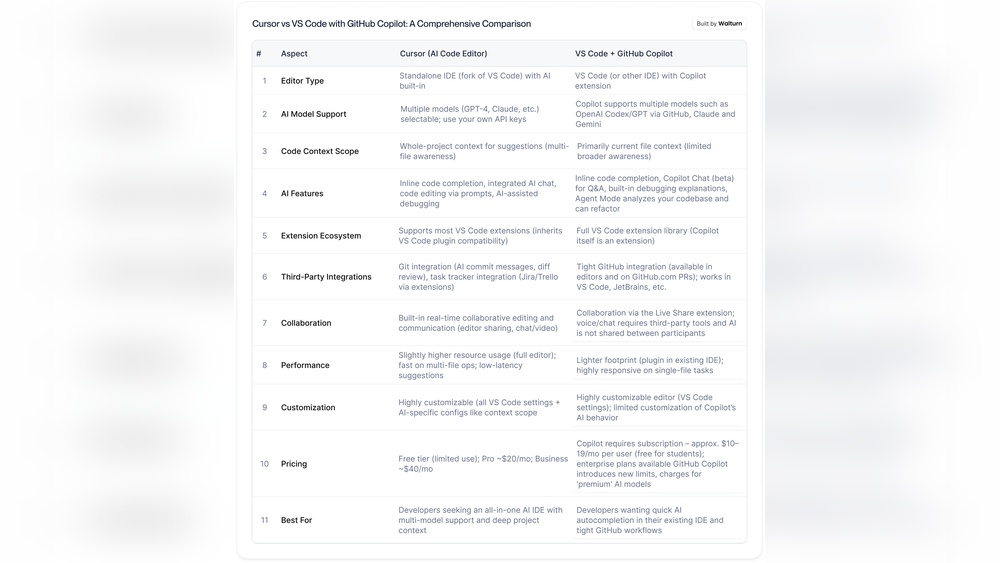
| Feature | Cursor AI | VS Code with Copilot |
|---|---|---|
| AI Code Completion | Deeply integrated, context-aware, supports multi-file context | Excellent suggestions, mostly within the current file context |
| Natural Language Prompts | Write, refactor, and explain code using plain English | Generate code and functions from comments and prompts |
| Refactoring Tools | Advanced, can handle large-scale refactoring with AI | Some support, but less advanced than Cursor |
| Debugging Assistance | AI can help explain bugs and suggest fixes | Copilot can help write bug fixes, but not deeply integrated |
| Extension Ecosystem | Limited, as it’s a newer platform | Massive, thousands of extensions for all needs |
| Language Support | Wide, but focused on mainstream languages | Very broad, almost every language supported by extensions |
| Team Collaboration | Real-time AI-powered collaboration features | Live Share extension, but less AI focus in collab |
| Performance | Fast, optimized for AI tasks | Can slow down with heavy extensions or projects |

Credit: the-real-cos.medium.com
User Experience: How Does It Feel To Code?
The experience of using a tool is just as important as what it can do on paper. Let’s look at what it’s like to actually use Cursor AI and VS Code with Copilot.
Getting Started
Cursor AI is designed to be simple from the first launch. You download and install it, and AI features are available immediately. There are no extra plugins to set up. The interface feels modern, clean, and minimal, with AI suggestions appearing contextually.
You can highlight code and ask questions like “What does this do? ” or “Refactor this function for speed. ”
VS Code requires you to install the Copilot extension and log in with a GitHub account. The setup is straightforward, but there are a few more steps. The environment is familiar to millions of developers, so if you’ve used VS Code before, there’s almost no learning curve.
Copilot’s suggestions appear as ghost text while you type, and you can accept them with a simple press of the Tab key.
Day-to-day Coding
In Cursor AI, AI is always “present” and attentive. It understands code across multiple files, so you can ask for a refactor or explanation, and it will consider your entire project. The AI chat sidebar is always available, acting as a coding mentor.
Cursor AI can even generate whole files or boilerplate code when you describe what you want.
With VS Code and Copilot, the experience is more focused on generating snippets and filling in code as you write. Copilot is fast and accurate for common coding patterns, and it learns from your coding style over time. However, its understanding is mostly limited to the file you’re working on, unless you guide it carefully.
Interface And Customization
Cursor AI’s interface is clean, but options for customization are limited. It’s a new product, so the themes and extensions are fewer. However, the built-in AI tools make up for some of this, especially for newer developers who want less setup and more productivity.
VS Code is famous for its customization. You can change the theme, tweak the interface, and install thousands of extensions for every programming language and workflow. This flexibility can be an advantage, but it can also be overwhelming for beginners.
Performance And Stability
Cursor AI is optimized for AI workloads and runs smoothly, even with large codebases. Because it’s less crowded with extensions, it often feels faster and more stable.
VS Code is generally fast, but performance can drop if you install too many extensions or work on very large projects. Copilot itself is lightweight, but the combination of many plugins can slow things down.
How Ai Powers Each Tool
The heart of both Cursor AI and Copilot is the large language models (LLMs) that understand and generate code. But how these models are used makes a big difference.
Cursor Ai’s Ai Integration
Cursor AI is built around models like GPT-4. It uses these not only for code completion but for deeper tasks, such as:
- Project-wide understanding: The AI sees your whole codebase, so suggestions and refactoring consider all your files.
- Natural conversation: You can chat with the AI about your code as if you’re talking to a colleague.
- Proactive suggestions: Cursor AI might suggest improvements or point out possible bugs, not just respond to your prompts.
Copilot’s Ai Integration
Copilot is based on OpenAI’s Codex model, which is trained on billions of lines of public code. Its main strengths are:
- Fast inline suggestions: As you write, Copilot offers code completions and even full functions.
- Contextual responses: It understands the current file and recent edits, but not always the full project.
- Learning from usage: Copilot adapts to your style and common patterns over time, but its memory is limited compared to Cursor AI.
Key Differences In Ai Use
While both tools use advanced AI, Cursor AI is more like having a smart team member who knows your whole project and can discuss ideas. Copilot is more like a quick assistant who helps fill in gaps while you write.
Real-world Examples: How Do They Help Developers?
Let’s look at some practical examples to see how each tool works in action.
Example 1: Writing A New Function
Suppose you want to write a function that sorts a list of users by their signup date.
- Cursor AI: You can describe your goal in plain English, such as “Write a Python function that takes a list of users and returns them sorted by signup date.” Cursor will generate the code, often with helpful comments and edge case handling.
- VS Code with Copilot: Type a comment like `# sort users by signup date`, and Copilot will suggest the function as you write. It’s fast and accurate for standard tasks.
Example 2: Refactoring Old Code
Your project has a 200-line function that’s hard to understand.
- Cursor AI: Highlight the function and ask, “Can you split this into smaller functions and explain each part?” Cursor will break it up and add explanations, considering the full context.
- VS Code with Copilot: Copilot can help as you rewrite the function, but it may not handle large, project-wide refactoring as smoothly.
Example 3: Debugging And Learning
You hit a bug you don’t understand.
- Cursor AI: Ask the AI to explain the error message or suggest a fix. It can even analyze multiple files to find the root cause.
- VS Code with Copilot: Copilot can suggest bug fixes if you describe the problem, but it doesn’t analyze your whole project by default.
Example 4: Team Collaboration
You’re working on a team project and want to keep code style consistent.
- Cursor AI: Built-in AI-powered collaboration tools help teams standardize code and review pull requests efficiently.
- VS Code with Copilot: Collaboration relies on extensions like Live Share, but Copilot’s AI is focused on individual coding, not team standards.
Pricing: What Does It Cost?
When choosing a tool, cost is always an important factor. Here’s how the two options compare:
| Plan | Cursor AI | VS Code with Copilot |
|---|---|---|
| Free Tier | Limited trial with basic AI features | VS Code is free, but Copilot is paid (small trial period) |
| Individual Subscription | Around $20/month (as of early 2026) | $10/month or $100/year (for Copilot) |
| Team/Enterprise Plans | Custom pricing, AI team features included | Copilot for Business: $19/user/month |
| Student/Educator Discounts | Some offers, but limited | Free for students and teachers via GitHub Education |
Important: Prices change over time. Always check the official websites for the latest details.
Language And Framework Support
One of the main reasons for VS Code’s popularity is its support for almost every programming language and framework. But how does Cursor AI compare?
Cursor Ai
- Supports major languages: Python, JavaScript, TypeScript, Java, C++, Go, Rust, and more
- AI models are tuned for mainstream languages, so suggestions are usually accurate for these
- Newer or niche languages may have limited support
- Framework awareness is improving but not as deep as VS Code’s
Vs Code With Copilot
- With extensions, supports almost any language: PHP, Ruby, Dart, C#, Swift, Kotlin, and many more
- Copilot works best with popular languages (Python, JavaScript, TypeScript, etc.)
- Some features (like debugging) depend on language-specific extensions
- Excellent for web, backend, and data science workflows
Non-obvious insight: While both tools support many languages, Copilot’s real advantage is the huge number of language-specific extensions in VS Code. However, if you work mostly in Python or JavaScript, both tools will feel equally powerful.
Extension Ecosystem And Customization
Developers often need more than just code completion—they want linters, formatters, Docker tools, and more. Let’s compare the options.
Cursor Ai
- Still building its extension ecosystem
- Has core integrations for Git, terminals, and debugging
- Limited themes and UI customization
- Focuses on “just works” experience, less on deep customization
Vs Code With Copilot
- Over 30,000 extensions in the VS Code marketplace
- Deep customization: Themes, keybindings, UI tweaks
- Extensions for almost every workflow: Testing, containers, cloud, CI/CD, etc.
- Can be overwhelming for new users—requires careful management
Non-obvious insight: While VS Code’s extension power is a big plus for advanced users, it can be a source of slowdowns or conflicts. Cursor AI’s simplicity means fewer headaches, especially for newer developers.

Credit: www.flexmind.co
Collaboration And Team Features
Modern software development is rarely a solo activity. How do these tools support teams?
Cursor Ai
- Real-time collaborative editing with AI suggestions
- AI can help review code, suggest changes, and enforce style guides
- Built for remote and distributed teams
- Early-stage, but promising features for team productivity
Vs Code With Copilot
- Live Share extension enables pair programming and real-time sharing
- Copilot is focused on individual code suggestions, not team-wide standards
- Many plugins for project management, chat, and integrations (Slack, Jira, etc.)
- Strong support for large teams thanks to VS Code’s popularity
Practical tip: If team collaboration with AI assistance is a priority, Cursor AI is worth exploring. For established teams with existing VS Code workflows, Copilot plus extensions may be easier to adopt.
Security And Privacy
Security is critical, especially when your codebase contains sensitive information.
Cursor Ai
- Processes code locally where possible; some features use cloud AI
- Promises not to use customer code for training without consent
- Still a young platform—review privacy policy before using in regulated industries
Vs Code With Copilot
- Copilot suggestions are generated by models trained on public code
- Some code is sent to the cloud for processing; GitHub has strict privacy controls
- Enterprise plans offer more data control and compliance options
Pro tip: Always review your organization’s rules before using AI tools, especially on closed-source or sensitive projects.
Learning Curve And Support
How easy is it to get started, and what help is available if you get stuck?
Cursor Ai
- Designed for fast onboarding: Simple UI, built-in chat help
- Community is small but growing
- Support mainly via documentation and email; fewer online tutorials
Vs Code With Copilot
- Huge community and many tutorials online
- Extensive official docs and active forums
- Learning Copilot is quick if you know VS Code already
Hidden insight: Cursor AI’s simplicity is great for beginners, while VS Code’s ecosystem helps you grow as a developer and tackle more complex workflows.
Updates And Future Roadmap
Software tools evolve, especially in the fast-moving world of AI.
Cursor Ai
- Rapid development, frequent updates, and new features added regularly
- Focus on deeper AI integration and team features
- Still catching up to VS Code in some areas (extensions, language coverage)
Vs Code With Copilot
- VS Code updates monthly with new features and bug fixes
- Copilot is continuously improved by GitHub and OpenAI
- New AI-powered features are added often, including Copilot Chat and Copilot for Docs
Advanced tip: If you want the latest AI features and are willing to try new things, Cursor AI may bring new ideas faster. If stability and mature features are more important, VS Code is a safer choice.
When Should You Choose Cursor Ai?
Cursor AI shines in several scenarios:
- You want an AI-first experience: Cursor AI is built around AI, not just as an add-on.
- You work on small-to-medium teams: Real-time AI collaboration is powerful for modern teams.
- You value simplicity over customization: Less setup and fewer distractions.
- You are learning to code: The AI chat, explanations, and project-wide refactoring are great learning tools.
- You’re open to new workflows: Willing to explore a different way of coding.
However, if you rely on rare programming languages or need very specific extensions, you may find Cursor AI limiting.
When Should You Choose Vs Code With Copilot?
VS Code with Copilot is the best fit when:
- You need maximum language and extension support: No editor is more flexible.
- You work in a large organization: Mature, proven platform with enterprise features.
- You love customizing your environment: Themes, extensions, and settings galore.
- You already use VS Code: Adding Copilot is simple and powerful.
- You need advanced debugging and DevOps tools: VS Code’s ecosystem covers everything.
But remember, the power of VS Code can sometimes come with complexity and performance trade-offs.

Credit: www.augmentcode.com
Limitations And Downsides
No tool is perfect. Here are some of the challenges you might face.
Cursor Ai
- Smaller community, fewer online resources
- Limited extension and language support (for now)
- Not ideal for very large, legacy codebases
Vs Code With Copilot
- Copilot’s suggestions can be hit-or-miss for uncommon code patterns
- Too many extensions can slow down VS Code
- Some AI features need internet access and may raise privacy questions
Honest advice: For critical or highly sensitive projects, always review AI-generated code carefully and never assume it’s bug-free.
Case Study: A Week With Each Tool
To give you a real sense of how these tools feel, here’s a summary of experiences from developers who used both for a week.
With Cursor AI:
- Faster ramp-up on new projects, thanks to project-wide AI help
- Refactoring and documentation were easier and more thorough
- Collaboration with teammates felt natural, though some missed familiar extensions
With VS Code and Copilot:
- Power users enjoyed customizing their setup and using favorite extensions
- Copilot was best for repetitive coding and filling in boilerplate
- Debugging and DevOps tasks were better supported
Interesting finding: Developers switching from VS Code to Cursor AI often felt “lighter,” while those moving from Cursor to VS Code enjoyed the familiarity and plugin power.
The Role Of Ai In The Future Of Coding
AI is not just a passing trend. According to a 2026 Stack Overflow survey, over 55% of developers already use AI coding assistants in their daily work, and that number is growing. Companies are investing billions in AI-powered developer tools, expecting faster delivery and fewer bugs.
The most successful developers in the future will be those who know how to work with AI—knowing when to trust its suggestions, when to ask for deeper explanations, and when to take control themselves.
For more on how AI is changing software development, check out this in-depth analysis by VentureBeat.
Frequently Asked Questions
What Is The Biggest Difference Between Cursor Ai And Vs Code With Copilot?
The main difference is how deeply AI is integrated. Cursor AI is built around AI from the ground up, offering project-wide understanding and chat-based help. VS Code with Copilot adds AI suggestions to a traditional code editor but doesn’t integrate AI into every feature.
Can I Use Both Cursor Ai And Copilot At The Same Time?
You can’t use them together in the same editor, but you can install both on your computer and switch between them. Some developers use Cursor AI for new projects and VS Code for projects that require specific extensions.
Which Tool Is Better For Beginners?
Cursor AI is often easier for beginners because of its simple interface and built-in AI explanations. However, VS Code with Copilot is also beginner-friendly, especially if you want to learn different languages or need lots of tutorials.
Is My Code Safe When Using These Ai Tools?
Both Cursor AI and Copilot have privacy policies to protect your code. Some code is sent to the cloud for processing. For sensitive projects, review each tool’s privacy settings and policies before using them.
Will Ai Coding Assistants Replace Human Developers?
No. AI tools are meant to help developers, not replace them. They can speed up coding, catch common mistakes, and help you learn, but they can’t understand the full context or goals of a project like a human can.
Final Thoughts
Choosing between Cursor AI and VS Code with Copilot depends on your workflow, team needs, and how much you want to rely on AI. Cursor AI offers a fresh, AI-first approach that feels like the future of coding, especially for small teams or new projects. VS Code with Copilot brings the power of AI to the world’s most popular editor, backed by a huge ecosystem and community.
The best way to decide is to try both. See how each tool fits your style, your projects, and your goals as a developer. Whichever you choose, you’ll be part of the next wave of smarter, faster, and more creative coding.


About author









Add comment