
Crayo Ai Vs Capcut for Auto Captions: Best Tool Compared
When it comes to video content today, auto captions are no longer a luxury—they’re essential. Creators know that captions help videos reach more people, especially those who watch with the sound off or have hearing difficulties. But not all auto caption tools are created equal. Two popular choices are Crayo Ai and CapCut, each with its own strengths and approach. If you’re wondering which one fits your workflow, budget, and quality standards, you’re not alone. Let’s dive deep into both, compare their features, and uncover which auto caption solution truly delivers.
Why Auto Captions Matter More Than Ever
Video consumption habits have changed dramatically. Studies show that up to 85% of Facebook videos are watched on mute. On TikTok and Instagram, silent viewing is common, especially in public spaces. Auto captions make your content accessible to a wider audience, including the 5% of the world’s population with disabling hearing loss (according to the WHO).
Beyond accessibility, captions boost engagement, retention, and even SEO. For creators, marketers, and educators, using reliable auto caption tools is no longer optional—it’s a must.
Overview: Crayo Ai And Capcut
Before we compare details, let’s clarify what each tool offers.
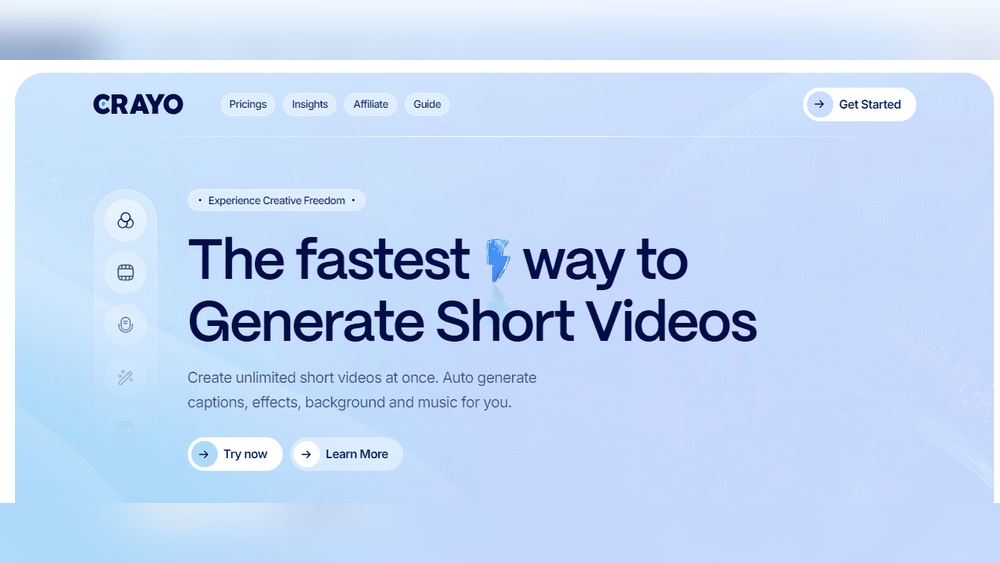
Crayo Ai is an online platform focused on automatic captioning powered by artificial intelligence. Its main promise: fast, accurate, and easy-to-edit captions for creators, businesses, and educators. Crayo Ai is web-based, meaning you don’t need to install any software.
CapCut, on the other hand, is a popular video editor owned by ByteDance (the company behind TikTok). It offers a full suite of editing features—including auto captioning—across both desktop and mobile. CapCut is widely used by social media creators for its ease of use, integration with TikTok, and generous free tier.
These tools both claim to make captioning effortless. But how do they stack up in real-world use?
Core Features Compared
Let’s look at the main features that matter most when choosing an auto caption tool.
Accuracy Of Captions
The heart of any auto caption tool is how well it converts speech to text. Poor accuracy means more manual editing and wasted time.
Crayo Ai uses advanced AI models trained for video speech recognition. It supports multiple accents and languages. Users often report 90–95% accuracy on clear audio, which puts it among the best in the industry. It handles background noise better than many competitors, rarely tripping up on fast speech or common names.
CapCut’s auto caption feature is also powered by AI, but it’s optimized mainly for short-form social video. On clear, well-recorded speech, CapCut often hits 85–90% accuracy. However, it can struggle with strong accents, crosstalk, or poor audio quality. Some creators find themselves correcting more errors, especially with less common words or brand names.
Non-obvious insight: Crayo Ai lets you train custom vocabularies—perfect for technical terms, slang, or brand-specific language. CapCut does not offer this.
Supported Languages
Both platforms understand that creators often need to caption in different languages.
Crayo Ai supports over 50 languages, including English, Spanish, French, German, Portuguese, Hindi, Chinese, and Arabic. It also covers regional dialects and allows easy switching between them.
CapCut supports around 30 languages for auto captions. Major languages are covered, but less common ones may be missing. CapCut’s translations (for subtitles) are decent but not as robust as its main captioning feature.
Practical tip: If you need captions in less common languages, Crayo Ai is the safer choice.
Editing And Customization
Once captions are generated, creators need to tweak, style, and place them.
Crayo Ai offers a dedicated caption editor. You can:
- Adjust timing (down to the millisecond)
- Change font, color, size, and position
- Add background, drop shadow, or animation
- Merge or split caption segments
- Export captions as SRT, VTT, or burn-in to video
CapCut’s editor is more visual, focusing on quick changes for social video. You can:
- Tap to edit text directly on the video
- Choose from preset styles and animations
- Resize and move captions with drag-and-drop
- Auto-align for TikTok/Instagram formats
- Burn captions into your exported video
One unique feature in CapCut: template captions—you can quickly apply a trending style. But for detailed timing edits or exporting captions as files, CapCut is more limited.
Ease Of Use
Both tools are designed for non-experts, but their approaches differ.
Crayo Ai’s interface is minimal and focused. Upload a video, select language, and click “generate. ” The editor walks you through corrections, and exporting is simple. There’s little distraction from editing captions.
CapCut, as a full video editor, can feel busier. If you’re already using CapCut to edit, adding captions is fast (just one button). But for new users, finding the caption feature and navigating multiple editing panels can be confusing.
Beginner insight: If you only need captions, Crayo Ai is more straightforward. If you already use CapCut for editing, adding captions there saves time.
Integration And Export Options
Where your captions end up matters. Do you want to upload to YouTube, share on TikTok, or use them in other tools?
Crayo Ai lets you export captions as SRT, VTT, or burned-in video. This is vital for YouTube uploads, accessibility compliance, or further editing in other software. Integration with Google Drive and Dropbox is available.
CapCut mainly burns captions directly into the exported video—perfect for TikTok, Instagram, or Snapchat. Exporting separate SRT files is not natively supported. CapCut is tightly integrated with TikTok, making direct publishing seamless.
Pricing
Cost is always a factor, especially for frequent creators.
Crayo Ai offers:
- A free trial (usually a few minutes of captioning)
- Pay-as-you-go ($0.20–$0.40 per minute, depending on volume)
- Subscription plans for heavy users (starting around $15/month for 5 hours of video)
CapCut is completely free for basic use, including auto captions, with no watermark. Advanced features are paywalled in CapCut Pro ($7.99/month), but captions remain free. There are no hard limits unless you need higher export resolutions or cloud storage.
Data point: For most creators, CapCut’s free captioning is enough. But Crayo Ai’s plans offer more professional export options and better accuracy.
Detailed Feature Comparison Table
To help you see the differences at a glance, here’s a head-to-head feature table:
| Feature | Crayo Ai | CapCut |
|---|---|---|
| Accuracy | High (90–95%) | Good (85–90%) |
| Languages Supported | 50+ | 30+ |
| Editor Type | Dedicated caption editor | Integrated in video editor |
| Export Formats | SRT, VTT, Burn-in | Burn-in only |
| Custom Vocabulary | Yes | No |
| Free Tier | Trial only | Full features |
| Platform | Web | Desktop, Mobile, Web |
| Integrations | Google Drive, Dropbox | TikTok, Social Media |
Real-world Performance: Speed And Reliability
Speed is critical if you caption lots of videos. Reliability matters for batch jobs or commercial projects.
Crayo Ai processes standard videos (5–10 minutes) in about 1–3 minutes. For longer videos (1 hour+), expect 10–15 minutes. Upload speed depends on your connection, but cloud processing is fast.
CapCut processes short videos (under 5 minutes) almost instantly, especially on desktop. On mobile, speed depends on device power and video size. For longer videos, processing can slow down or even crash on older phones.
Common mistake: Many users forget that CapCut’s auto captioning needs a stable device and enough storage. If your phone is nearly full, large projects may fail.
Customization: Style And Branding
For businesses and brands, caption appearance is as important as accuracy.
Crayo Ai lets you fully customize captions:
- Choose from many fonts or upload your own
- Set brand colors, add background boxes, or logos
- Animate captions for emphasis
- Save styles as templates for later use
CapCut focuses on trendy, eye-catching styles:
- Dozens of preset fonts, colors, and animations
- Quick application of TikTok/Instagram-friendly templates
- Limited font upload (mostly on desktop)
- Less control over line breaks and timing
Advanced insight: If you need captions to match strict brand guidelines, Crayo Ai offers more control. CapCut is better for quick, stylish social content.
Workflow And Collaboration
If you work in a team or need approval from clients, workflow matters.
Crayo Ai supports:
- Multi-user access (on higher plans)
- Cloud storage of projects
- Comment and review features
- Easy sharing of draft videos or caption files
CapCut is mostly designed for solo creators. Projects are stored locally or in the cloud (with CapCut Pro). Collaboration means sharing the video file itself, not just the caption layer.
Beginner mistake: Many teams try to use CapCut for collaborative captioning, but find that version control is hard. Crayo Ai is built for professional review and feedback.
Use Cases: Who Should Use Which Tool?
Let’s Get Practical. Who Wins In Each Scenario?
Social Media Creators
If you make TikToks, Reels, or YouTube Shorts, CapCut is hard to beat. It’s free, fast, and integrated with the platforms you already use. Auto captions are quick to add, and you can post directly from the app.
Youtubers And Educators
For longer videos, lectures, or tutorials, Crayo Ai shines. Its higher accuracy, export formats (SRT/VTT), and better handling of technical terms make it ideal. YouTube supports SRT uploads—so exporting directly from Crayo Ai saves time.
Businesses And Agencies
Agencies handling branded content or accessibility compliance should look at Crayo Ai. Its custom branding, precise timing control, and workflow tools fit professional needs. The cost is justified by reduced editing time and higher accuracy.
Multilingual Content
If your audience is global, Crayo Ai’s wider language support is a clear advantage. CapCut covers major languages, but Crayo Ai’s dialect options and custom terms help avoid embarrassing errors.
Limitations And Weaknesses
No tool is perfect. Here’s where each one falls short.
Crayo Ai:
- Not free beyond the trial
- Requires internet access (no offline mode)
- Video size limits on lower plans
- No full video editor—captioning only
CapCut:
- Occasional accuracy issues with complex audio
- Limited export options (no SRT/VTT)
- Less precise timing control
- Some features (like advanced fonts) only on desktop/web
Tip: For one-off captions, CapCut is fine. For large batches or compliance needs, Crayo Ai justifies its price.
User Reviews And Community Feedback
What do real users say? Both tools have strong followings, but for different reasons.
- CapCut is praised for its simplicity and being “good enough” for fast social content. Many TikTok stars rely on it daily. Complaints focus on accuracy drops with background noise or accents.
- Crayo Ai is popular among educators, YouTubers, and marketing teams. Users love the accuracy and custom vocabularies but sometimes wish for a cheaper unlimited plan.
An interesting point from user forums: Some creators use both tools. They edit video in CapCut, then upload to Crayo Ai for final captions—getting the best of both worlds.
Technical Specs And System Requirements
For those who care about details:
Crayo Ai
- Web-based (works on Chrome, Firefox, Safari)
- No installation needed
- Recommended: Stable internet, videos under 2GB for best speed
Capcut
- Desktop: Windows (7+), macOS (10.13+)
- Mobile: Android (5.0+), iOS (11.0+)
- Web version (limited features)
- Needs enough free storage and RAM for large projects
Pro tip: For long or high-res videos, use CapCut’s desktop version rather than mobile to avoid crashes.
Customer Support And Learning Resources
Support can make or break your experience.
- Crayo Ai offers email support, live chat, and a detailed help center. Paid plans get faster responses.
- CapCut has a large online community, video tutorials, and a help center. Direct support is limited, but answers are easy to find.
Non-obvious insight: For tricky caption issues (like timing or formatting for TV), Crayo Ai’s support team is more hands-on.
Security, Privacy, And Compliance
Some users handle sensitive or private videos. How do these tools protect your data?
- Crayo Ai follows GDPR and CCPA standards. Videos are processed securely and deleted after use (or stored only with your permission).
- CapCut stores projects locally (mobile/desktop) or in the cloud (with Pro). As a ByteDance product, privacy policies are similar to TikTok’s. Some schools and companies block CapCut for data concerns.
For regulated industries (healthcare, education), check your organization’s requirements before uploading sensitive content.
Unique Features And Innovations
A few standout features deserve attention.
- Crayo Ai: Custom vocabulary, cloud workflow, detailed timing edits, export flexibility.
- CapCut: Trendy caption styles, direct TikTok publishing, fast mobile workflow, free for all users.
Little-known fact: Crayo Ai’s AI engine is updated monthly, learning from user corrections to improve over time.
When To Use Both Tools Together
Some creators get the best results by combining tools:
- Edit your video in CapCut (for all the visual features).
- Export the video without captions.
- Upload to Crayo Ai for accurate, customizable captions.
- Download SRT/VTT for YouTube or burn-in for final exports.
This workflow is more work, but gives you both speed and quality.
Second Comparison Table: Workflow And Export Scenarios
To clarify how each tool fits common workflows, here’s another side-by-side look:
| Scenario | Best Tool | Reason |
|---|---|---|
| Quick TikTok/IG Reel | CapCut | Fast, free, direct publishing |
| Accessible YouTube Video | Crayo Ai | SRT/VTT export, high accuracy |
| Team review/approval | Crayo Ai | Cloud sharing, comments |
| Batch captioning | Crayo Ai | Multiple uploads, workflow tools |
| Stylish meme video | CapCut | Trendy templates, quick edits |

Credit: www.ssemble.com
Accessibility And Compliance
Making content accessible is not just good practice—it’s the law in many places.
- Crayo Ai: Provides captions that meet WCAG and ADA accessibility guidelines. Files are compatible with major platforms (YouTube, Vimeo, Kaltura).
- CapCut: Burned-in captions help, but lack of SRT/VTT export means less control for compliance.
Insight: If your organization needs formal accessibility reports, Crayo Ai offers export logs and compliance info on request.
Future Trends: The Evolution Of Auto Captions
Auto caption technology is rapidly evolving. AI models get better each year, reducing errors and expanding language support.
- Expect real-time captioning to become standard, even for live streams.
- More tools (including CapCut and Crayo Ai) will add emotion detection, highlighting emphasis or tone in captions.
- Multimodal AI may soon allow captions to adapt style based on video content—serious for news, playful for memes.
Staying updated with the latest features ensures your content remains accessible and engaging.
Credit: quso.ai
Final Thoughts: Which Should You Choose?
Both Crayo Ai and CapCut offer strong solutions, but your best choice depends on your needs:
- For quick, free, social video captions, CapCut is excellent.
- For high-accuracy, professional, or accessible captions, Crayo Ai is worth the investment.
- Many creators use both, depending on the project.
If possible, try each tool with your own content. Test with difficult audio, multiple speakers, and branded words. The right choice is the one that saves you the most time, reduces errors, and delivers captions your audience can trust.
For more about captioning standards and accessibility, visit the W3C Web Accessibility Initiative.
Frequently Asked Questions
What Is The Main Difference Between Crayo Ai And Capcut For Auto Captions?
Crayo Ai specializes in high-accuracy, customizable captions with export options like SRT and VTT. CapCut offers easy, fast captions directly in its video editor, mainly for burning into social videos. Crayo Ai is better for professional use, while CapCut suits quick social content.
Can Capcut Export Captions As Srt Or Vtt Files?
No, CapCut currently only burns captions into the video. It does not export captions as separate SRT or VTT files, which are needed for platforms like YouTube or for accessibility compliance.
Is Crayo Ai Free To Use?
Crayo Ai offers a free trial with limited minutes. After that, it’s pay-as-you-go or subscription-based. CapCut, by contrast, allows unlimited free use of auto captions for basic features.
Which Tool Is Better For Non-english Captions?
Crayo Ai supports more languages (over 50) and handles regional accents and dialects better. CapCut covers major world languages but may miss less common ones or offer lower accuracy for those.
Can I Use Both Tools Together For Better Results?
Yes. Many creators edit their video in CapCut, then upload the final version to Crayo Ai for more accurate and exportable captions. This method combines CapCut’s editing power with Crayo Ai’s caption quality.
Bringing captions into your workflow doesn’t have to be a chore. With the right tool—or combination—you can make your videos more accessible, professional, and engaging than ever before.

Credit: crayo.ai


About author









Add comment