
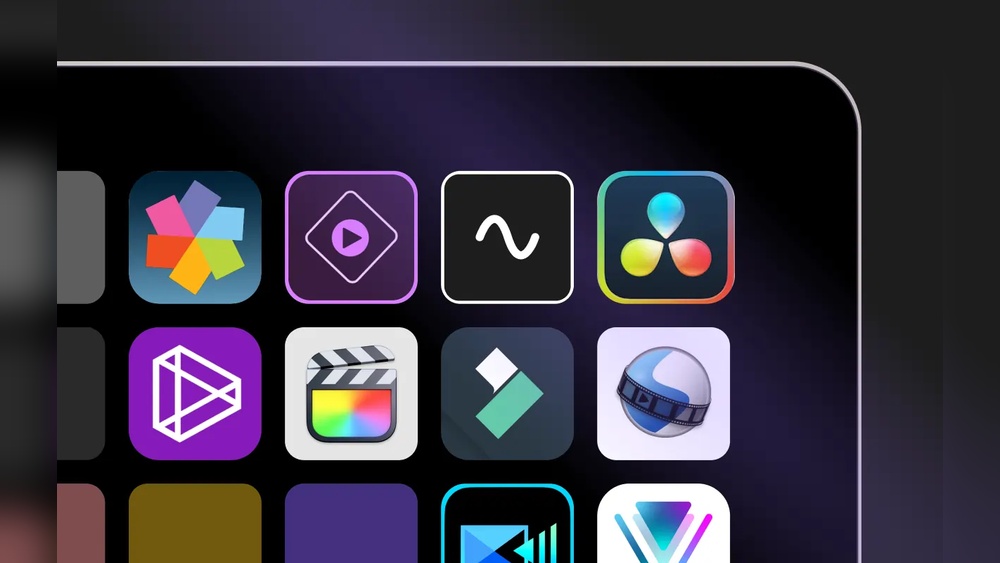
Adobe Premiere Alternatives for Quick AI Video Editing Unveiled
Video editing is changing fast. In the past, editing was slow and took a lot of time. Editors had to watch every second, cut clips by hand, and add effects one by one. Tools like Adobe Premiere Pro became popular because they were powerful and flexible. But now, people want faster results. Creators, social media managers, and even small business owners need to produce videos quickly—often on their own, with little editing experience.
Thanks to artificial intelligence, video editing is getting easier and quicker. Many new apps use AI tools to cut, trim, and even add effects automatically. You can turn raw footage into polished videos in minutes instead of hours. If you feel Adobe Premiere Pro is too complex or slow for your needs, you’re not alone. There are now many alternatives that use AI to help you edit videos quickly—even if you’re a beginner.
Let’s explore the best Adobe Premiere alternatives for quick AI video editing. We’ll look at their features, pricing, pros and cons, and see which one might be right for you. Whether you’re making TikToks, YouTube Shorts, or business promos, you’ll find options here that help you work smarter, not harder.
Why Look For An Adobe Premiere Alternative?
Adobe Premiere Pro is the industry standard for professional video editing. But it’s not perfect for everyone. Here’s why many users search for faster, AI-powered alternatives:
1. Steep Learning Curve: Premiere has hundreds of features, which can feel overwhelming for beginners. Basic editing tasks might take hours to learn.
2. High Price: Adobe uses a subscription model. For individuals or small businesses, the monthly cost adds up quickly.
3. Demands Powerful Hardware: Premiere works best on high-end computers. If your device is older or less powerful, you might face slow performance and crashes.
4. Slow for Quick Edits: For short social videos, you often don’t need all the advanced features. You just want to trim, add captions, and export quickly.
5. AI Features Still Limited: While Adobe has added some AI tools (like auto reframe), many newer apps offer deeper and faster AI-powered editing.
6. Cloud and Collaboration: Many AI editors run in the browser, making it easy to collaborate and edit from anywhere without installing large software.
These pain points are why creators are switching to new tools that use AI to speed up the editing process.
What To Look For In A Quick Ai Video Editor
Before you choose an Adobe Premiere alternative, it’s important to know what features actually matter for fast, AI-driven video editing.
- AI-powered automation: Look for tools that can auto-cut, auto-caption, and even suggest edits.
- Ease of use: The interface should be simple, clear, and beginner-friendly.
- Speed: Upload, process, and export times should be fast, even with large files.
- Templates and presets: Ready-made designs help you create videos quickly.
- Cloud-based: Online editors save space and work on most devices.
- Export options: You should be able to export in different formats and aspect ratios for social media.
- Collaboration: If you work in a team, sharing and commenting features help.
- Price: Good value matters. Many AI editors offer free plans or cheaper subscriptions than Adobe.
Some editors also offer advanced AI, like voice-to-text, scene detection, and auto-background removal. These can save hours of manual work.
Top Adobe Premiere Alternatives For Quick Ai Video Editing
The market is full of options, but not every tool is the same. Below, you’ll find some of the best alternatives—each with unique strengths. We’ll cover their main features, pricing, and who they’re best for.
1. Descript
Descript is one of the most talked-about AI video editors today. It turns video editing into something as easy as editing a Word document.
Key Features:
- Edit video by editing text: Upload a video and Descript transcribes it. You can cut, move, or delete sections by editing the text transcript.
- AI voice cloning: Create a digital version of your voice for narration changes.
- Studio Sound: AI cleans up audio quality with one click.
- Automatic captions: Generate subtitles instantly.
- Templates and stock media: Access to stock video, audio, and templates.
Pricing:
- Free plan with basic features and watermark.
- Paid plans start at $12/month.
Pros:
- Very intuitive for beginners.
- Fast, AI-driven transcript-based editing.
- Great for podcasts and talking-head videos.
Cons:
- Less control for advanced edits.
- Some AI features (like overdub) are paid.
Best for: Creators making explainer videos, podcasts, or interviews who want fast, accurate edits.
2. Kapwing
Kapwing is a popular online video editor with strong AI features and a focus on speed.
Key Features:
- AI auto-subtitling: Instant subtitles in multiple languages.
- Magic Cut: AI removes silences and filler words to tighten videos.
- Templates for social media: TikTok, Instagram, YouTube, and more.
- Background removal: AI can remove video backgrounds automatically.
- Collaborative editing: Share projects, comment, and edit together.
Pricing:
- Free plan with watermark and limited exports.
- Paid plans from $16/month.
Pros:
- All-in-one platform for video, image, and GIF editing.
- Simple drag-and-drop interface.
- Runs fully in the browser.
Cons:
- Free plan has watermark.
- Advanced features can get pricey.
Best for: Social media managers, marketers, and teams who need quick turnaround and easy collaboration.
3. Runway
Runway is at the cutting edge of AI video editing. It offers tools that feel like science fiction, but are available today.
Key Features:
- AI video generation: Create videos from text prompts.
- Green screen and background removal: Done instantly with AI.
- Motion tracking: Add effects that follow moving objects.
- Text-to-color grade: Change a video’s look by describing it in words.
- Multi-user collaboration: Real-time editing in the browser.
Pricing:
- Free plan with export limits and watermark.
- Paid plans start at $15/month.
Pros:
- Unique AI tools for creative projects.
- Fast background removal and other effects.
- Cloud-based, no installation needed.
Cons:
- Some features still experimental.
- Free plan has strong limitations.
Best for: Creative editors, agencies, and artists looking for next-gen AI video tools.
4. Invideo
InVideo is designed to help users create professional-looking videos quickly, using AI and a huge template library.
Key Features:
- AI script-to-video: Paste your script, and InVideo turns it into a video with images and footage.
- Automatic voiceovers: AI voices in multiple languages and accents.
- Media library: Over 8 million stock assets.
- Social media templates: Optimized for every platform.
- Text-to-speech and auto-captioning: Fast and accurate.
Pricing:
- Free plan with watermark and limits.
- Paid plans start at $15/month.
Pros:
- Fast video generation from scripts.
- Many templates for all industries.
- Easy to use for non-editors.
Cons:
- Watermark on free plan.
- Less control for advanced edits.
Best for: Small businesses, marketers, and anyone who wants to turn ideas into videos fast.
5. Pictory
Pictory’s main strength is turning text content—like blog posts or articles—into engaging videos using AI.
Key Features:
- Auto-video from text: Paste an article, and Pictory picks visuals and makes a video.
- AI voiceovers: Automatic voice narration.
- Scene detection: AI splits long videos into highlight clips.
- Auto-captioning: Instant subtitles.
- Bulk video creation: Make many videos at once.
Pricing:
- Free trial (no watermark).
- Paid plans start at $19/month.
Pros:
- Saves time for content repurposing.
- Good for turning blogs into YouTube videos.
- No watermark on free trial.
Cons:
- Visuals are AI-selected; manual tweaks may be needed.
- Not for detailed manual editing.
Best for: Content marketers, bloggers, and educators who want to create video from text quickly.
6. Wisecut
Wisecut is focused on making talking-head videos cleaner and more engaging using AI.
Key Features:
- Auto-silence removal: Cuts out pauses and filler sounds.
- Background music: AI matches music to your video.
- Smart subtitles: Automatic, with translation options.
- AI Storyboard: Visualizes video structure for quick edits.
- Facial recognition: Keeps speakers centered.
Pricing:
- Free plan with watermark.
- Paid plans from $10/month.
Pros:
- Super-fast video tightening.
- Simple interface for beginners.
- Great for YouTube and online courses.
Cons:
- Not for advanced effects or multi-track editing.
- Free plan is limited.
Best for: YouTubers, educators, and online coaches who make a lot of talking videos.
7. Clipchamp
Clipchamp, now owned by Microsoft, is a browser-based editor that blends traditional and AI tools.
Key Features:
- AI voiceovers: Multiple languages and accents.
- Templates and stock: Ready-made designs for quick edits.
- Auto-captioning: Fast and accurate.
- Green screen: Simple background removal.
- Direct export to social media: One-click sharing.
Pricing:
- Free plan with basic features.
- Paid plans start at $11.99/month.
Pros:
- Beginner-friendly.
- Runs on most devices.
- Good integration with Windows.
Cons:
- AI tools are basic compared to others.
- Some export limits on free plan.
Best for: Windows users and teams who want a simple, reliable browser editor.
8. Veed.io
VEED. IO is a fast-growing online editor built around AI features and speed.
Key Features:
- AI auto-subtitles: Supports 100+ languages.
- Magic Cut: AI trims long videos into highlights.
- Background removal: One-click AI removal.
- Templates: For stories, ads, and more.
- Team collaboration: Edit and comment together.
Pricing:
- Free plan with watermark.
- Paid plans start at $18/month.
Pros:
- Fast processing.
- Great for subtitles and translations.
- Easy for teams.
Cons:
- Watermark on free plan.
- Higher price for advanced features.
Best for: Teams, agencies, and creators who need fast, AI-driven editing and subtitles.
9. Magisto
Magisto by Vimeo uses AI to automate much of the video editing process, making it easy for beginners.
Key Features:
- AI video creation: Upload clips, choose a style, and Magisto does the rest.
- Music and effects: AI picks music and adds transitions.
- Templates for business: Marketing, social, and event videos.
- Automatic cropping: Adapts videos for each platform.
Pricing:
- Paid plans start at $9.99/month (no free plan).
Pros:
- Fast, hands-off editing.
- Good for business videos.
- Simple workflow.
Cons:
- Less manual control.
- No free plan.
Best for: Small businesses and solo creators who want hands-off, AI-edited videos.
10. Lumen5
Lumen5 is all about transforming text into video, using AI to match visuals and music to your message.
Key Features:
- AI script-to-video: Paste text, and Lumen5 creates scenes.
- Stock media: Millions of images and clips.
- AI voiceover and captions: Fast and easy.
- Brand kits: Keep videos on-brand.
- Auto-resize: Optimizes videos for every platform.
Pricing:
- Free plan with watermark.
- Paid plans from $29/month.
Pros:
- Very fast for making social videos.
- Good branding features.
- Easy to use for non-editors.
Cons:
- Expensive for advanced features.
- Watermark on free plan.
Best for: Social media managers, marketers, and anyone turning blog posts into videos.
Quick Comparison: Feature And Pricing Overview
Let’s compare the main AI-powered Adobe Premiere alternatives side by side for quick decision-making.
| Editor | AI Features | Free Plan | Starting Price (Paid) | Best For |
|---|---|---|---|---|
| Descript | Text-based editing, voice cloning, auto-caption | Yes | $12/mo | Podcasts, interviews |
| Kapwing | Auto-subtitles, Magic Cut, BG removal | Yes | $16/mo | Social media teams |
| Runway | AI video gen, BG removal, motion tracking | Yes | $15/mo | Creative projects |
| InVideo | Script-to-video, AI voiceover, auto-caption | Yes | $15/mo | Businesses, marketers |
| Pictory | Text-to-video, scene detection, voiceover | Trial | $19/mo | Bloggers, educators |
| Wisecut | Auto-silence removal, smart subtitles | Yes | $10/mo | Talking videos |
| Clipchamp | AI voiceover, auto-caption, green screen | Yes | $11.99/mo | Windows users |
| VEED.IO | Auto-subtitles, Magic Cut, BG removal | Yes | $18/mo | Teams, agencies |
| Magisto | AI video creation, music/effects, auto-crop | No | $9.99/mo | Small business |
| Lumen5 | Script-to-video, auto-caption, brand kit | Yes | $29/mo | Social managers |

Credit: www.simular.ai
How Ai Makes Video Editing Faster
You might wonder, “How much time can AI really save?” The difference is huge, especially for short-form and social content. Here’s what modern AI-powered editors do to speed up your workflow:
- Instant transcription: Converts speech to text in seconds, so you can edit by deleting words.
- Auto-cutting silences and filler words: Tightens videos automatically, perfect for YouTube and TikTok.
- Automatic subtitles: Saves hours of manual typing and improves accessibility.
- Smart background removal: No need for green screens—AI can separate people from backgrounds in one click.
- Auto-matching music and visuals: AI suggests or adds stock footage, transitions, and music based on your content’s mood.
- Scene detection: Finds highlights, splits long videos, and creates shareable clips.
For example, with Descript or Wisecut, you can upload a 30-minute interview and get a cleaned-up, subtitled highlight video in under 10 minutes. Compare this to 1-2 hours in a traditional editor.
Practical Example: Editing A Social Video With Ai Vs Premiere
Let’s say you have a 5-minute vlog. You want to:
- Remove long pauses and “um” sounds
- Add captions for social media
- Cut out a boring section in the middle
- Add background music
With Adobe Premiere Pro:
- Import and watch the video.
- Manually cut silences and filler words.
- Type out captions or use a plugin.
- Find and add music, adjust volume.
- Export—total time: 30-60 minutes, plus setup.
With an AI editor (like Wisecut or Kapwing):
- Upload video.
- Let AI auto-cut silences.
- Turn on auto-captions.
- Pick music from built-in library.
- Export—total time: 5-10 minutes, no learning curve.
This speed is game-changing for creators who publish daily or weekly.
Common Mistakes When Switching To Ai Video Editors
AI video editors are powerful, but they’re not magic. Here are mistakes beginners often make:
- Trusting AI 100%: AI can make mistakes, especially with accents or noisy audio. Always review auto-captions and suggested edits.
- Ignoring branding: Many editors use generic templates. Don’t forget to add your logo, colors, and fonts.
- Using free plans for business: Free plans usually have watermarks and export limits. For pro use, consider upgrading.
- Not saving backups: Cloud editors can fail or lose data. Download your projects and keep copies.
- Skipping manual tweaks: AI speeds up 80% of the work, but final touches matter. Adjust timing, transitions, and effects for a polished result.
In-depth Comparison: Ai Power And Usability
Not all AI editors are equal. Here’s a closer look at how they compare on AI features and user-friendliness.
| Editor | AI Automation | Learning Curve | Manual Control | Speed |
|---|---|---|---|---|
| Descript | Excellent (text-based, voice AI) | Very easy | Medium | Very fast |
| Kapwing | Very good (auto-cut, subtitles) | Easy | Medium | Fast |
| Runway | Advanced (video gen, tracking) | Medium | High | Fast |
| InVideo | Good (script-to-video, voiceover) | Very easy | Low | Very fast |
| Pictory | Good (text-to-video) | Very easy | Low | Fast |
| Wisecut | Strong (auto-silence, subtitles) | Very easy | Low | Very fast |
| Clipchamp | Basic (voiceover, captions) | Very easy | Medium | Fast |
| VEED.IO | Strong (subtitles, Magic Cut) | Easy | Medium | Fast |
| Magisto | Very good (auto-edit, music) | Very easy | Low | Very fast |
| Lumen5 | Good (script-to-video) | Very easy | Low | Fast |

Credit: www.kapwing.com
Who Should Use Ai Video Editors?
AI-powered editors are not just for beginners. They’re useful for:
- Social media creators: Fast turnaround for trends and daily posts.
- Businesses: Quick ad creation and team collaboration.
- Educators: Turn lectures or blogs into video lessons easily.
- Podcasters and interviewers: Clean up long recordings, add captions fast.
- Agencies: Manage many client videos quickly.
If you need Hollywood-level effects or detailed color grading, you might still want traditional editors. But for 80% of video content online—short, engaging, and frequent—AI editors win on speed and simplicity.
Two Non-obvious Insights For Smarter Ai Video Editing
1. Combine AI Editors for Best Results: Sometimes, using two tools together is better than just one. For example, you can use Wisecut to auto-cut silences, then move the video to Kapwing for advanced subtitles and branding. This gives you the speed of AI with the flexibility of manual tweaks.
2. AI Improves with Feedback: Most AI editors let you correct their mistakes (like fixing a wrong subtitle). Over time, these corrections can help the AI learn your style. Save your edits as templates and re-use them to get faster, more accurate results in future projects.
When Not To Use An Ai Video Editor
There are cases where AI editors may not be the right tool:
- Complex storytelling: Films, documentaries, and detailed narratives need manual control.
- Heavy visual effects: Sci-fi, animation, and action scenes require advanced editing.
- Audio mixing: For music videos or podcasts with multiple audio tracks, pro editors offer better mixing tools.
- Brand security: If your business needs absolute privacy, cloud-based editors may not meet your needs.
For these, Adobe Premiere Pro or other pro tools are still best.
How To Get Started With An Ai Video Editor
Switching to AI video editing is easy, but a few steps help you get the most out of your new tool:
- Sign up for a free plan: Most editors offer free trials. Try a few to see which feels most natural.
- Upload sample content: Start with a short video or script.
- Test AI features: Use auto-cut, subtitles, or script-to-video tools.
- Check results and tweak: Always review AI edits and make manual changes as needed.
- Explore templates: Try different designs and formats.
- Export and share: See how exports look on your favorite social platform.
Remember, the more you use AI editors, the faster you’ll get.
.png)
Credit: voicetonotes.ai
The Future Of Ai Video Editing
The past two years have seen huge leaps in AI video tech. Here’s what’s coming next:
- Real-time editing: AI will edit as you record, not just after.
- Smarter suggestions: AI will recommend edits based on your style and past projects.
- Better voice and language tools: Editing in multiple languages with instant translation and dubbing.
- Deeper integration: AI editors will connect directly with social platforms, making publishing seamless.
Leaders like Runway and Descript are already pushing these boundaries. Even Adobe itself is racing to catch up.
According to a Statista report, the global AI video editing market is expected to grow by over 30% per year until 2027. This means more innovation, faster tools, and even easier editing for everyone.
Frequently Asked Questions
What Is The Fastest Ai Video Editor For Beginners?
For most beginners, Wisecut and Descript are the fastest. They use AI to remove silences, add subtitles, and tighten videos with almost no manual work. Both have simple interfaces and clear instructions.
Can Ai Editors Replace Adobe Premiere Pro Completely?
No, not for all use cases. AI editors are best for quick, simple videos—like social media posts, promos, or interviews. For complex projects (films, heavy effects), Adobe Premiere Pro is still more powerful.
Are Ai Video Editors Safe For Business Use?
Most major editors use secure cloud storage and offer privacy controls. However, sensitive or confidential content may be better edited offline. Always check each tool’s privacy policy.
Is It Expensive To Switch To An Ai Video Editor?
Many AI editors have free plans or start under $20/month. For basic use, the cost is much lower than Adobe’s subscription. Just beware of limits (watermarks, export caps) on free versions.
Do Ai Video Editors Support Multiple Languages?
Yes, most leading tools (like Kapwing, VEED. IO, and InVideo) offer auto-subtitles and voiceovers in many languages. This is great for reaching global audiences quickly.
Switching from Adobe Premiere Pro to an AI video editor is a smart move for anyone who wants to save time, reduce stress, and publish more videos. With so many strong alternatives, you can find one that matches your workflow, budget, and creative needs.
As AI editing tools continue to improve, making great videos will only get easier.


About author









Add comment