
How to Set Up an Ai Virtual Assistant in Conversica: Step-by-Step Guide
Setting Up an AI Virtual Assistant in Conversica: A Comprehensive Guide
Businesses are always searching for ways to work smarter, not just harder. One major shift in recent years is the use of AI virtual assistants for sales, marketing, and customer engagement. Conversica stands out as a leader in this space, offering a powerful platform that automates conversations with leads, customers, and even internal teams. But for many organizations, the idea of “setting up” an AI assistant can seem intimidating. Where do you start? What really matters during setup? How do you avoid common mistakes?
This guide will walk you through every step to set up an AI virtual assistant in Conversica. Whether you’re a small business owner, a sales manager, or an IT professional, you’ll find practical advice, clear instructions, and insider tips to help you launch your Conversica assistant with confidence. Let’s dive in and unlock the full potential of AI-driven conversations.
Understanding Conversica And Its Ai Virtual Assistant
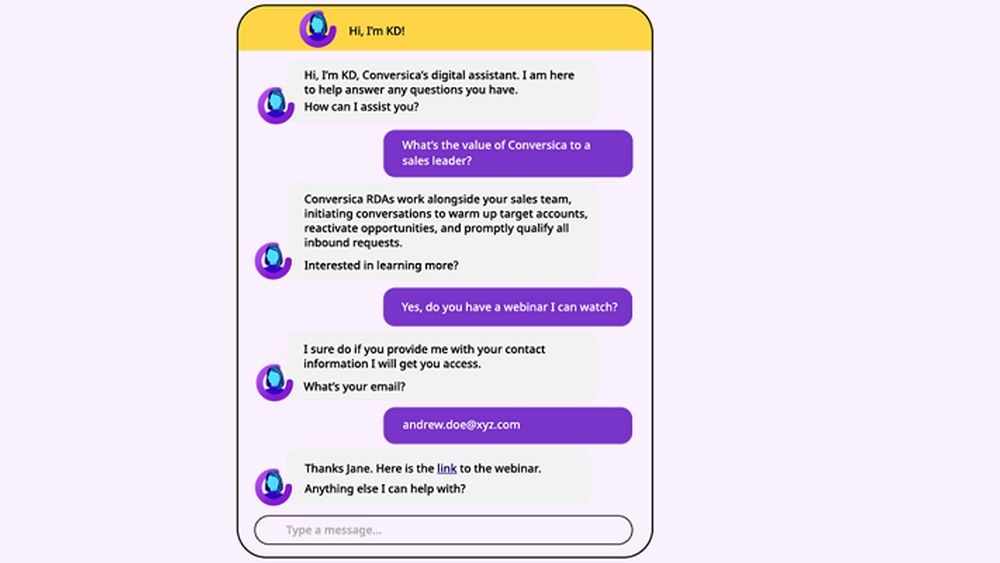
Before you start setting up, it’s helpful to understand what makes Conversica unique. Conversica uses advanced artificial intelligence to create human-like conversations via email, SMS, and even web chat. The system is designed to automate the repetitive work of engaging leads, following up, and gathering information—all while sounding natural and personalized.
Key Features Of Conversica
- Automated two-way conversations: The assistant can ask and answer questions, not just send scripted messages.
- Lead qualification: Conversica can filter out unqualified leads, saving your team’s time.
- CRM and marketing integration: Seamlessly connects with Salesforce, HubSpot, Marketo, and other tools.
- Multichannel communication: Reach contacts through email, SMS, and chat, depending on your setup.
- Analytics and reporting: See detailed stats on conversations, responses, and outcomes.
Why Businesses Choose Conversica
Conversica’s AI assistant isn’t just about sending more messages—it’s about improving conversion rates, reducing manual work, and scaling personalized outreach. According to Conversica’s own data, companies using their platform see an average 30-50% increase in lead engagement rates. For many, this means more qualified leads and higher sales productivity.
Planning Your Conversica Ai Assistant Setup
Success starts with a plan. While Conversica’s platform is flexible, a strong setup depends on clear goals and smart preparation.
Define Your Objectives
Start by asking: What do you want your AI assistant to achieve? Common goals include:
- Responding to new leads instantly
- Qualifying leads for your sales team
- Nurturing cold or inactive contacts
- Scheduling meetings or demos
- Improving customer support response times
Be as specific as possible. For example, “We want to increase lead response speed from 24 hours to 2 minutes” is clearer than “We want more automation. ”
Identify Key Stakeholders
Include everyone who will be affected by the AI assistant:
- Sales and marketing teams
- IT and data teams
- Customer support
- Compliance and legal
Early involvement prevents surprises later. Assign a project manager or main point of contact for the setup process.
Map Your Data Sources
Conversica works best when it can access accurate, up-to-date contact data. List all the systems that hold lead or customer info, such as:
- CRM (e.g., Salesforce, Microsoft Dynamics)
- Marketing platforms (e.g., HubSpot, Marketo)
- Email databases
- Website forms
Knowing where your data lives helps with smooth integration.
Set Success Metrics
Decide how you’ll measure the assistant’s performance. Popular metrics include:
- Number of conversations started
- Response rates
- Meetings scheduled
- Leads qualified
- Sales pipeline growth
Tracking these numbers will show whether your assistant is delivering value.
Getting Started: Conversica Account Setup
Once your goals are clear, it’s time to set up your Conversica account. The process is straightforward, but attention to detail will pay off.
Signing Up And Access
Conversica offers different plans based on company size and needs. You’ll usually work with a sales rep to select the right package. After signing the agreement, your account will be created.
- You’ll receive a welcome email with login credentials.
- Log into the Conversica portal at Conversica’s official website.
- Set up your profile and security options. Use strong passwords and enable two-factor authentication if available.
Initial Configuration
You’ll be prompted to:
- Choose your assistant’s persona (name, gender, tone of voice).
- Select communication channels (email, SMS, chat).
- Connect to your core data sources (see next section).
- Assign user roles and permissions for your team.
At this stage, you’ll also work with Conversica’s onboarding team, who can answer technical questions and guide you through best practices.
Integrating Conversica With Your Crm And Data Sources
For Conversica’s AI to function effectively, it needs access to your lead and customer data. Most organizations connect Conversica to their CRM system.
Supported Integrations
Conversica offers direct integrations with:
- Salesforce
- Microsoft Dynamics 365
- HubSpot
- Marketo
- Oracle Eloqua
- Many more via API
Check with your IT team to confirm which integration is best for your setup.
How To Connect Conversica To Salesforce (example)
- Go to “Settings” in the Conversica portal.
- Select “Integrations” and choose Salesforce.
- Enter your Salesforce admin credentials.
- Authorize Conversica to access your leads, contacts, and custom fields.
- Set up data sync frequency (real-time, hourly, daily).
- Test the integration with a sample record.
Mapping Fields And Data
Conversica needs to know which fields in your CRM match its own fields. For example:
- CRM “First Name” → Conversica “First Name”
- CRM “Email” → Conversica “Contact Email”
- CRM “Lead Status” → Conversica “Lead Status”
Map as many fields as possible for better personalization. Don’t forget custom fields, such as “Product Interest” or “Region. ”
Data Hygiene Matters
A common beginner mistake is ignoring data quality. If your CRM has outdated or incomplete contacts, Conversica may send messages to the wrong people or bounce more often. Clean your database before launching—remove duplicates, fix email typos, and update key information.
Customizing Your Ai Assistant: Persona, Tone, And Messaging
Your AI assistant should feel like part of your brand. Conversica lets you customize many aspects, from the assistant’s name to the way they “speak. ”
Setting The Assistant’s Persona
- Name: Choose a friendly, professional name (e.g., “Alex Taylor”).
- Photo or avatar: Optional, but can make the assistant feel more real.
- Job title: Align with your organization, like “Sales Assistant” or “Customer Success Specialist.”
Adjusting Tone And Language
Conversica allows you to set the assistant’s tone of voice. For example:
- Formal or casual
- Warm or direct
- Short or detailed responses
Match the tone to your audience. For B2B sales, a formal and concise tone may work best. For retail or education, a warmer, friendlier style could be more engaging.
Crafting Custom Messages
Conversica provides pre-built conversation templates, but you should review and customize them. Pay attention to:
- Greeting lines: Make them personal.
- Subject lines: Test different options for higher open rates.
- Call-to-action: Be clear about what you want the recipient to do (reply, schedule, provide info).
- Signature: Include the assistant’s name and your company.
Always check for clarity and simplicity. Avoid jargon or phrases that might confuse non-native English speakers.
Example: Custom Email Template
“Hi [First Name],
I noticed you recently requested information about our [Product Name]. I’d love to help answer any questions or schedule a quick call at your convenience. Just reply to this message, and I’ll set it up.
Thanks,
Alex Taylor
Sales Assistant, [company Name]”
A/b Testing Messages
Conversica supports A/B testing, where you send different versions of a message to see which performs better. This helps improve open and response rates over time.
Assigning Roles And Managing Your Team
A successful Conversica rollout depends on clear roles and responsibilities.
Typical User Roles
- Admin: Full access to all settings and data.
- Manager: Can view reports, manage team, and adjust templates.
- User: Can see assigned leads and assistant conversations.
- IT/Integration: Handles technical setup and troubleshooting.
Assign roles based on job function, not just seniority.
Training Your Team
Conversica provides online training modules and live webinars. Make sure all users understand:
- How to view and respond to conversations
- What the assistant can and cannot do
- How to escalate complex requests to humans
- How to interpret analytics
Setting Up Escalation Paths
No AI is perfect. Set rules for when the assistant should hand off a conversation to a human, such as:
- When a lead asks a technical question
- If the assistant cannot verify contact info
- When a meeting needs to be scheduled with a specific person
This keeps the experience seamless and avoids frustrating your contacts.
Credit: www.conversica.com
Launching Your First Ai Campaign
With your assistant configured, you’re ready to go live. Launching your first campaign is a major milestone.
Choosing Your Audience
Decide which contacts will receive messages from the assistant. For example:
- New inbound leads
- Leads who haven’t responded in 30 days
- Existing customers who are up for renewal
Start with a smaller audience to test and learn, then expand.
Scheduling And Frequency
Conversica allows you to set:
- When messages are sent (day/time)
- How many follow-ups the assistant will send (e.g., 3 emails over 10 days)
- Pause periods to avoid overwhelming contacts
Don’t send too many messages too quickly—give people time to respond.
Monitoring The Launch
During the first days:
- Monitor open and response rates closely.
- Watch for technical errors (bounces, failed sends).
- Collect feedback from your team and recipients.
Be ready to pause or adjust the campaign if you see problems.
Analyzing Performance: Metrics And Reporting
Conversica’s real power is in its analytics. Measuring performance helps you improve results over time.
Key Performance Indicators (kpis)
- Open rate: Percentage of emails opened.
- Response rate: Percentage of recipients who reply.
- Qualified lead rate: Number of leads passed to sales.
- Conversation completion: How many conversations went from start to finish.
- Meeting scheduled rate: For assistants focused on booking appointments.
Viewing Reports
Conversica offers a dashboard with real-time stats. You can filter by:
- Date range
- Campaign
- Assistant
- Lead source
Export data to Excel or connect with your BI tools for deeper analysis.
Example: Performance Data Comparison
Here’s a sample comparison showing how different campaigns perform.
| Campaign | Open Rate (%) | Response Rate (%) | Qualified Leads |
|---|---|---|---|
| New Inbound Leads | 72 | 43 | 56 |
| Re-engagement | 65 | 29 | 18 |
| Renewal Outreach | 78 | 53 | 24 |
This kind of data helps you spot which campaigns need improvement.
Common Reporting Mistakes
- Focusing only on opens (responses matter more!)
- Ignoring negative feedback from contacts
- Not segmenting data by campaign type or audience
Optimizing And Improving Your Assistant Over Time
Launching your assistant is just the beginning. Continuous improvement will drive better results.
Regular Review Meetings
Hold monthly or bi-weekly meetings to:
- Review performance data
- Discuss feedback from sales and marketing
- Identify “stuck” conversations or problems
Updating Templates And Workflows
Change your messaging based on what works. For example, if a certain subject line gets low opens, test a new one. If contacts ask the same question, add it to your FAQ or script.
Adding More Use Cases
Once your first campaign is stable, expand your assistant’s role:
- Use Conversica for post-sale follow-up or customer success.
- Add support for more products or languages.
- Integrate with additional tools (like calendar scheduling apps).
Example: Optimization Timeline
Here’s what a typical improvement process might look like:
| Time Period | Optimization Focus | Result |
|---|---|---|
| Month 1 | Clean data, test initial templates | Baseline metrics established |
| Month 2 | A/B test subject lines | +10% open rate |
| Month 3 | Expand to new lead sources | More qualified leads found |
| Ongoing | Update templates and escalation rules | Steady improvement |
Listening To User And Contact Feedback
Don’t just trust the numbers. Ask your sales team and even contacts who interact with the assistant:
- Was the conversation smooth and helpful?
- Did the AI feel “human” enough?
- Were there any confusing or awkward messages?
This feedback is gold for fine-tuning.
Advanced Setup: Security, Compliance, And Custom Integrations
As you scale your use of Conversica, you’ll need to address more advanced topics.
Data Security And Privacy
Conversica is SOC 2 Type II certified and follows industry best practices for security. Still, your team must:
- Limit access to sensitive data
- Use strong passwords and enable two-factor authentication
- Regularly review permissions for all users
- Ensure data is encrypted in transit and at rest
Compliance Considerations
If you operate in regulated industries (finance, healthcare) or in regions with strict data laws (GDPR in Europe), consult your legal team. Conversica supports data privacy needs, but you are responsible for:
- Getting consent from contacts before outreach
- Honoring opt-out and “do not contact” requests
- Keeping records of messaging and consent
Custom Integrations With Api
For unique use cases, Conversica offers a RESTful API. This allows you to:
- Push leads from custom forms or apps
- Pull conversation data into your own dashboard
- Trigger workflows based on assistant actions
API use requires technical knowledge—work with your IT team or a developer.
Troubleshooting And Common Setup Challenges
Even with the best planning, you may run into issues. Here’s how to solve the most common problems.
Low Response Rates
- Check if messages are going to spam (use a reputable sender domain)
- Review your templates for clarity and relevance
- Clean up your contact list—remove cold or invalid emails
Integration Failures
- Verify API keys and permissions
- Make sure data fields are mapped correctly
- Test with a small batch before a full rollout
Ai Misunderstandings
- Review conversation logs to spot where the AI gets confused
- Update templates or add “fallback” messages for tricky topics
- Escalate to a human when the AI is unsure
Escalation Not Working
- Double-check escalation rules
- Ensure the right team members are notified
- Test by sending a manual escalation
Cost Considerations And Roi
Conversica’s pricing is usually based on the number of contacts and assistants, plus any custom features.
Cost Factors
- Number of active contacts per month
- Channels used (email, SMS, chat)
- Custom integrations or API usage
- Support and training packages
Roi Calculation
Conversica claims an average 5-10x ROI based on increased sales and productivity. To calculate your ROI:
- Track the number of qualified leads or meetings generated.
- Estimate the value of each lead (based on your sales history).
- Subtract the cost of the Conversica platform.
For example, if Conversica helps schedule 20 extra meetings a month, and each meeting is worth $500 in new business, that’s $10,000 in value. If your monthly cost is $2,000, your ROI is 5x.
Example: Roi Table
| Metric | Before Conversica | After Conversica |
|---|---|---|
| Lead Response Time | 24 hours | 2 minutes |
| Meetings Scheduled/Month | 10 | 30 |
| Sales Conversion Rate | 15% | 22% |
| Estimated ROI | — | 6x |

Credit: quintessamarketing.com
Real-world Examples And Best Practices
Learning from others can help you avoid mistakes and find shortcuts.
Case Study: B2b Saas Company
A mid-sized software firm used Conversica to follow up with website demo requests. Before Conversica, reps followed up manually, averaging a 2-day delay and 20% response rate. After setup:
- Response time dropped to under 5 minutes.
- Response rates climbed to 52%.
- Sales team saved over 15 hours per week.
Case Study: Higher Education
A university admissions office used Conversica to engage applicants. The AI assistant answered questions, reminded students of deadlines, and scheduled interviews. Results:
- 40% more students completed applications.
- Staff handled 30% fewer routine inquiries.
- Student satisfaction scores increased.
Best Practices
- Start small: Launch with one use case, then expand.
- Keep messages simple: Avoid complex language or long paragraphs.
- Regularly review conversations: AI improves with your input.
- Be transparent: Let contacts know they’re talking to an AI assistant.
Two Insights Beginners Often Miss
- Personalization goes beyond names: Use any relevant data (product interest, location, last activity) to make messages truly relevant.
- AI assistants need “training”: Reviewing failed conversations and updating templates is critical—AI is smart, but not psychic.
Frequently Asked Questions
What Types Of Conversations Can Conversica’s Ai Assistant Handle?
Conversica’s assistant is designed for lead engagement, qualification, meeting scheduling, and customer follow-up. It can answer common questions, collect information, and escalate complex requests to a human. The assistant is not meant for deep technical support or lengthy negotiations.
How Long Does It Take To Set Up Conversica’s Ai Assistant?
Most organizations can complete the initial setup in 2-4 weeks. This includes account creation, integration, template customization, and testing. Larger or more complex setups (with multiple integrations or strict compliance needs) may take longer.
Can Conversica Integrate With My Existing Crm Or Marketing Tools?
Yes, Conversica supports direct integration with major CRMs like Salesforce, HubSpot, Microsoft Dynamics, and Marketo. For other systems, you can use their API or work with your IT team to build custom connectors.
How Does Conversica Ensure Data Privacy And Compliance?
Conversica follows strict security standards, including SOC 2 Type II certification, data encryption, and support for GDPR. However, your team is responsible for getting consent from contacts, managing opt-outs, and following any industry-specific rules.
Is Conversica’s Ai Assistant Easy To Use For Non-technical Staff?
Yes. The platform is designed for business users, with a simple dashboard, drag-and-drop tools, and clear instructions. Conversica also offers training and support to help non-technical users get comfortable quickly.
Bringing an AI virtual assistant like Conversica into your organization can transform the way you engage leads, customers, and even employees. With the right preparation, setup, and ongoing management, you’ll not only save time—you’ll drive real business results. Start small, learn as you go, and let the power of AI work for you. For more background on AI assistants, you can visit the Conversica Wikipedia page.

Credit: www.nanalyze.com


About author









Add comment