
Nextdocs Vs Google Slides Presentation Features: A Detailed Comparison
When you want to create a professional presentation, your choice of tool can make a huge difference. Two modern options are Nextdocs and Google Slides. Both help you build, design, and share presentations, but they offer different features, strengths, and user experiences. If you’re trying to choose between them, understanding their presentation capabilities is essential. This article explores both platforms in detail, focusing on what really matters for users who want to create engaging, effective slides.
What Are Nextdocs And Google Slides?
Nextdocs is a newer presentation platform that focuses on collaboration, advanced design, and data integration. It tries to blend the best of traditional slide tools with a modern, web-based approach. Nextdocs aims to help teams work together on presentations, especially when they need to include charts, reports, or data from other sources.
Google Slides, part of the Google Workspace suite, is a widely used online presentation tool. It’s known for its simplicity, easy sharing, and integration with Google Drive, making it a popular choice for students, teachers, and businesses. Google Slides is web-based and lets users create, edit, and present slides from any device with internet access.
Even though both tools work in the cloud, their presentation features, design options, and collaboration tools are quite different. Let’s look at how they compare, starting with the basics.
User Interface And Ease Of Use
Choosing a presentation tool often starts with the interface. If the tool is easy to navigate, you’ll spend less time searching for options and more time creating.
Nextdocs: Modern And Minimal
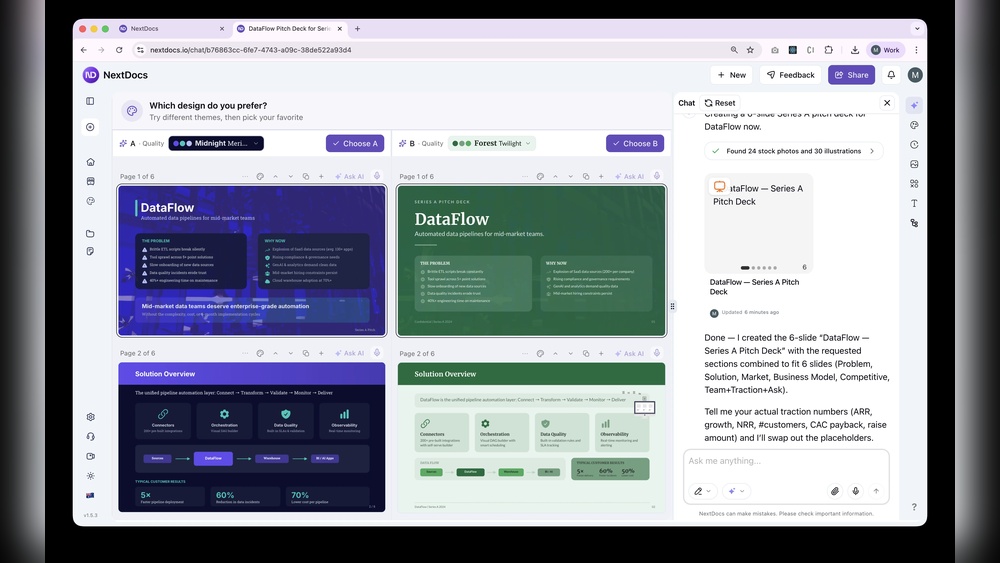
Nextdocs offers a clean, modern interface. Its dashboard feels uncluttered, and the main controls are always visible. The drag-and-drop editor helps you arrange slides quickly. Unlike some older tools, Nextdocs uses contextual menus—the options you see change depending on what you click.
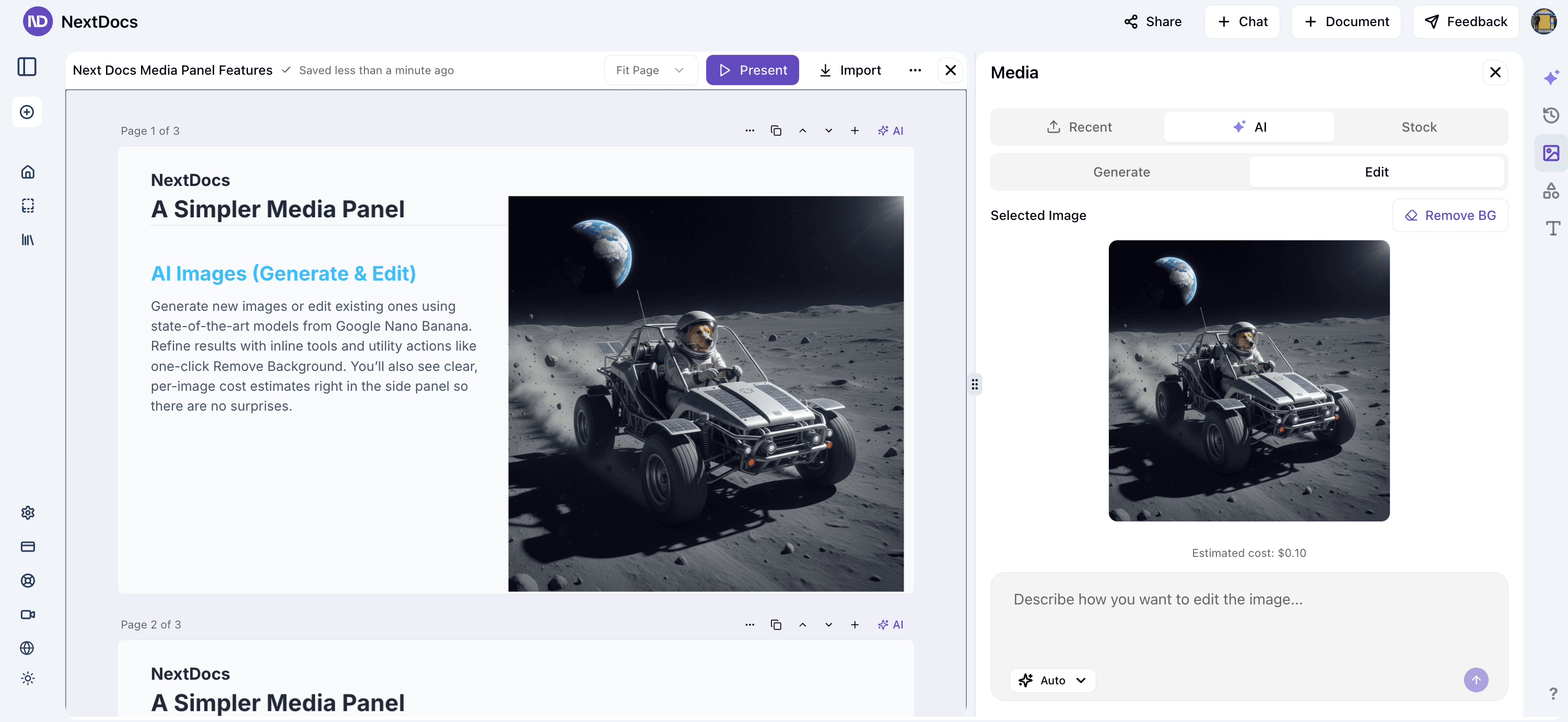
One non-obvious advantage: Nextdocs groups advanced features under expandable menus. This keeps the core experience simple for beginners, while advanced users can unlock more tools as they get comfortable.
Key highlights:
- Responsive design for tablets and desktops
- Minimalistic toolbars
- Live preview as you edit
- Built-in onboarding guides for first-time users
Google Slides: Familiar And Functional
Google Slides feels familiar, especially if you’ve used Google Docs or Google Sheets. The toolbar is at the top, with all main functions just one click away. Most actions—like adding images, shapes, or charts—are easy to find.
Google Slides’ strength is its consistency. Whether you’re a student or a professional, you won’t get lost. The UI is a bit older than Nextdocs, but it’s very reliable.
Key highlights:
- Standard menu and toolbar layout
- Instant autosave to Google Drive
- Well-organized slide sorter
- Works well even on slower internet

Credit: www.youtube.com
Templates And Design Options
The look of your slides can make a big impact. Here’s how each platform helps you get started.
Nextdocs: Rich, Business-focused Templates
Nextdocs offers a wide range of professionally designed templates. Many are tailored for business use—think sales reports, project proposals, and data dashboards. Templates use modern color schemes, clean fonts, and balanced layouts.
A unique feature: Nextdocs lets you import templates from other sources, including PowerPoint. This is useful if your company already has branded templates.
Nextdocs also provides a “Smart Theme” feature. This automatically adjusts colors, fonts, and image placement to fit your content, which is great for users who want professional designs with minimal effort.
Google Slides: Broad And Simple Selection
Google Slides provides a set of basic templates, suitable for school, work, or personal projects. The library covers standard needs like pitches, portfolios, and lesson plans. While the designs are less sophisticated than Nextdocs, they’re easy to customize.
Google Slides also allows users to create their own templates or import from third-party sources. For many, this flexibility is enough, but those seeking advanced, high-impact visuals might find Slides a bit limited.
Slide Creation And Editing Tools
The core of any presentation tool is how you build and edit slides.
Nextdocs: Advanced Layout And Content Blocks
Nextdocs uses a block-based editor. Each slide is made up of blocks—text, images, charts, or media. You can drag blocks anywhere, resize them, and stack them for complex layouts.
Some advanced features:
- Real-time data widgets: Pull live data from Excel, databases, or APIs
- Conditional formatting: Change colors or icons based on data values
- Layer management: Arrange elements above or below others easily
Nextdocs also supports “Master Slides”, so you can set a style once and apply it to many slides. This saves time and keeps your presentation consistent.
Google Slides: Simple, Flexible Editing
Google Slides offers a standard slide editor. You can add text boxes, images, shapes, lines, and charts. The drag-and-drop system is smooth, and resizing elements is quick.
Some helpful features:
- Alignment guides: Snap elements into place with visual guides
- Slide master: Design a master layout for consistent branding
- Basic chart editing: Create pie, bar, or line charts from Google Sheets data
However, Google Slides doesn’t offer live data widgets or advanced block management. It’s best for straightforward layouts.
Collaboration And Teamwork
Modern presentations often involve teams. Both tools offer collaboration, but in different ways.
Nextdocs: Deep Collaboration With Permissions
Nextdocs is designed for teams. You can invite collaborators with specific roles—editor, viewer, or commenter. Each person’s changes show up in real time, and you can see who’s working on what.
A standout feature is comment threads. You can start a discussion on any slide or element, tag teammates, and resolve threads when done. This is useful for collecting feedback or clarifying points.
Nextdocs also includes version history and the ability to restore previous versions. For sensitive content, you can restrict downloading, printing, or sharing outside your organization.
Google Slides: Real-time Co-editing
Google Slides is famous for its real-time editing. Multiple users can work on the same slide deck at once. Changes appear instantly, and you can chat or comment inside the document.
Slides’ collaboration is powered by Google Drive sharing. You control who can view, comment, or edit by adjusting link permissions. Version history is available, so you can roll back changes if needed.
One limitation: Google Slides doesn’t offer as many role-based permissions or discussion threads as Nextdocs. It’s great for basic teamwork but less advanced for complex approval processes.
Integration With Other Tools
A key question: How well does your presentation tool connect with the rest of your workflow?
Nextdocs: Strong Data And App Integration
Nextdocs shines when it comes to data integration. You can embed live charts from Excel, connect to SQL databases, or pull in data from business apps like Salesforce. This is perfect for reports that need up-to-date numbers.
There’s also support for embedding videos, PDFs, and interactive dashboards. If you work with a lot of data or want your slides to update automatically, Nextdocs is a strong choice.
Google Slides: Google Ecosystem Power
Google Slides integrates deeply with the Google Workspace suite. You can pull in charts from Sheets, images from Drive, or videos from YouTube. Sharing is seamless if your team already uses Gmail or Google Calendar.
Slides offers basic add-ons for extra features, but it doesn’t connect as easily to non-Google data sources. For complex business integrations, you’ll need to use third-party tools or scripts.
Offline Access And Device Support
Sometimes you need to work without internet, or on different devices.
Nextdocs: Limited Offline, Broad Device Coverage
Nextdocs is web-based, but it offers a desktop app for Windows and Mac. This app allows limited offline editing—you can view and make simple changes, then sync when back online.
Nextdocs also works well on tablets. The mobile app is in development, but the web version is responsive enough for on-the-go edits.
Google Slides: Strong Offline And Mobile Support
Google Slides lets you enable offline mode in Chrome. You can edit presentations without internet, and changes sync later. There are also dedicated mobile apps for Android and iOS, which are well-designed and support most editing features.
This makes Google Slides a better fit for users who travel or often work without steady internet.
Animation And Multimedia Features
Animations and media can make your presentation more engaging. How do these tools compare?
Nextdocs: Advanced Animations And Interactivity
Nextdocs offers a wide set of animation effects—fade, zoom, fly-in, and more. You can set triggers for animations, like clicking a button or reaching a certain slide.
A unique feature is “Interactive Layers”. You can create clickable hotspots, pop-up info boxes, or custom navigation paths. This is useful for product demos or interactive training.
Nextdocs also supports embedding audio, video, and even live web content. You can add a YouTube video, a live chart, or an audio narration directly to a slide.
Google Slides: Basic Animation, Good Media Support
Google Slides supports simple transitions and object animations (fade, appear, fly in). You can adjust the order and speed, but there are fewer options than in Nextdocs.
Media support is solid—you can add images, videos (from YouTube or Drive), and audio files. However, Google Slides doesn’t offer interactive layers or advanced triggers.
Exporting, Sharing, And Publishing
Once your presentation is ready, you need to share it. Here’s how each tool handles exporting and publishing.
Nextdocs: Flexible Export And Secure Sharing
Nextdocs lets you export presentations as PDF, PowerPoint (PPTX), or interactive web links. You can control if viewers can download or print. For private content, you can set expiration dates on links or require viewer authentication.
Nextdocs also supports embedding presentations in websites or internal portals. This is helpful for company intranets or public reports.
Google Slides: Easy Sharing And Publishing
Google Slides is built for simple sharing. You can send a link for others to view, comment, or edit. There’s also an option to publish to the web—this creates a public slideshow that updates when you make changes.
Exporting is flexible: Download as PPTX, PDF, JPEG, or plain text. Integration with Google Classroom and Drive makes it easy to distribute in schools or teams.
Pricing And Plans
Cost can be a deciding factor, especially for teams or businesses.
Nextdocs: Subscription-based, Business Focus
Nextdocs offers a free trial, but most features are behind a paid plan. Pricing starts at about $12 per user per month for the basic tier. More advanced features (data integration, advanced permissions) are available in higher tiers.
Large organizations can get custom plans with extra security and support. For small teams, Nextdocs can be more expensive than free tools, but the business features may justify the cost.
Google Slides: Free For Most Users
Google Slides is free for personal use. If you need more storage or business features, Google Workspace plans start at $6 per user per month, including Gmail, Drive, Docs, and more.
For most people, the free version is enough. Schools and nonprofits may qualify for additional discounts.
Security And Privacy
Presentations often contain sensitive data. How do these platforms protect your content?
Nextdocs: Enterprise-level Security
Nextdocs offers advanced security features—data encryption, two-factor authentication, and detailed access logs. Admins can control who accesses which presentations, and all data is stored on secure servers.
For regulated industries (finance, healthcare), Nextdocs supports compliance standards like SOC 2 and GDPR. You can also host data on private servers for extra control.
Google Slides: Secure By Default
Google Slides benefits from Google’s global security infrastructure. All files are encrypted in transit and at rest. You can set sharing permissions, require sign-in, and see access activity.
For most users, this level of security is more than enough. Businesses can use advanced controls through Google Workspace.
Accessibility And Language Support
Everyone should be able to use presentation software, no matter their abilities or language.
Nextdocs: Good Accessibility, Multilingual Interface
Nextdocs is built with accessibility in mind. It supports keyboard navigation, screen readers, and high-contrast modes. The interface is available in several languages, and you can create slides in any script.
One insight: Nextdocs includes an accessibility checker. This tool scans slides for issues like missing alt text or low-contrast colors and suggests fixes.
Google Slides: Wide Language And Accessibility Support
Google Slides is available in over 80 languages. It offers built-in accessibility features, including screen reader compatibility and voice typing.
Google’s Explore tool suggests layouts and helps organize content, which can help users with cognitive challenges. Google also offers detailed guides for making accessible slides.
Credit: www.nextdocs.io
Real-world Use Cases
To see the differences clearly, let’s look at how each tool fits different scenarios.
Business Reports And Data-driven Presentations
If you often present live data—for example, sales dashboards or financial summaries—Nextdocs’ data integration is hard to beat. You can pull numbers directly from business databases, and slides update as data changes.
Google Slides can show charts from Sheets, but it’s not ideal for live, complex data.
Education And Simple Team Projects
For group projects, class lessons, or quick team meetings, Google Slides is simple and accessible. Most students and teachers are already familiar with Google Workspace, making sharing and editing easy.
Nextdocs works for education too, but its advanced features may be more than most schools need.
Marketing, Sales, And Interactive Content
If you want interactive presentations for trade shows, sales pitches, or online demos, Nextdocs’ animation and interactivity tools stand out. You can build clickable product tours or interactive infographics.
Google Slides can handle basic animations but doesn’t support advanced interactivity.
Performance And Reliability
You want your presentation software to work smoothly, every time.
Nextdocs: Stable, Cloud-native Performance
Nextdocs uses fast, cloud-based servers. Editing is quick, and presentations load rapidly, even with large images or videos. Nextdocs promises 99.9% uptime for business users.
One non-obvious tip: Nextdocs handles high-resolution images better than many older tools. If you use lots of graphics, this can save time on resizing or compressing files.
Google Slides: Dependable, With Occasional Lag
Google Slides is very reliable, but performance can slow down with extremely large or image-heavy presentations. For most users, the platform is fast and rarely crashes.
Offline editing is smoother in Google Slides, especially on mobile devices.
Data Table: Key Feature Comparison
Here’s a quick overview of how the core features compare.
| Feature | Nextdocs | Google Slides |
|---|---|---|
| Templates | Modern, business-focused, import from PPT | Basic, customizable, user-created |
| Collaboration | Role-based, threaded comments | Real-time, simple sharing |
| Data Integration | Live data, API/DB connections | Charts from Sheets, limited external data |
| Offline Access | Limited (desktop app) | Full (browser/mobile apps) |
| Export Options | PDF, PPTX, web link, embed | PPTX, PDF, JPEG, web publish |
| Pricing | Paid, business focus | Free, Workspace plans |
| Accessibility | Good, checker tool | Excellent, voice typing |
Advanced Features And Customization
For users who want more than the basics, these extras can matter.
Nextdocs: Custom Scripts And Branding
Nextdocs allows custom branding—add your logo, brand colors, and fonts across all slides. You can also use custom scripts to automate parts of your presentation or integrate with internal systems.
A less obvious feature: Nextdocs supports slide analytics. You can see who viewed your presentation, for how long, and which slides got the most attention.
Google Slides: Add-ons And Extensions
Google Slides supports add-ons from the Google Workspace Marketplace. These add-ons let you insert icons, diagrams, or even run polls in your slides.
You can also use Google Apps Script for automation, but it requires some coding knowledge. Branding is possible, but not as seamless as in Nextdocs.
Customer Support And Learning Resources
Getting help quickly is important, especially for business users.
Nextdocs: Dedicated Support And Training
Nextdocs offers email and live chat support for paid plans. There’s also a knowledge base, video tutorials, and onboarding webinars. For enterprise customers, a dedicated account manager is available.
Google Slides: Community And Self-help
Google Slides has a large help center, active forums, and many free tutorials online. Direct support is limited unless you have a paid Workspace plan.
Example Scenarios: Which Should You Choose?
To help you decide, here are some typical user needs and the best fit.
- You need live, data-driven reports for business: Nextdocs is better due to deep data integration.
- You want free, easy-to-use presentations for school: Google Slides is ideal.
- You’re building interactive product demos: Nextdocs offers more advanced features.
- You travel often and need offline editing: Google Slides’ offline and mobile apps are stronger.
- You care about custom branding and analytics: Nextdocs leads in this area.
Comparison Table: When To Choose Each Tool
Here’s a summary to help match your needs with the right platform.
| Use Case | Best Choice | Reason |
|---|---|---|
| Data-Driven Reports | Nextdocs | Live data, rich charts |
| Team Collaboration | Google Slides | Fast, easy sharing |
| Custom Branding | Nextdocs | Advanced controls |
| Education/Student Projects | Google Slides | Free, simple, familiar |
| Interactive Content | Nextdocs | Clickable layers, triggers |
| Offline Editing | Google Slides | Robust mobile/browser support |
Strengths And Weaknesses: A Quick Look
Let’s summarize the main strengths and challenges of each tool.
Nextdocs:
- Strengths: Advanced data integration, interactive features, custom branding, detailed analytics, business-ready templates.
- Weaknesses: Paid plans required for most features, less familiar interface for some users, limited offline support.
Google Slides:
- Strengths: Free to use, easy sharing, strong offline/mobile support, integrates with Google Workspace, simple for beginners.
- Weaknesses: Fewer advanced features, basic templates, limited data integration, less control over branding.
External Perspective
To see more about how presentation tools are evolving, you can check the latest trends and market analysis at Gartner’s Presentation Software Overview.
Frequently Asked Questions
Credit: www.nextdocs.io
What Is The Biggest Difference Between Nextdocs And Google Slides?
The biggest difference is Nextdocs’ focus on advanced data integration and interactivity. Nextdocs lets you pull live data from business systems, create interactive elements, and use detailed analytics. Google Slides is simpler and better for quick, collaborative presentations.
Can I Use Nextdocs Or Google Slides Offline?
Google Slides offers strong offline editing, especially in Chrome and mobile apps. Nextdocs has limited offline support through its desktop app, but it’s best used with a steady internet connection.
Which Platform Is Better For Team Projects?
For fast, simple teamwork, Google Slides is often easier. If your team needs advanced permissions, discussion threads, or works with sensitive data, Nextdocs offers more control.
Are Presentations Made In Nextdocs Compatible With Powerpoint?
Yes, Nextdocs lets you export presentations as PPTX files, so you can open them in PowerPoint. However, some advanced features or animations may not transfer perfectly.
Is Google Slides Really Free For Everyone?
Google Slides is free for personal use and offers all main features at no cost. For business users who need more storage or admin controls, Google Workspace plans are available for a monthly fee.
Choosing between Nextdocs and Google Slides depends on your needs. If you want a free, easy-to-use tool for collaboration, Google Slides is a reliable choice. If your presentations demand live data, interactivity, and advanced customization, Nextdocs is worth considering—even at a higher price. By understanding what each platform offers, you can make a confident decision and deliver more effective presentations.

About author









Add comment