
How to Auto Schedule Bulk Social Media Pins and Posts Easily
Auto Scheduling Bulk Social Media Pins and Posts: A Complete Guide
Social media is everywhere today. Businesses, bloggers, and creators need to reach their audience across platforms like Facebook, Instagram, Pinterest, and Twitter. But posting manually takes time and energy. If you want to share hundreds of pins or posts, doing it one by one is almost impossible.
Auto scheduling solves this problem. With the right tools and strategy, you can plan and publish your content in advance. This guide shows you step-by-step how to auto schedule bulk pins and posts. It covers how scheduling works, choosing the best tools, tips for success, and common mistakes to avoid.
If you’re new to social media automation, you’ll learn practical advice and insights that many beginners miss.
Why Auto Scheduling Matters
Many people think social media is simple: just post whenever you have something to share. In reality, consistency is key. Posting at the right time increases engagement and visibility. Auto scheduling helps you:
- Save hours each week
- Reach global audiences across time zones
- Maintain a steady posting rhythm
- Analyze and improve your strategy
According to Sprout Social, brands that post regularly see twice the engagement compared to those who post randomly. Consistency builds trust. For businesses, it means more sales and loyal customers.
Understanding Bulk Scheduling
Bulk scheduling lets you queue up many posts or pins at once. Instead of uploading each image or writing each caption manually, you prepare them in advance and let a tool publish them on your schedule. This works for:
- Pins on Pinterest
- Posts on Facebook, Instagram, and Twitter
- Stories and Reels (with some tools)
You can schedule posts days, weeks, or even months ahead. Bulk scheduling is especially useful for campaigns, seasonal content, and evergreen posts.
How Bulk Scheduling Works
Most tools have a similar process:
- Upload your content (images, videos, text)
- Set the time and date for each post
- Review and adjust your schedule
- Let the tool publish automatically
Some tools allow CSV uploads. Others have drag-and-drop calendars. Advanced platforms offer analytics to track performance.
Choosing The Right Scheduling Tool
Not all scheduling tools are equal. Some support only certain platforms. Others limit the number of posts or pins you can schedule. Before you pick a tool, consider these factors:
- Supported platforms (Does it work for Pinterest? Instagram? Facebook?)
- Bulk upload features
- Pricing and free trials
- Analytics and reporting
- User interface (Is it easy to use?)
- Integration with other apps
Below you’ll find a comparison of three popular tools for bulk scheduling:
| Tool | Platforms Supported | Bulk Upload | Price (per month) | Free Trial |
|---|---|---|---|---|
| Tailwind | Pinterest, Instagram | Yes (CSV, drag-and-drop) | $19.99 | Yes, 14 days |
| Buffer | Facebook, Instagram, Twitter, LinkedIn | Yes (CSV, calendar) | $15 | Yes, 14 days |
| Hootsuite | All major platforms | Yes (CSV) | $99 | Yes, 30 days |
Tailwind For Pinterest And Instagram
Tailwind is known for Pinterest scheduling. It offers bulk uploads, smart scheduling, and analytics. You can schedule hundreds of pins at once. It also suggests the best times to post.
Buffer For General Social Media
Buffer works well for Facebook, Twitter, and Instagram. It has a simple interface and supports bulk uploads. Buffer is affordable and easy for beginners.
Hootsuite For Advanced Needs
Hootsuite supports all major platforms, including YouTube and LinkedIn. It’s best for teams and agencies. The price is higher, but it offers advanced analytics and integrations.
Setting Up Bulk Scheduling: Step-by-step
To start auto scheduling, follow these practical steps. This guide uses Pinterest as an example, but the process is similar for other platforms.
1. Prepare Your Content
Gather your images, videos, and captions. Organize them in folders by topic or campaign. For Pinterest, each pin needs:
- An image (600×900 pixels recommended)
- Title (up to 100 characters)
- Description (up to 500 characters)
- Destination URL
For Facebook or Instagram, prepare your photos and captions. If you want to use hashtags or mentions, add them in advance.
2. Create A Csv Or Spreadsheet
Most tools let you upload content in bulk using a CSV file. This saves time. Your CSV should include columns for:
- Image URL or file path
- Caption or description
- Scheduled date and time
- Destination URL (for pins)
Example CSV format:
| Image URL | Caption | Date | Time | URL |
|---|---|---|---|---|
| img1.jpg | Summer Sale | 2026-07-01 | 10:00 | www.example.com/sale |
Make sure your data is accurate. Small mistakes (like the wrong URL) can cause big problems.
3. Upload To Your Scheduling Tool
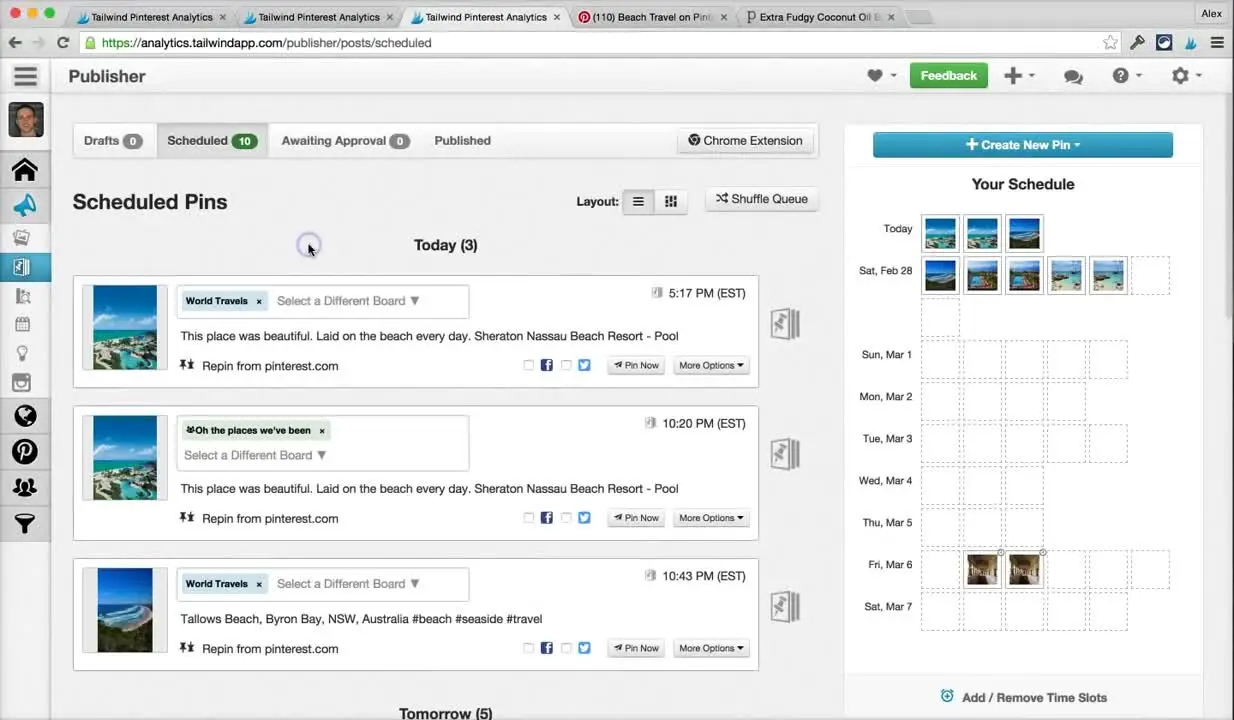
Log in to your tool (Tailwind, Buffer, etc. ). Find the bulk upload option. Select your CSV or drag your images into the calendar. Review each post. Most tools let you edit captions or scheduling times before confirming.
4. Set Scheduling Rules
Some tools have smart scheduling features. They suggest the best times based on your audience. For example, Tailwind’s “Smart Schedule” recommends posting during peak Pinterest hours. You can also set custom rules:
- Post every 30 minutes
- Spread pins evenly over a week
- Avoid posting at night
5. Review And Confirm
Before you finalize, check for errors. Make sure images load correctly and URLs are accurate. Preview your schedule in the calendar view. Adjust times if needed.
6. Activate Auto Scheduling
Once you’re happy, activate auto scheduling. Your tool will publish your pins or posts automatically. You can monitor progress and receive notifications.
Credit: ventureharbour.com
Practical Tips For Bulk Scheduling Success
Auto scheduling sounds easy, but there are hidden pitfalls. Here are tips to maximize results:
- Check image quality. Low-quality images reduce engagement.
- Customize captions. Avoid copying the same text for every post.
- Monitor analytics. Use your tool’s reports to see which posts perform best.
- Test posting times. Experiment with different hours and days.
- Stay flexible. Adjust your schedule for holidays or trending topics.
- Avoid spammy behavior. Posting too much at once can get you flagged.
- Use hashtags wisely. Don’t overuse hashtags; it looks spammy.
- Optimize for mobile. Most users browse on phones.
- Update old content. Refresh evergreen posts with new images or captions.
- Keep backup copies. Save your CSV files and images.
Many beginners miss the importance of customizing each post. Platforms like Pinterest and Instagram reward unique content. Even small changes in captions or images can boost your reach.
Advanced Scheduling Features
Modern scheduling tools offer more than simple uploads. Here are advanced features to consider:
Smart Scheduling
Algorithms suggest the best posting times based on your audience. This increases engagement. Tailwind and Buffer both offer this.
Analytics And Insights
See which pins or posts are most popular. Track clicks, likes, and shares. Adjust your strategy based on real data.
Content Recycling
Schedule evergreen posts to repeat automatically. This keeps your feed active without extra work.
Team Collaboration
For businesses, tools let multiple users manage posts. Assign roles and approve content before publishing.
Integration With Other Apps
Connect your scheduling tool to Dropbox, Google Drive, or Canva. Import content directly for faster workflow.
Comparing Bulk Scheduling Tools
To help you decide, here’s another comparison table showing key features for bulk scheduling:
| Tool | Bulk Upload Type | Smart Scheduling | Analytics | Content Recycling |
|---|---|---|---|---|
| Tailwind | CSV, drag-and-drop | Yes | Yes | Yes |
| Buffer | CSV, calendar | Yes | Basic | No |
| Hootsuite | CSV | Yes | Advanced | Yes |
Each tool has strengths. Tailwind is best for Pinterest. Buffer is simple and budget-friendly. Hootsuite suits larger teams.
Scheduling Pins On Pinterest: Special Considerations
Pinterest has unique rules. Bulk scheduling pins is powerful, but you must follow platform guidelines.
Avoiding Spam
Pinterest limits how many pins you can post per day. Too many pins at once can lead to account suspension. The safe limit is 15–25 pins per day. Spread your pins across boards for better results.
Rich Pins
Use Rich Pins for more detailed information. These pins pull data from your website (like price or product details). Scheduling tools help set this up.
Board Variety
Don’t post all pins to one board. Schedule pins across multiple boards relevant to your topic. This increases reach.
Image Format
Pinterest recommends vertical images (aspect ratio 2:3). Make sure your scheduled pins follow this format.
Scheduling Posts On Facebook, Instagram, And Twitter
Each platform has different rules for bulk scheduling.
Facebook allows bulk scheduling through tools like Buffer and Hootsuite. Focus on:
- Varied post types (photos, videos, links)
- Engaging captions
- Tagging relevant pages
Facebook’s algorithm rewards posts that generate comments and shares. Schedule posts with questions, polls, and calls to action.
Instagram is strict about automation. Many tools only allow scheduling for business accounts. Tips:
- Use high-quality images
- Write authentic captions
- Schedule Stories and Reels if your tool allows
Instagram engagement is highest around lunchtime and evenings.
Twitter supports bulk scheduling with CSV uploads. Tweets should be:
- Short and clear
- Include relevant hashtags
- Avoid overposting (no more than 5–10 tweets per day)
Twitter users like real-time updates. Mix scheduled tweets with live posts for best results.
Real-world Examples
Let’s see how businesses use bulk scheduling to grow.
Example 1: Ecommerce Store
A clothing store wants to promote a summer sale. They create 50 pins with product images and sale captions. Using Tailwind, they schedule pins across 10 boards for the next two weeks. Engagement doubles compared to manual posting. The store saves 8 hours per week.
Example 2: Travel Blogger
A travel blogger has 100 photos from a trip. She uses Buffer to schedule posts on Instagram and Facebook. Each post includes a story caption and location tag. Followers increase by 25% in one month. The blogger can focus on writing, not posting.
Example 3: Marketing Agency
An agency manages social media for five clients. Using Hootsuite, they bulk upload posts for each client, set custom schedules, and track analytics. The team collaborates easily. Clients see steady growth and higher engagement.
Credit: www.churchsocial.ai
Common Mistakes And How To Avoid Them
Even experienced users make mistakes. Here are common errors and how to fix them:
- Posting too much at once. This can lead to spam flags or account bans.
- Ignoring analytics. Without tracking results, you can’t improve.
- Using duplicate content. Platforms punish repeated posts.
- Scheduling during low-engagement hours. Research your audience’s peak times.
- Missing platform updates. Social media rules change often. Check tool compatibility.
- Neglecting captions. Bland or generic captions reduce engagement.
- Poor image quality. Always use clear, high-resolution images.
- Forgetting links. For pins, always include a working URL.
- Not previewing posts. Mistakes in formatting or content can hurt your brand.
- Overlooking mobile optimization. Most users are on phones. Test your posts on mobile.
Many beginners overlook analytics. Successful scheduling isn’t just about posting—it’s about learning what works and adjusting.
Maximizing Engagement With Scheduled Posts
Scheduling saves time, but engagement is the real goal. Here’s how to boost results:
- Reply to comments promptly. Automated posts still need human interaction.
- Mix scheduled posts with live updates. Share behind-the-scenes moments.
- Use seasonal content. Schedule posts for holidays, sales, or events.
- Monitor trending topics. Adjust your schedule to join conversations.
- Collaborate with influencers. Schedule guest posts or pins.
Data shows that brands who combine automation with personal engagement see 30% higher interaction rates. Don’t rely only on scheduling—stay active.
Automation And Seo
Bulk scheduling isn’t just about posting. It affects your website’s SEO. For Pinterest, pins with links to your site drive traffic and improve search rankings. For Facebook and Twitter, scheduled posts can increase backlinks and mentions.
Tips for SEO:
- Use keywords in captions and descriptions
- Link to relevant pages on your website
- Share evergreen content regularly
- Track referral traffic in Google Analytics
Pinterest is especially powerful for driving website traffic. Pins stay visible for months. Scheduled pins with SEO-friendly descriptions can boost your site’s ranking.
Scheduling For Teams And Agencies
If you work in a team, scheduling tools help everyone stay organized. Assign roles:
- Content creator: Prepares images and captions
- Editor: Reviews and approves posts
- Scheduler: Uploads and sets times
Advanced tools offer workflow features. You can set approval steps and assign tasks. This prevents mistakes and keeps your brand consistent.
Agency tip: Always keep a backup of your scheduled posts. If a tool fails, you can quickly reschedule.
Bulk Scheduling And Content Calendar
A content calendar helps you plan your posts. Schedule:
- Campaigns (sales, events)
- Evergreen posts (tips, quotes)
- Seasonal content (holidays)
- Guest content (influencers)
Use your calendar to balance post types and timing. Here’s a sample monthly calendar for a small business:
| Week | Type of Content | Platform | Posting Time |
|---|---|---|---|
| 1 | Product launch | Pinterest, Facebook | 10:00 AM |
| 2 | Tips & guides | Instagram, Twitter | 2:00 PM |
| 3 | Customer stories | 6:00 PM | |
| 4 | Sale announcement | Pinterest, Instagram | 9:00 AM |
This calendar helps you see gaps and avoid posting too much of one type.
Security And Privacy
When using scheduling tools, protect your accounts:
- Use strong passwords
- Enable two-factor authentication
- Review app permissions regularly
- Don’t share login details
Choose tools with good reputations. Read reviews and check for secure connections (HTTPS). If you manage client accounts, use separate logins.

Credit: www.beatoven.ai
Updates And Platform Changes
Social media platforms update their rules often. Scheduling tools must adapt. For example, Instagram changed its API, restricting third-party posting. Always:
- Check tool updates
- Follow platform guidelines
- Test scheduled posts after major changes
For the latest information, visit official sites like Pinterest Business.
Frequently Asked Questions
What Is Bulk Scheduling?
Bulk scheduling lets you upload and plan many posts or pins at once. Instead of posting manually, you prepare your content and set dates. The tool publishes automatically.
Which Tool Is Best For Scheduling Pinterest Pins?
Tailwind is the most popular for Pinterest. It offers bulk uploads, smart scheduling, and analytics. Other tools support Pinterest, but Tailwind is designed for it.
Can I Schedule Instagram Stories And Reels?
Yes, some tools like Hootsuite and Later allow scheduling Stories and Reels. You need a business account. Not all tools support these features.
How Many Pins Or Posts Can I Schedule At Once?
Most tools let you schedule hundreds at once, but platforms have limits. Pinterest recommends no more than 25 pins per day. Facebook and Twitter allow more, but avoid spammy behavior.
Does Auto Scheduling Affect Engagement?
Auto scheduling increases consistency, which boosts engagement. But it’s important to mix automated posts with real-time interaction. Reply to comments and stay active.
Scheduling bulk pins and posts is one of the smartest ways to grow your presence and save time. Choose the right tool, follow best practices, and keep learning from your analytics. With practice, you’ll reach more people and build a stronger brand.


About author









Add comment